

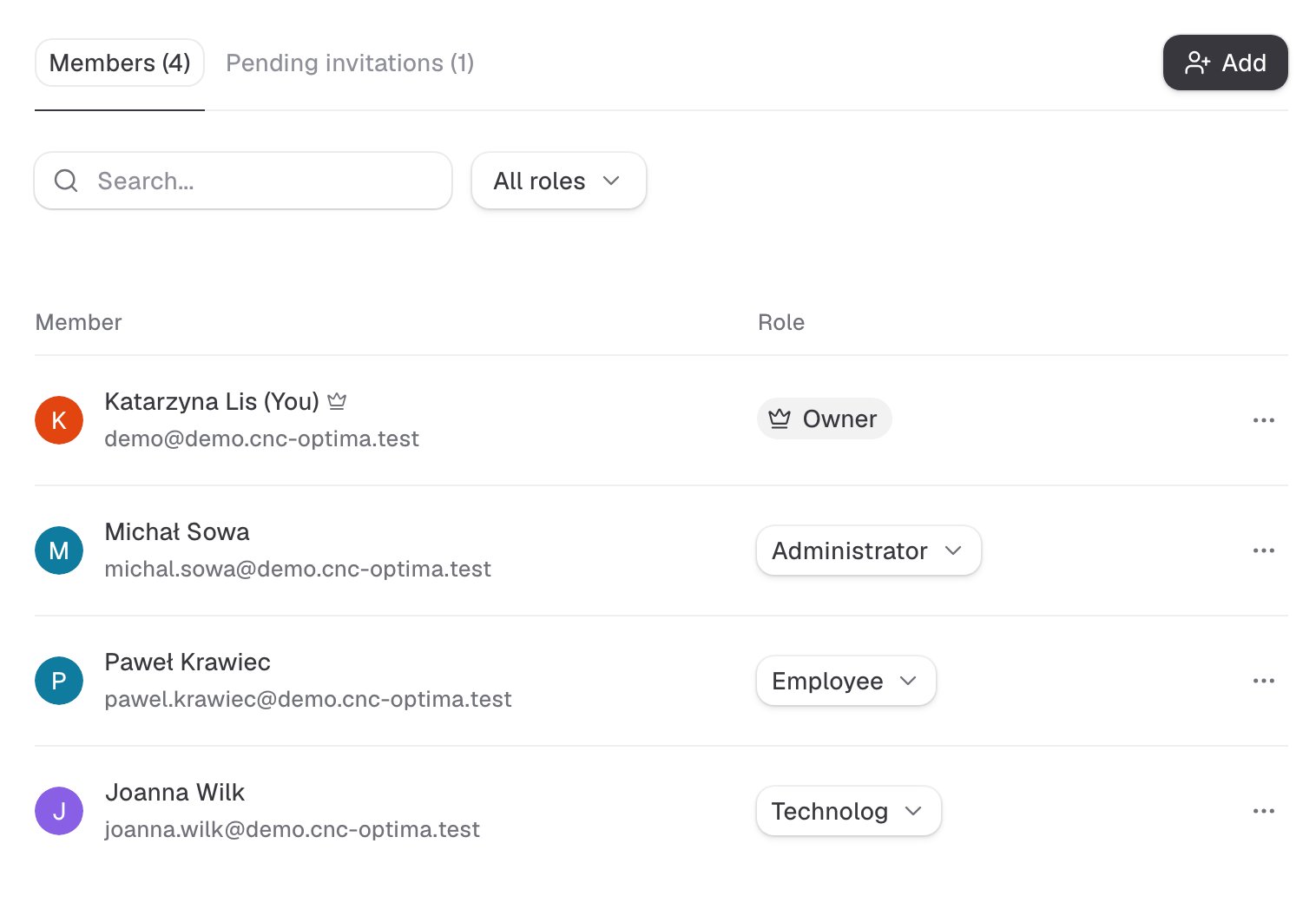
Only people with the Manage the team permission can invite, change roles and remove people: the owner, administrators and anyone whose custom role includes it. Everyone else sees the list and the roles without filters or invitations, and the menu next to their own name only offers Leave company.
Invite a coworker
An invitation is an e-mail with a link. Your coworker follows it to join your company straight away, with the role you picked for them.1
Open the invitation
Click Add above the team list. The Invite a coworker window opens.
2
Enter the address and pick a role
In Email address, enter the address your coworker will sign in with. The invitation only works for that address, so if someone has a private and a work mailbox, ask which one they use.Role starts at Employee, the role for someone who prepares quotes and runs orders. You can change it now or any time later. To choose a role, see Roles and permissions.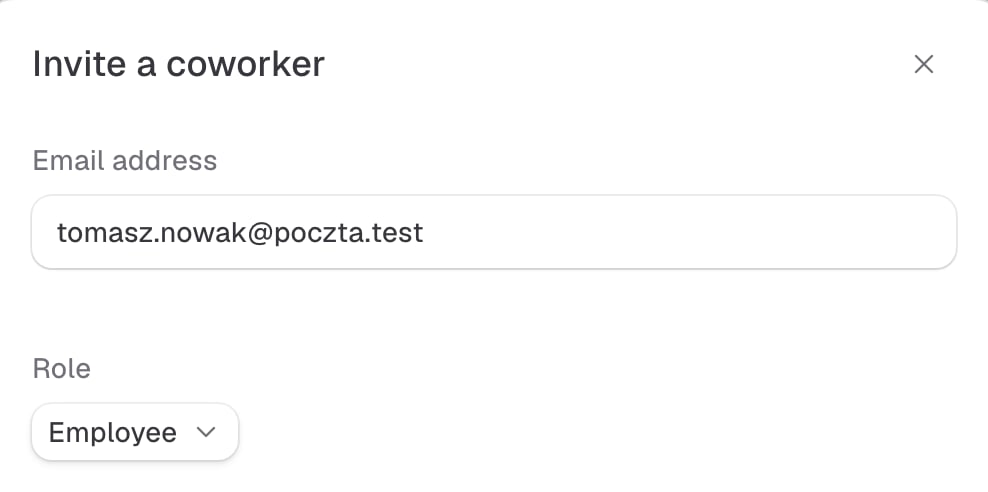
3
Send
Click Send invitation. The window stays open and confirms Invitation sent to the address, with the Invitation link and its expiry date below. You can also pass the same link on by chat or text message with Copy invitation link.Once you click Close, the invitation shows up under Pending invitations with the status Pending.
How many people can you invite?
Your plan includes a set number of seats. Every person on the team and every invitation waiting to be accepted takes a seat. An expired invitation frees its seat.- On the Pro and Business plans paid by card you can keep inviting once the seats run out. The list then shows All seats in your plan are taken, and the invitation window adds a This seat is over your plan box with a checkbox to accept the extra charge. Send invitation stays disabled until you tick it. The amount is shown in that box, and it’s charged only from the day your coworker accepts the invitation.
- On the Starter plan and on an individual contract the number of seats is fixed. The Starter plan covers one person. When the seats run out, Add is disabled and the note above the list leads to Upgrade plan or, on an individual contract, to Contact us. You can also free a seat by removing someone or cancelling an invitation.
Keep track of pending invitations
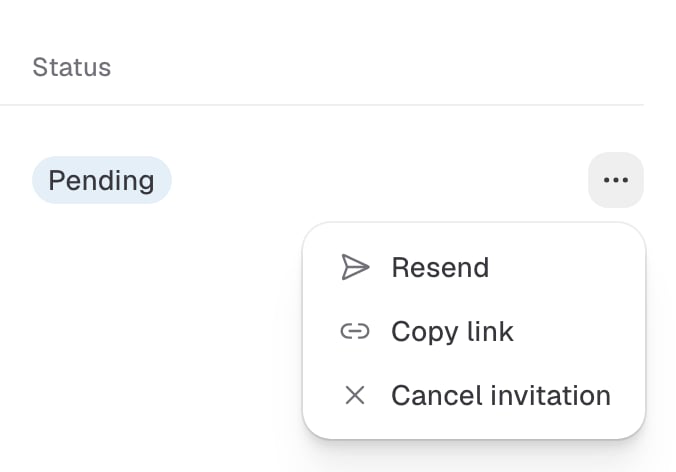
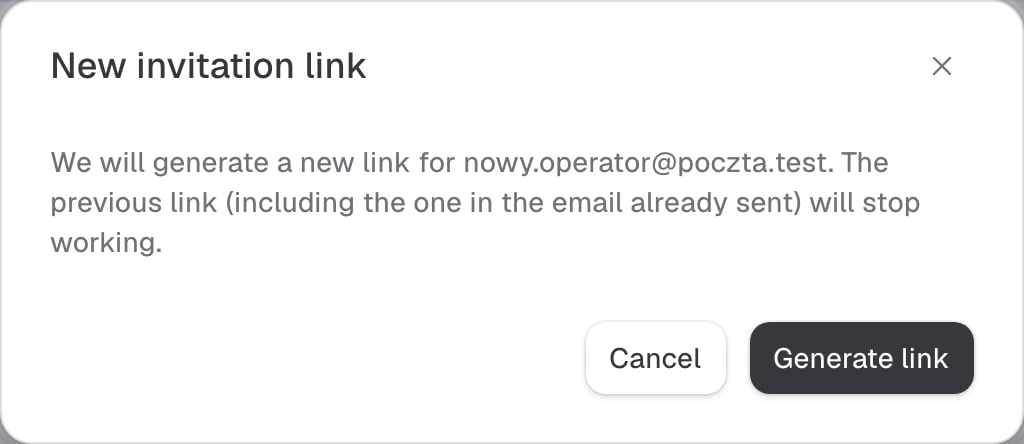
An invitation waits until your coworker clicks the link, and the link is valid for 7 days. The Pending invitations tab shows the address, the role, who sent it and the status: Pending or Expired. Click the three-dot icon next to an invitation to pick one of these:- Resend sends the e-mail again with a new link, valid for another 7 days. Handy when the message landed in spam. The previous link stops working.
- Copy link gives you a new link to send by chat, without sending an e-mail.
- Cancel invitation withdraws the invitation at once, without asking again. The link stops working and the seat is freed.
How does an invited person join?
You can forward this part to your new coworker. When they open the link from the e-mail, they see a Join page with your company’s name and the role they’re invited as:- They already have a CNC Optima account: they click Sign in, sign in with the address the invitation went to, and click Join the company.
- They don’t have an account: they click Create an account. The e-mail address is filled in and can’t be changed. After confirming it with the code from the message, they’re back on the invitation.
The invitation only works for the address it was sent to. If your coworker is signed in with another address, they’ll see Wrong account and a Sign in with another account button. If the link expired or was cancelled, they’ll see Invitation expired or Invitation cancelled: send them a new invitation. More on signing in from an invitation in Signing in and passwords.
Change a coworker’s role
When someone takes on new duties, say the person who prepares quotes should also manage the team, change their role. Click the role in their row and pick a new one. The change is saved at once and the app confirms it with Role updated.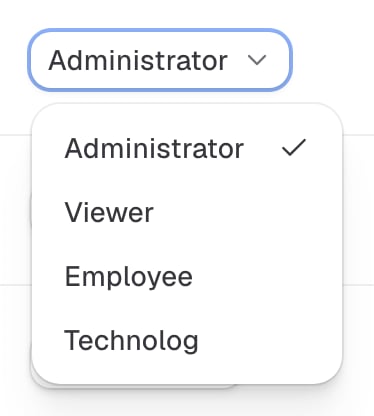
- You can’t change your own role. Next to your name the role is plain text.
- The owner’s role isn’t changed in the list. Ownership moves to someone else only through Transfer ownership.
- An administrator changes the roles of people below them. Only the owner can give or take away Administrator and roles with Manage the team or Billing.
Remove someone from the company
When someone leaves the shop, remove them from the company so they lose access to your data and free their seat.1
Open the menu next to them
Click the three-dot icon in their row and choose Remove from company. Their e-mail address is shown under the item, so you can check it’s the right person.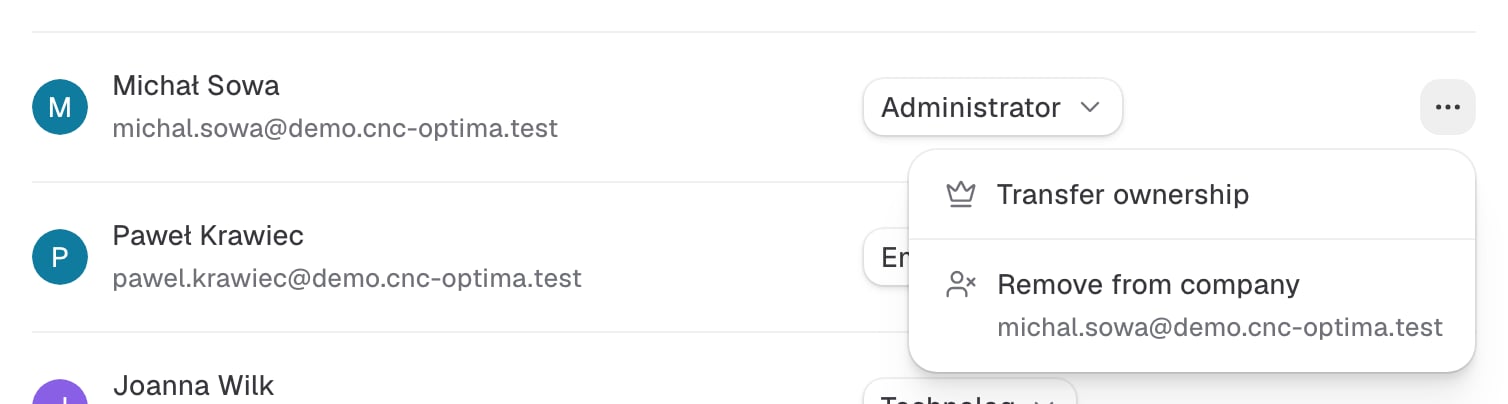
2
Confirm
In the Remove this member? window, click Remove.
Transfer ownership of the company
The owner has the final say: they’re the only one who creates roles, gives the Administrator role and can’t leave the company. If someone else should run the company, for example a partner or a successor, transfer ownership to them. Click the three-dot icon next to that person, choose Transfer ownership and confirm in the Transfer ownership? window with Transfer ownership. They become the owner and you become an administrator.Leave a company
If you no longer work with a company, for example your help with a friendly shop’s quotes has come to an end, you can leave it. Click the three-dot icon next to your name, choose Leave company and confirm in the Leave this company? window with Leave. You’ll lose access to that company’s quotes, orders and clients. If you change your mind, someone who manages the team can invite you back. The owner can’t leave until they’ve transferred ownership. Next to their name the item is greyed out with the hint Transfer ownership first.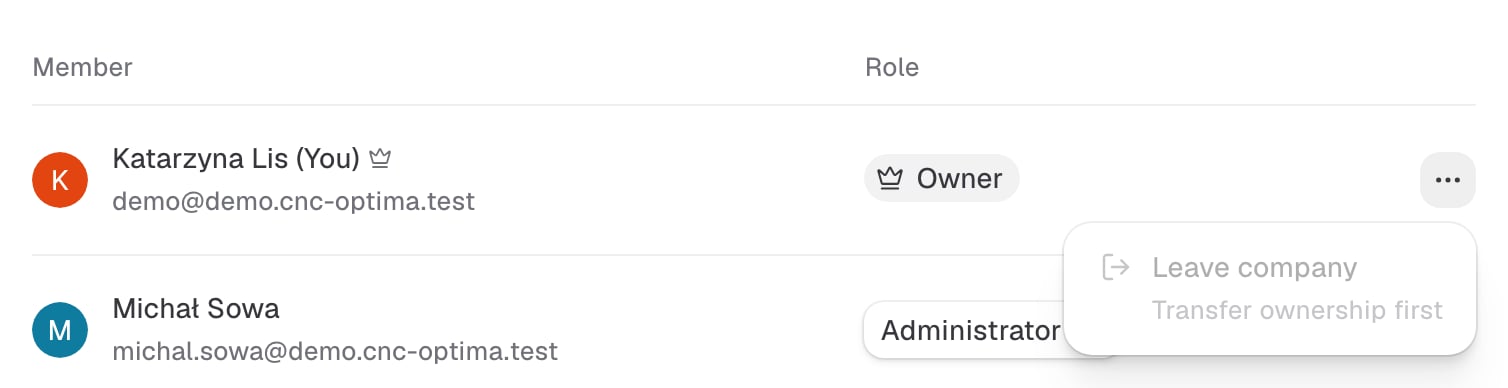
What’s next?
Roles and permissions
See what each role can do and create your own, for example for a process engineer.
Several companies, one account
Switch between companies and accept invitations inside the app.
Plan and billing
See how many seats your plan includes and change it as the team grows.