

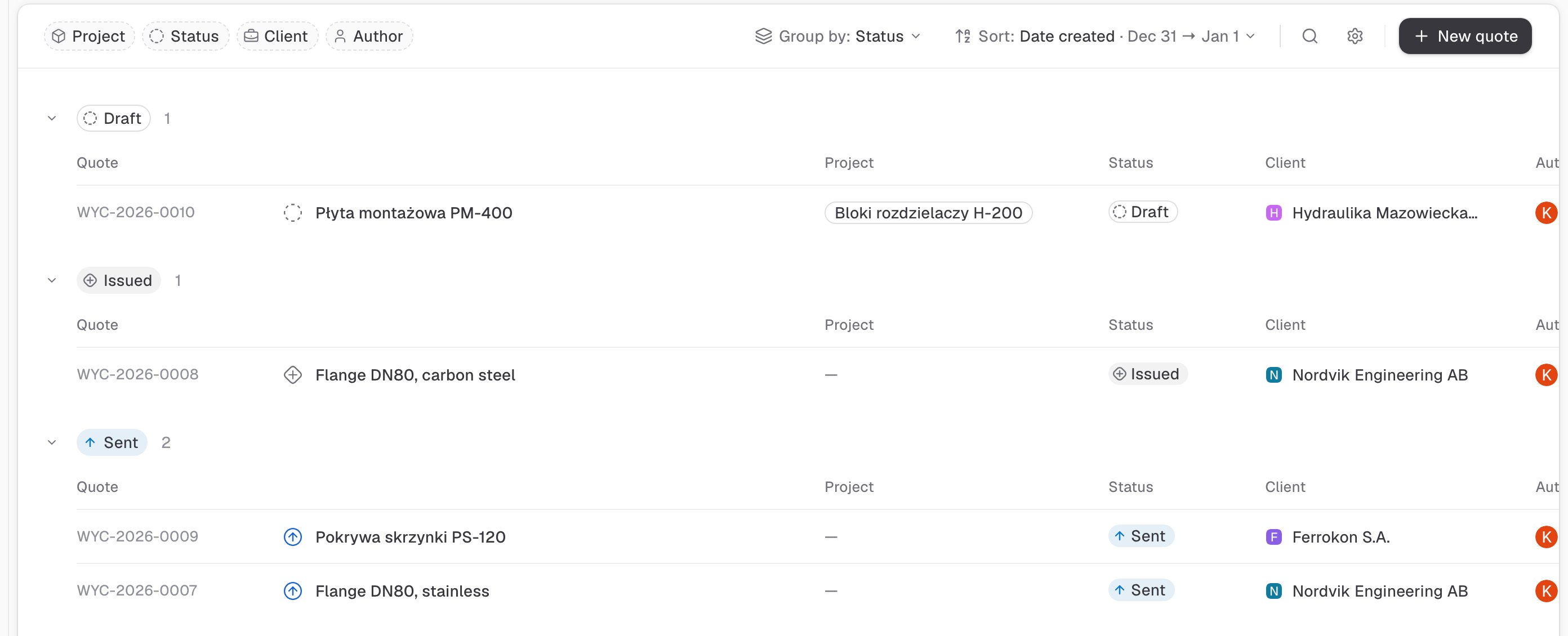
Find a quote
When you have dozens of quotes, narrowing the list is quicker than scrolling through it.1
Search by name
Click the magnifier icon in the bar above the list and start typing, for example
sleeve. The list narrows as you type. Search only looks at the quote name, so use the filters below to find quotes by client or project.2
Narrow down with filters
Click Project, Status, Client or Author and tick one or more entries. You can combine filters, for example every sent quote for Ferrokon.
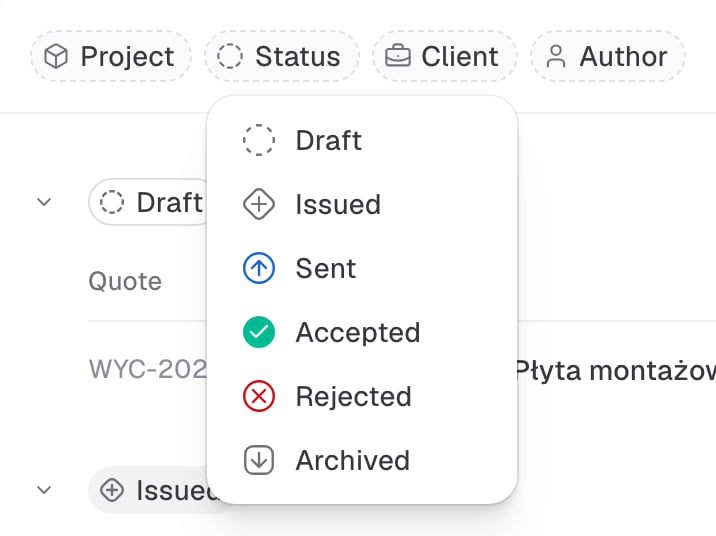
Where are archived quotes?
Archived quotes would only get in the way day to day, so the list hides them while no status is ticked in the filter. To see them, click Status and tick Archived. Search doesn’t reach the archive either until that status is ticked. Quotes land in the archive when you set that status yourself, and rejected quotes move there on their own after the time set for your company. More on that in Statuses and the PDF offer.Group and sort
The Group by: button splits the list into groups by status (the default), author, client or project, or you can pick No grouping. Each group shows how many quotes it holds, and the arrow next to its name collapses a group you don’t need right now. The Sort: button sets the order inside the groups, for example by date created, name, Quote number, client or net value. Status sorts by the stage of the quote, from draft to archived, not alphabetically. The Direction: row at the bottom of the menu flips the order; by default the newest quotes are on top.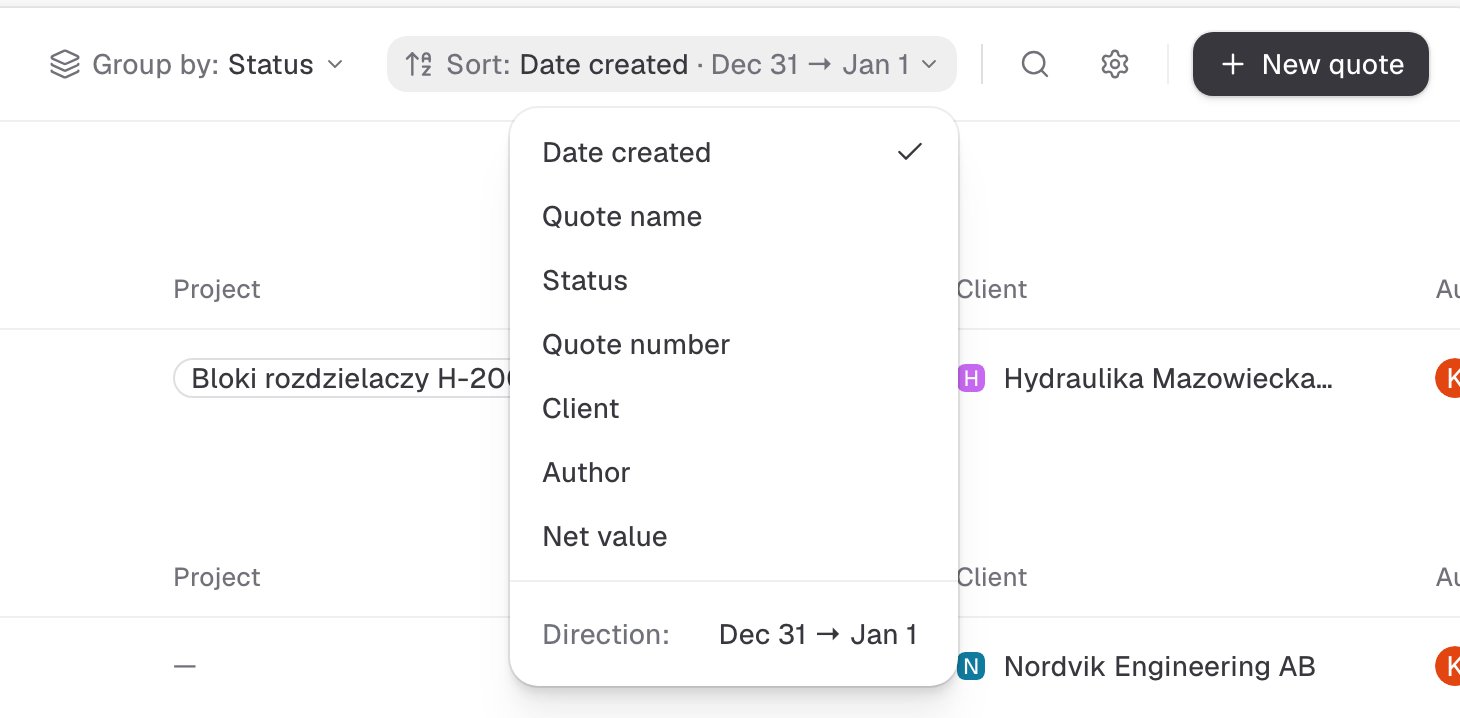
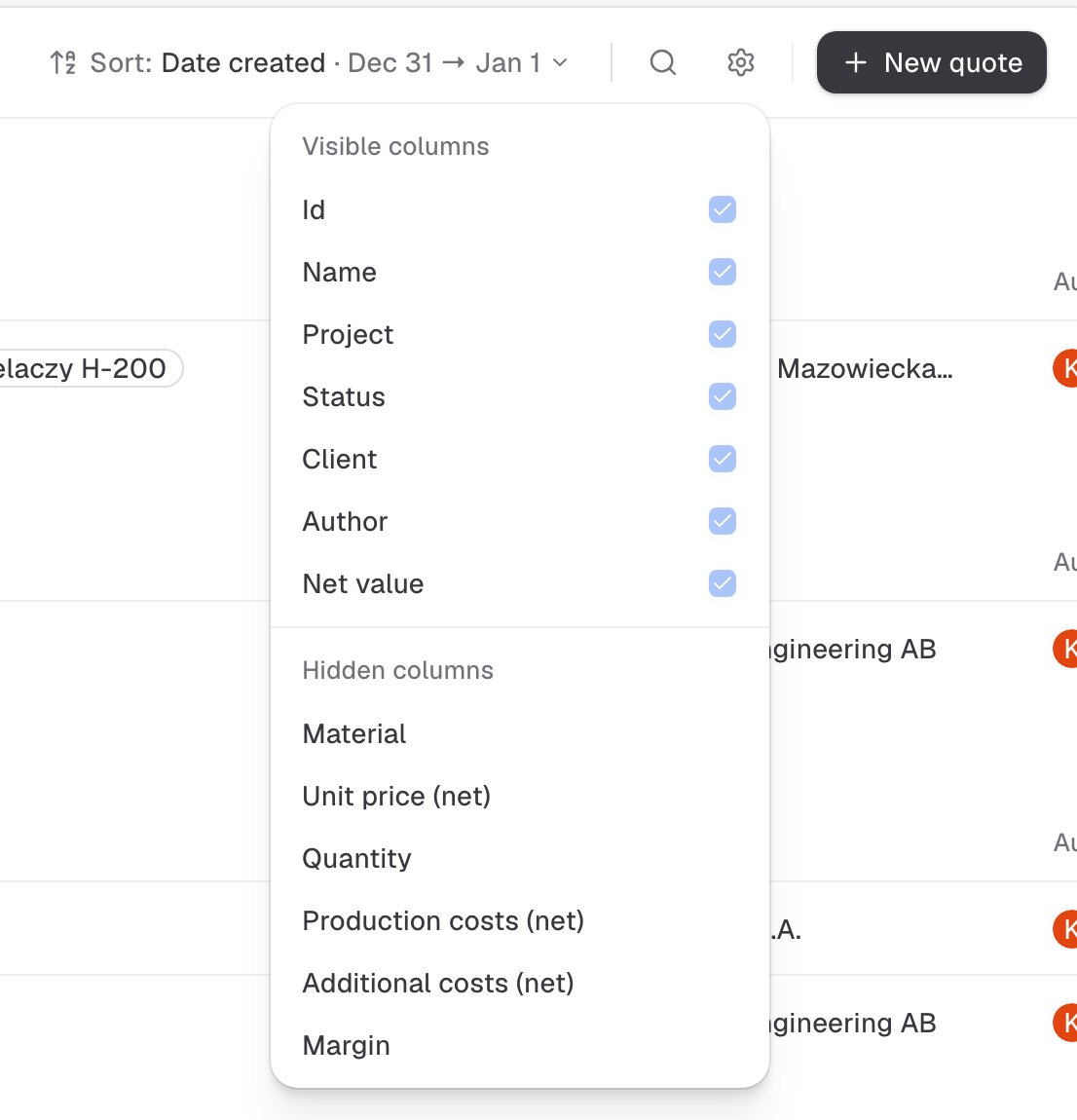
Show more columns
Want to see at a glance what a part is made of or how much you make on each quote? Click the gear icon (List settings) and tick columns under Hidden columns:- Material and Quantity, so you can tell 200 steel sleeves from 10 aluminium plates without opening the quote.
- Unit price (net), the net value divided by the quantity.
- Production costs (net) and Additional costs (net).
- Margin, what’s left of the net value after production and additional costs, with the discount already taken off.
Open, preview or delete a quote
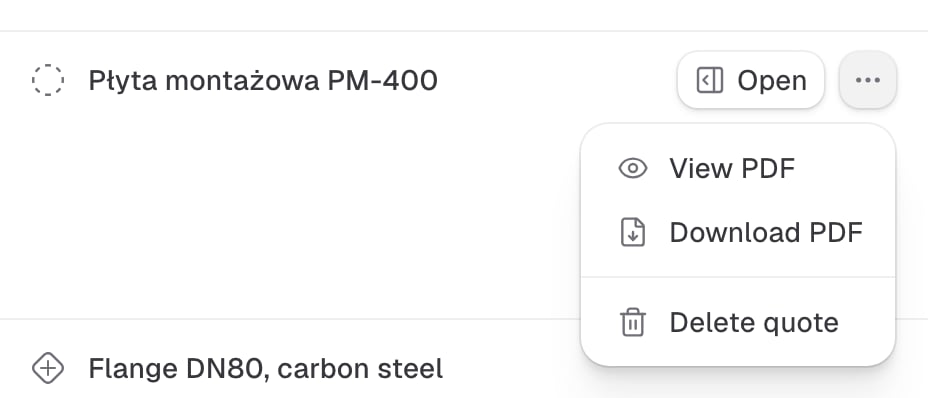
Hover over a row. Next to the name you’ll see Open and a three-dot icon with a menu:- View PDF opens the client’s offer in a new tab.
- Download PDF saves it to your computer.
- Delete quote deletes the quote after you confirm.
Change the status from the list
You don’t need to open a quote to mark it as sent or accepted. Click its status in the Status column and pick a new one. The change is saved right away.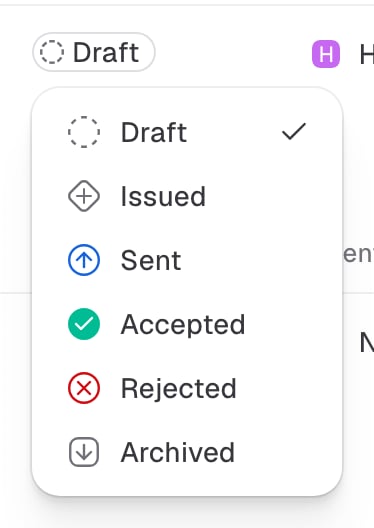
Work on several quotes at once
The client accepted three variants in one go, or you want to send them every offer in a single file? Select the quotes and do it in one move.1
Select quotes
Hover over a row and tick the checkbox at its start. The checkbox next to a group name selects every quote in that group.
2
Pick an action in the bar
A bar with the number of selected quotes appears at the bottom of the screen:
- Change statuses sets one status on every selected quote. If they already share a status, the button shows its name.
- Download PDF saves all selected quotes in one PDF file, for example
quotes-3.pdf. - Delete quotes deletes them after you confirm. This can’t be undone either.
3
Clear the selection
The cross at the end of the bar clears the selection.

Changing statuses, dragging and deleting need the Edit production data permission. Without it, statuses are read-only and Change statuses and Delete quotes are disabled. Previewing and downloading PDFs works for anyone who can see quotes. More in Roles and permissions.
What’s next?
Create a quote
Price a new part step by step.
Statuses and the PDF offer
Take a quote from draft to accepted and send the client the offer.
Clients
Add the company you’re quoting for.