

What statuses can a quote have?
The app doesn’t send the offer to the client for you, and it doesn’t change the status when the client replies. You or someone on your team set statuses, so it pays to do it straight away: then the quote list tells the truth, for example how many offers are waiting for an answer.
Change a quote’s status
1
Open the quote
In the quote list, click the quote’s name, for example “Pokrywa skrzynki PS-120”.
2
Click the status next to the name
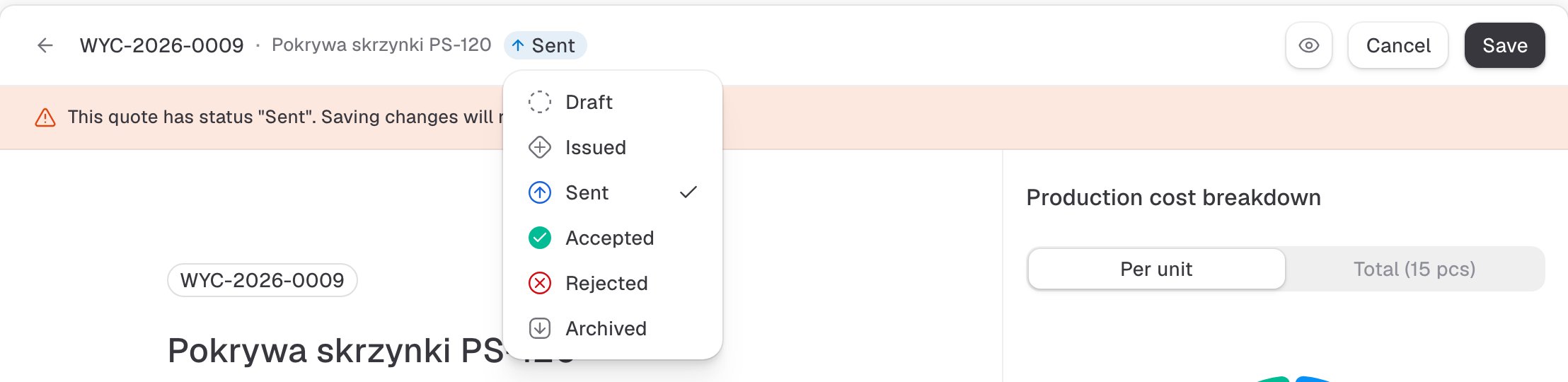
In the header, next to the quote number and name, click the current status and pick a new one.
What happens when you change a sent quote?
A sent offer is a promise to the client, so the app makes sure its content doesn’t change quietly. When you open a quote with the status Sent, Accepted, Rejected or Archived, a warning above the form says that saving changes will revert it to draft. You can still edit every field. After you click Save, the quote goes back to Draft, so it’s clear the client has an older version and needs a new one. A few things worth knowing:- If you open the quote and click Save without changing anything, the status stays as it was.
- If you pick a status in the header yourself during the same edit, saving keeps that status and doesn’t revert the quote to Draft.
- An Issued quote has no such protection: you can correct it without the status changing.
Rejected quotes move to the archive on their own
So the list doesn’t fill up with offers the client turned down, a rejected quote gets the Archived status on its own after a while and leaves the list. That time, 30, 60 or 90 days, is set for the whole company by someone with access to company settings, in Archive rejected quotes. Details in Company details. Nothing deletes an archived quote: you’ll see it when you tick Archived in the Status filter of the quote list, and you can change its status back at any time.Preview the PDF offer
Before you send anything, look at the offer through the client’s eyes.1
Open the preview
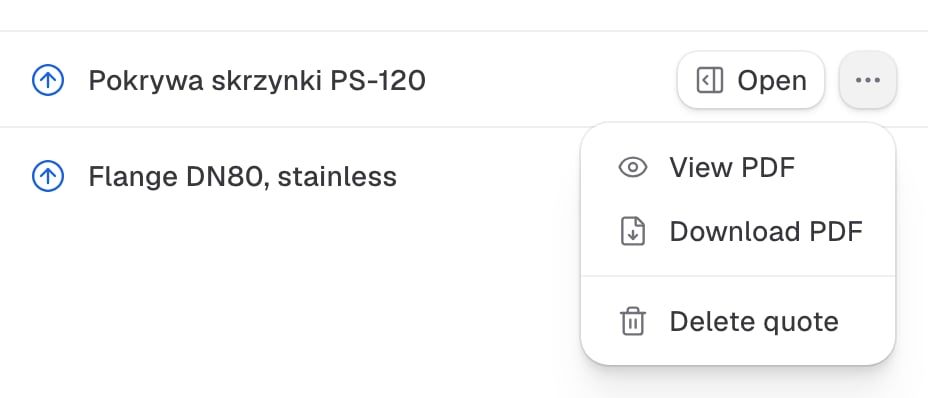
In an open quote, click the eye icon (View PDF) in the top right corner. Or, in the quote list, hover over a row, click the three-dot icon and choose View PDF.
2
Check the offer in the new tab
After a moment the offer opens in a new browser tab.
Download the offer and send it to the client
1
Download the PDF
In the quote list, hover over the row, click the three-dot icon and choose Download PDF. The file is saved under the quote number, for example
WYC-2026-0009.pdf.2
Send it to the client
Attach the file to your e-mail to the client like any other attachment.
3
Mark the quote as sent
Go back to the quote and set the status to Sent, so the team knows the offer is with the client.
What will the client see in the offer?
The offer shows the client prices and terms; your calculation stays in the app.
You choose the offer’s language and currency in each quote, in Quote language (Polish, English or German) and Quote currency. So Nordvik gets an offer in English in EUR and Ferrokon one in Polish in PLN, while the app stays in your language. Your company details in the header come from Company details.
Choose how the offer looks
You can match the offer to your company’s style: pick one of four layouts and the colour of the highlighted areas. The look is shared by the whole company, so every offer looks the same no matter who downloads it.On your first download
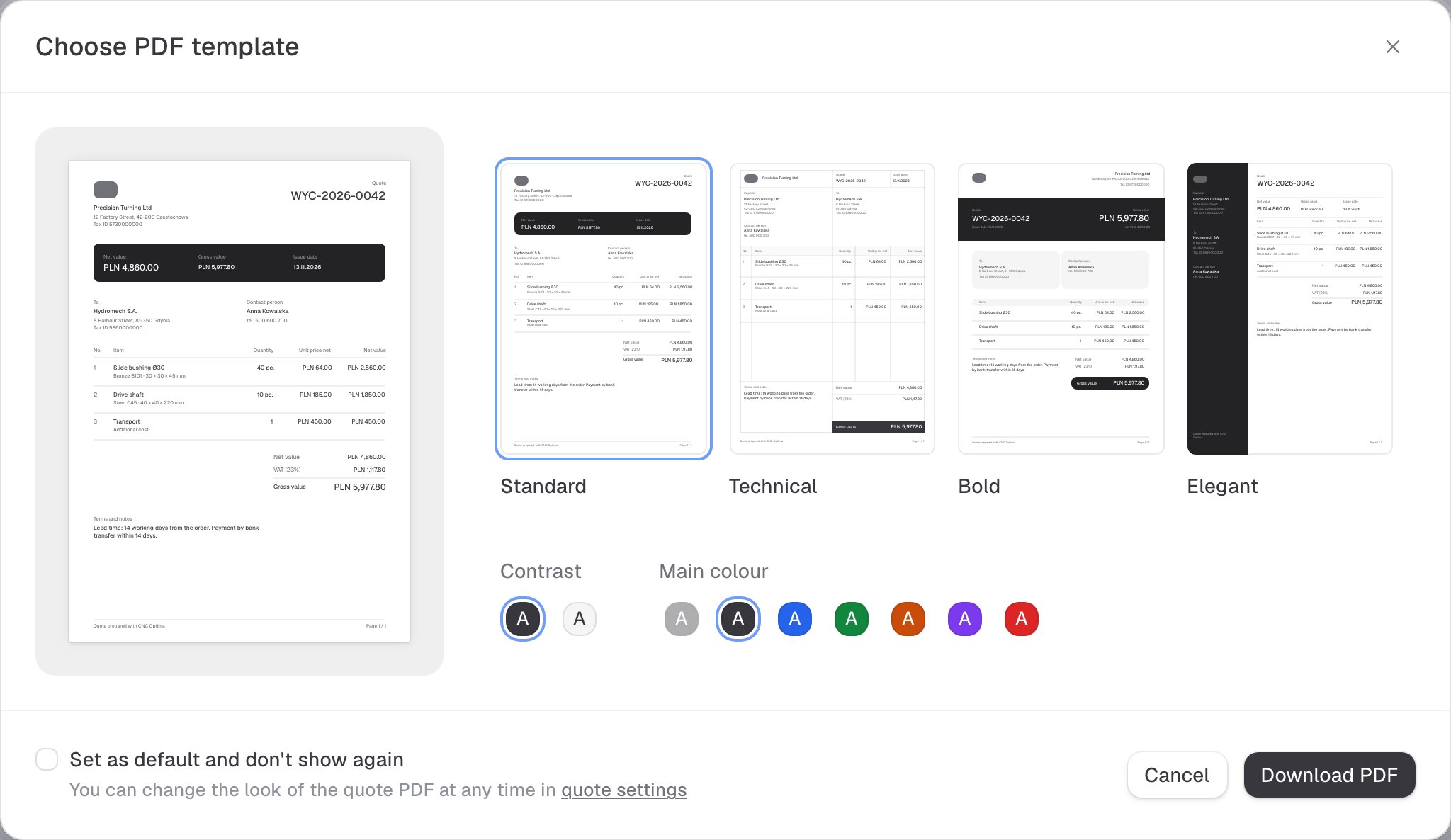
The first time you click Download PDF or View PDF, the Choose PDF template window opens with a preview of a sample offer.1
Pick a layout
Under Layout, click one of the cards: Standard, Technical, Bold or Elegant. They all carry the same content and amounts; only the arrangement differs.
2
Set the colours
Under Contrast, choose a light tint or the full colour for the highlighted areas, and under Main colour pick a colour. The first swatch is the colour taken from your company logo; it stays inactive until the company has a coloured logo.
3
Remember the choice and download
Tick Set as default and don’t show again if this look should apply to the whole company. Then click Download PDF (or Open preview).
In settings
You can change the look at any time in Settings → Quotes, under Preset settings. Click a card under Layout or a swatch under Colour scheme: the change is saved at once, with no save button, and applies to every offer from then on.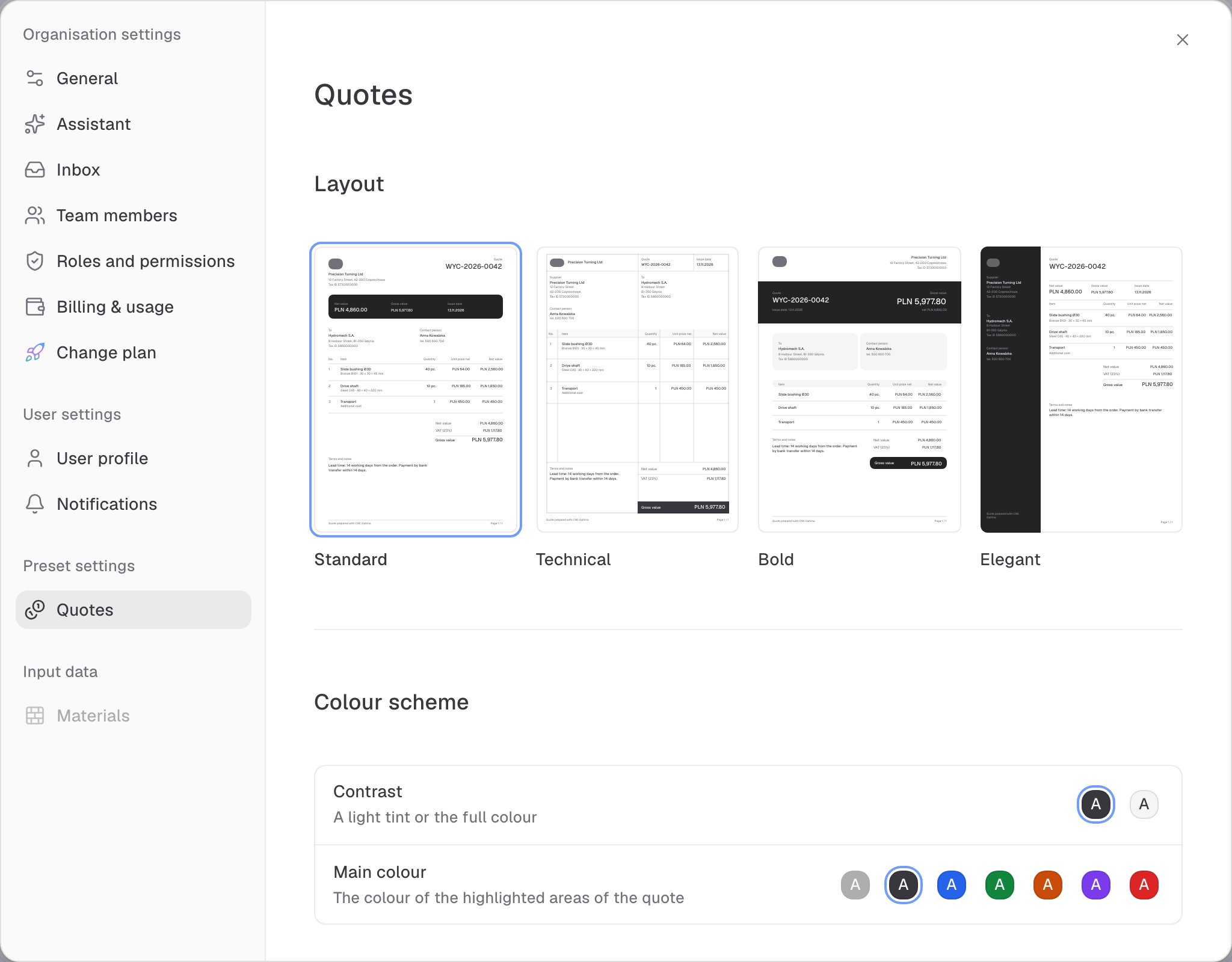
The template window and the Quotes settings page are available to people with the Edit production data permission. Everyone else downloads offers straight away, in the look set for the company. More in Roles and permissions.
What’s next?
The quote list
Change statuses and download the offers of several quotes at once.
How is the price calculated?
See where the amounts the client sees in the offer come from.
Company details
Add the logo and details printed in the offer header.