

Browse projects
In the menu, choose Projects. Each project is a card with its name, its client (or No client) and the number of orders. The cards are sorted alphabetically.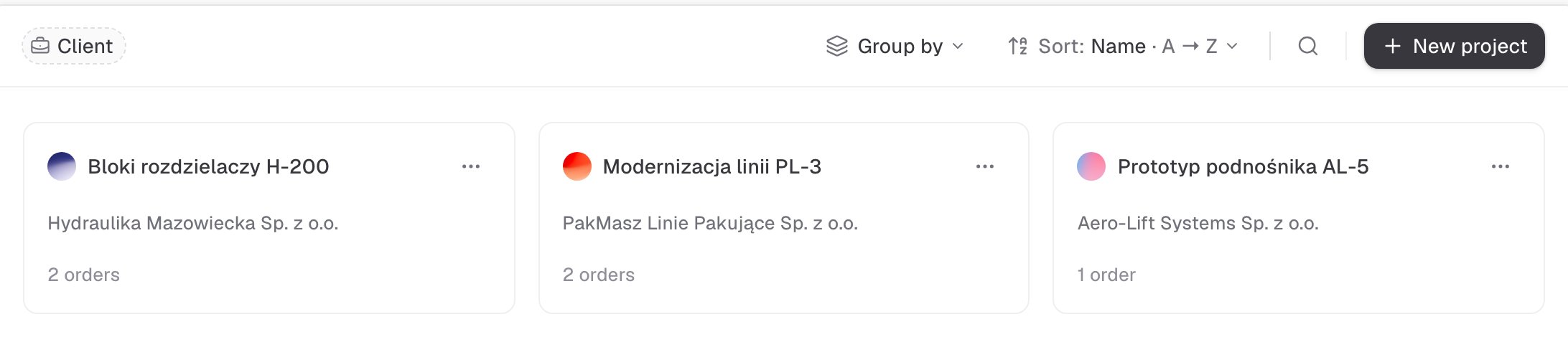
- Search projects (magnifier icon) looks in the project name and the client name, ignoring case and Polish accents.
- The Client filter shows the projects of the clients you pick.
- Group by client arranges projects under company names, with projects without a client at the end.
- Sort orders the cards by name, date created or number of orders.
Create a project from selected orders
This is the quickest way to group orders you already have. The project takes the client of those orders.1
Select the orders
In the menu, choose Orders and tick the checkboxes of the orders that should go into the project. They must all have the same client, or none.
2
Click Create project
On the bar that appears at the bottom of the screen, click Create project.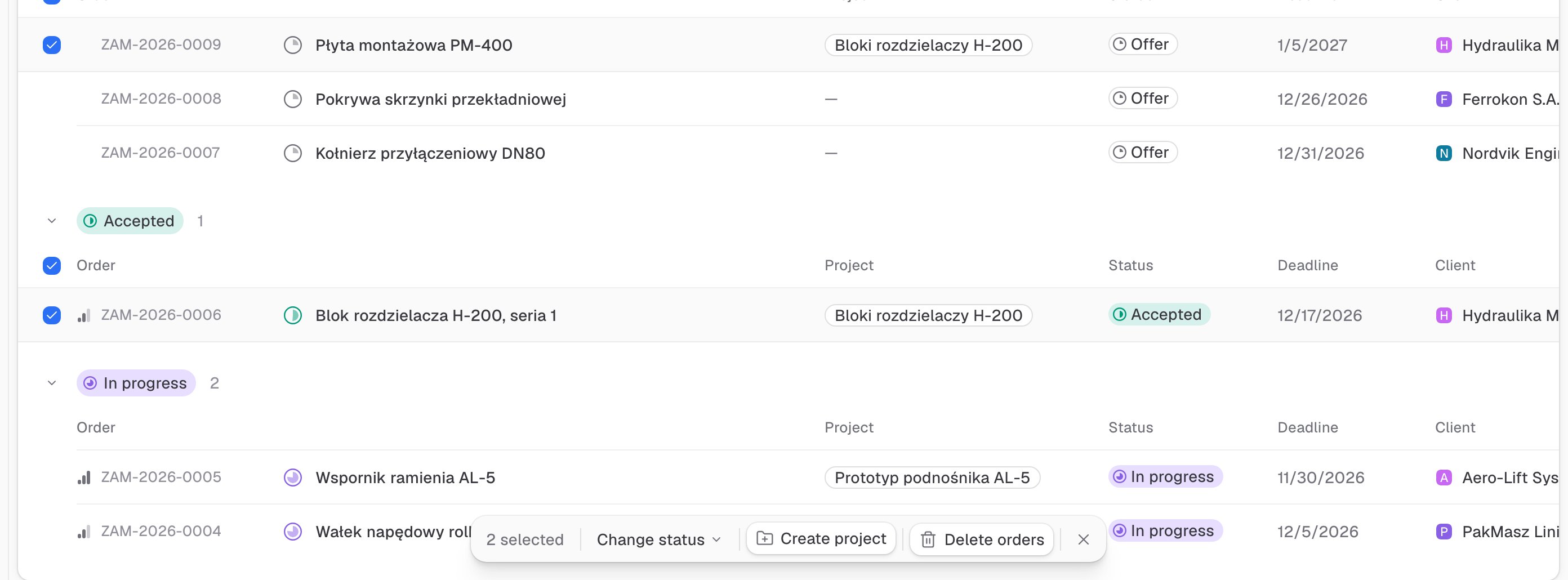
3
Name the project and save
Type a Project name, for example “Line PL-4 upgrade”, and click Save. The orders move into the new project, and the list refreshes with its name next to each of them.
Create a project from an order
Setting up a new order and the project doesn’t exist yet? Create it without leaving the order. In the order, click Project in the Related section. Click Add new project, or type a name and choose Add project with that name. Confirm the name with Save. The project gets the order’s client and is set on the order right away.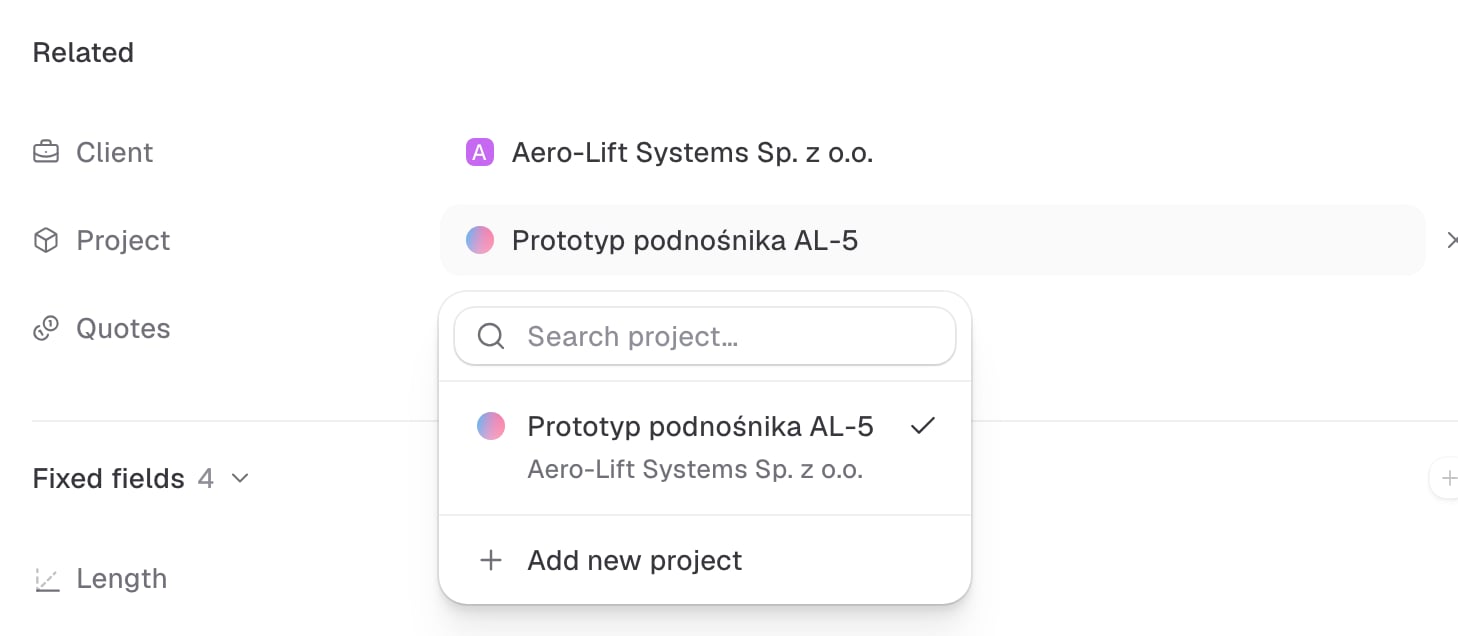
Create an empty project
On the project list, click New project, type a Project name and click Save. You can leave Client empty, but it’s worth filling in right away (more below). The circle next to the name (Choose project avatar) changes the colour that helps you spot the project on cards and next to orders. A colour is picked at random, so you don’t have to change it.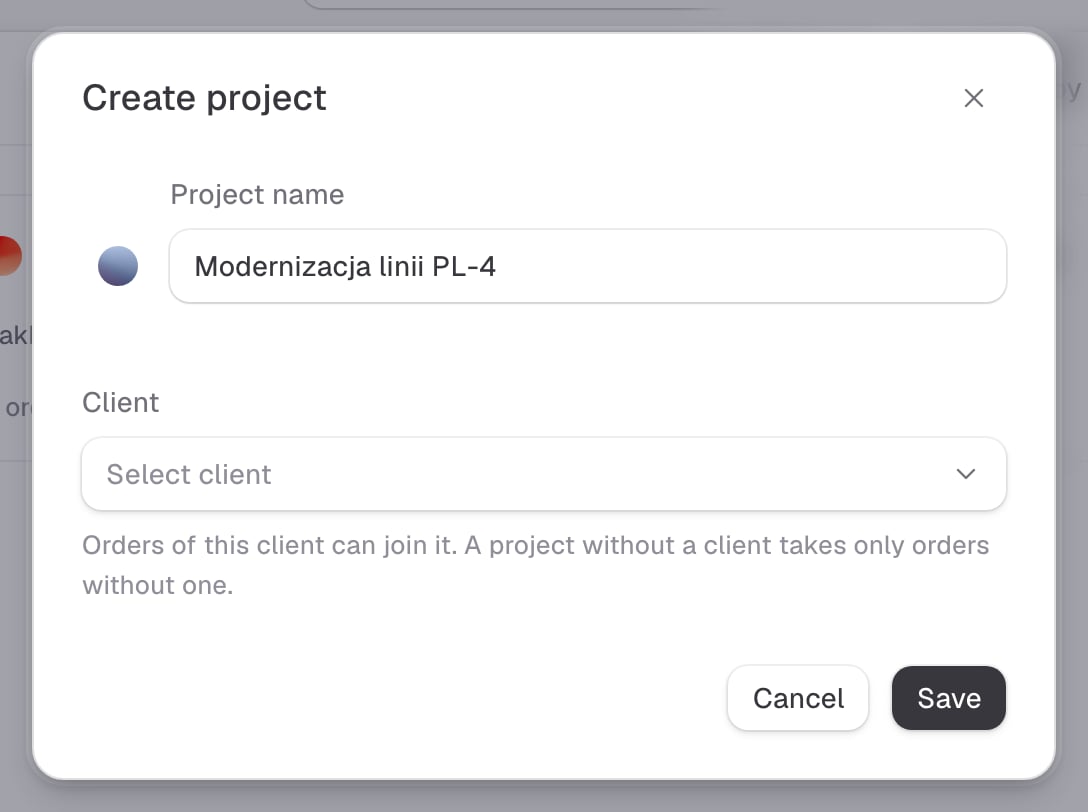
Rename or delete a project
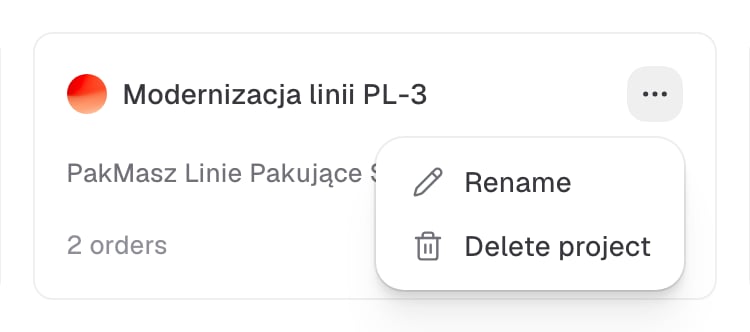
Hover over a project card and click the three-dot icon (Project actions):- Rename opens a dialog with the current name. When you click Save, the new name shows on the card and next to all the project’s orders.
- Delete project asks you to confirm and tells you how many orders will be left without a project.
What happens to an empty project?
When you move the last order to another project or delete it, the app asks “What should happen to the empty project?”. Delete project removes it, and Keep it empty keeps the card with No orders, for example when new orders are coming soon.Who can change projects?
Projects are available on every plan, with no limit on the number of projects. Anyone whose role includes the Projects module can view them. Creating, renaming and deleting need the Edit production data permission. Without it, the New project button and the card menu items are disabled. What each role can do is covered in Roles and permissions.
What’s next?
Orders
Create an order and track it from offer to delivery.
Working on an order
Add dimensions, tasks, drawings and comments to an order.
Clients
Add the client you’ll assign the project to.