

What’s in an order?
Open an order from the list by clicking its title. At the top you’ll see the number, the title and the status, and above the title a chip with the project name and the order number. Clicking the number copies it, and clicking the project opens the list of all that project’s orders in a new tab.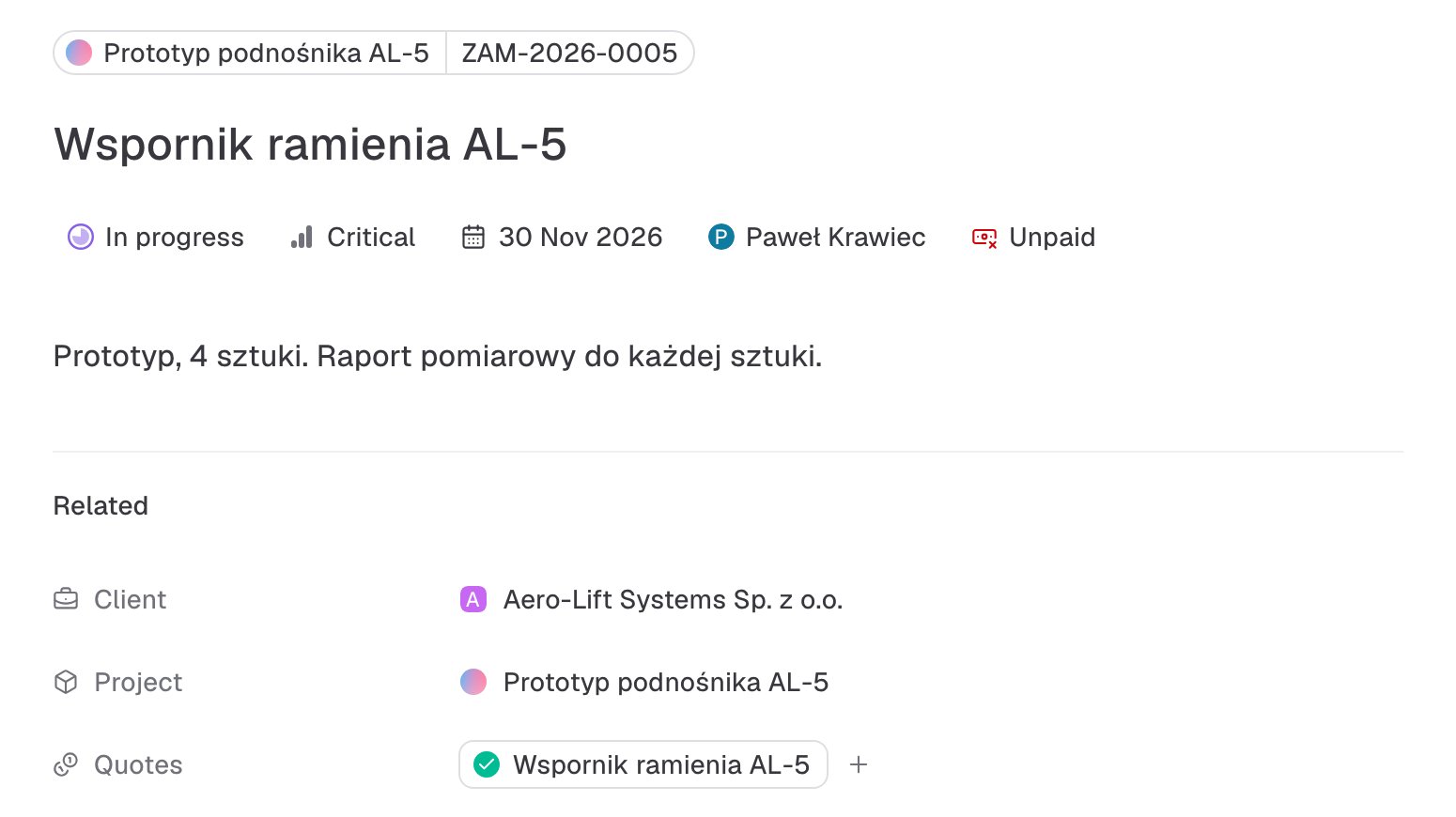
Changes save themselves
There’s no save button in an order. The title and description save a moment after you stop typing, and the other fields as soon as you pick a value. In the top right corner you’ll see “Saving…” and then “Saved”. If a save fails, “Changes not saved” appears there with a Try again button. If you click the Back arrow at that point, the app asks whether to leave without saving, so changes are never lost silently.If someone else changes the same order while you’re editing it, you’ll see “Someone changed this order in the meantime”. Choose Load current version to see their changes (your latest ones are lost), or Overwrite with my changes.
Assign a client and a project
The client tells you who the parts are for. An order and all its quotes always share the same client, so you set it once, here. Click Client in the Related section and search for the company by name or tax ID (NIP). If it isn’t there yet, click Add client. The Clear client cross removes it from the order. Project groups several orders of one client, for example all the parts for upgrading one line. When you click it, you’ll see the projects of this order’s client, and Add new project creates a new one on the spot. Changing the client removes the project from the order, because a project belongs to one client. More in Projects.The order’s quotes
The Quotes row shows every quote of this order, each with its status icon. Click a quote to open it. The plus next to the quotes (Create quote) opens a new quote form in a new tab, with this order, its client and its dimensions already filled in. The order stays open in the previous tab. You can’t attach an existing quote here, only create a new one.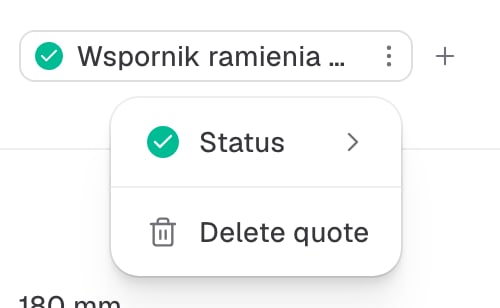
A quote created from an order counts towards your plan’s monthly quote limit.
Record dimensions and material
Fixed fields are the part’s dimensions and material stored in the order rather than in each quote separately. That way the order’s quotes can take them from one place. Click Add fixed fields and choose Length, Width, Height or Material. Type a dimension in millimetres and press Enter (Escape cancels), and pick the material from the list, for example steel, aluminium or POM. The Remove fixed field bin icon removes a field.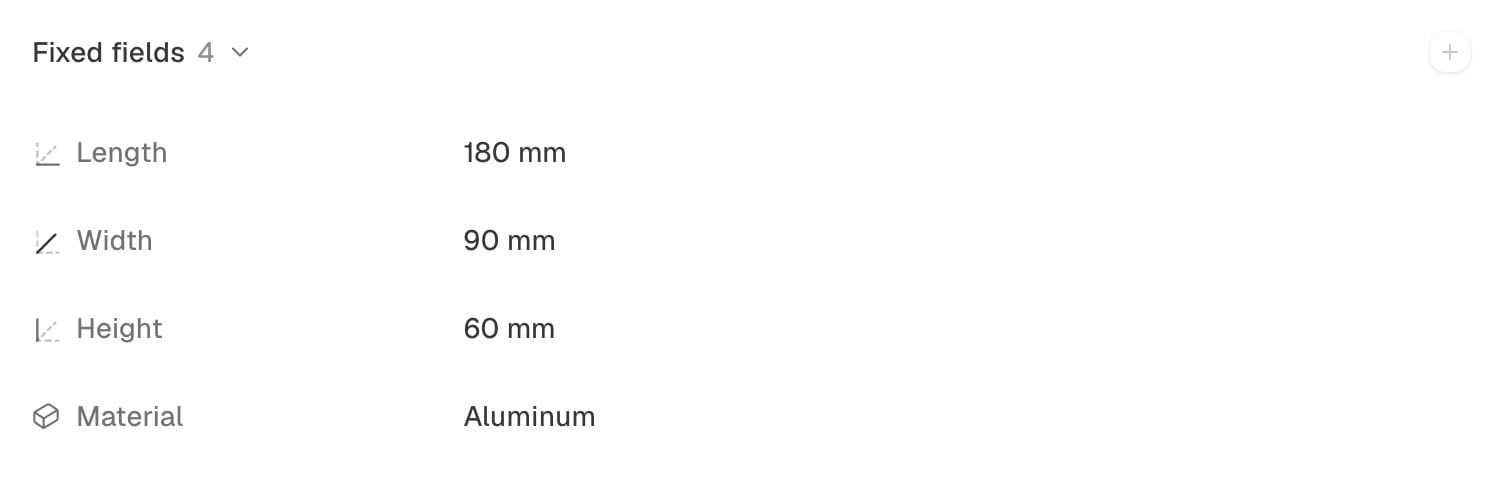
Break the job into tasks
The task list holds the steps to tick off before the parts ship: for example the CAM program, machining and the CMM inspection.1
Add a task
Click Create task list, type the task name and press Enter. Add more with Add new task or the plus in the list header.
2
Assign a person (optional)
Click the avatar slot next to the task (Assign person) and pick someone from the team. That person joins the list of people notified about the order.
3
Tick off what's done
Click the circle next to the task. The task is struck through, and the bar in the header shows progress, for example
1/3.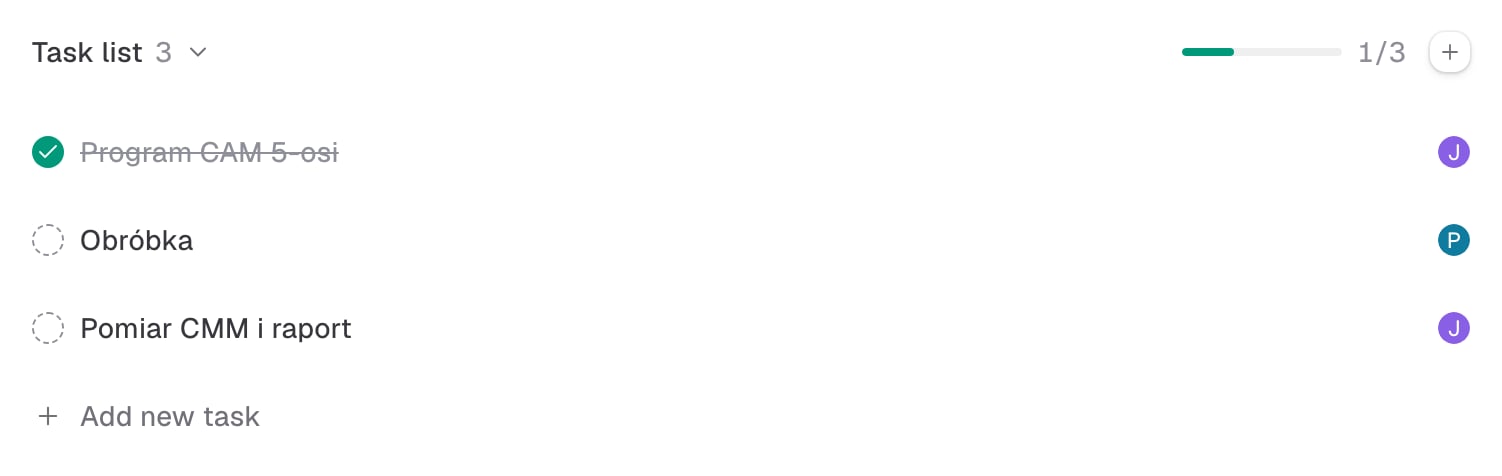
Add drawings, photos and 3D models
Click Attach files and pick one or more files from your computer. Once the order has files, you can also add more with the Attach file plus in the Attachments header. Click a file name to open it.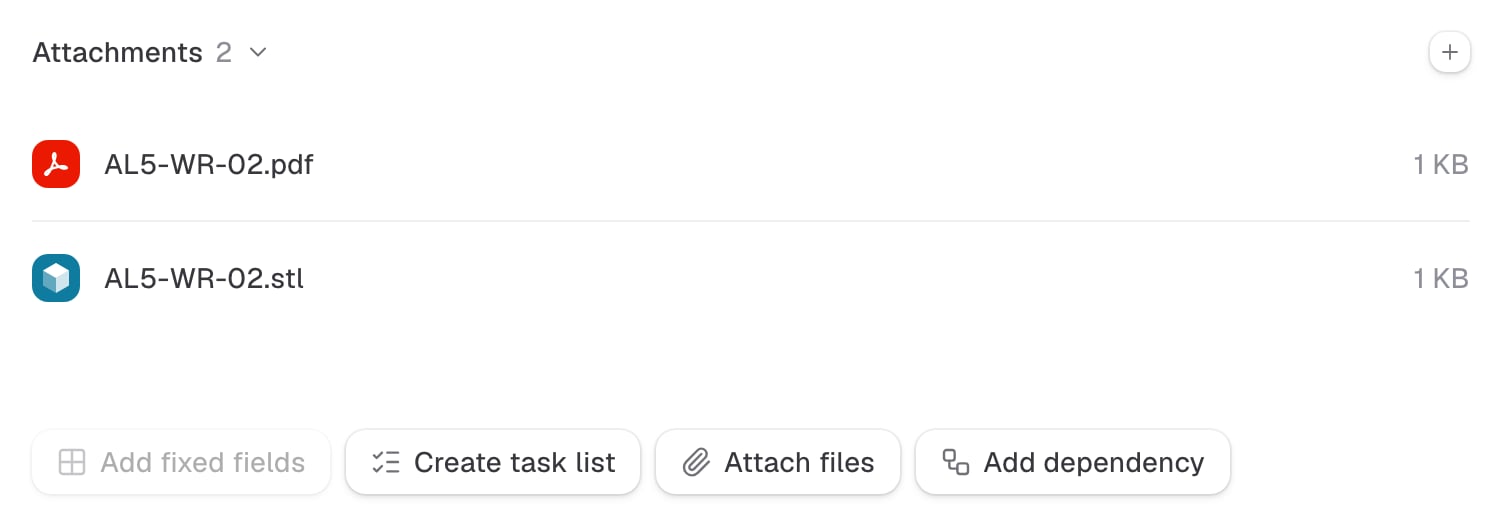
Show what waits for what
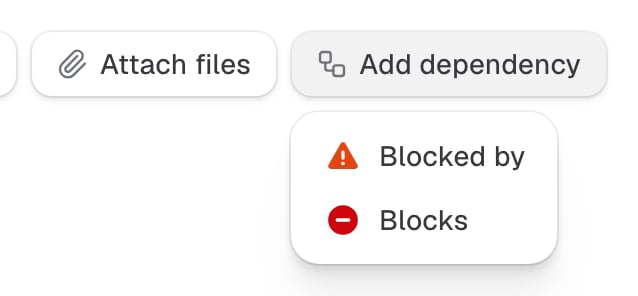
Dependencies help when one order can’t start without another, for example assembly waits for shafts from a different order. Click Add dependency and choose:- Blocked by when this order waits for another one,
- Blocks when another order waits for this one.
Discuss the order in comments
Comments keep agreements next to the job they’re about, instead of in e-mails and sticky notes. In the panel on the right, click the Comments icon. The number on the icon tells you how many comments haven’t been read yet.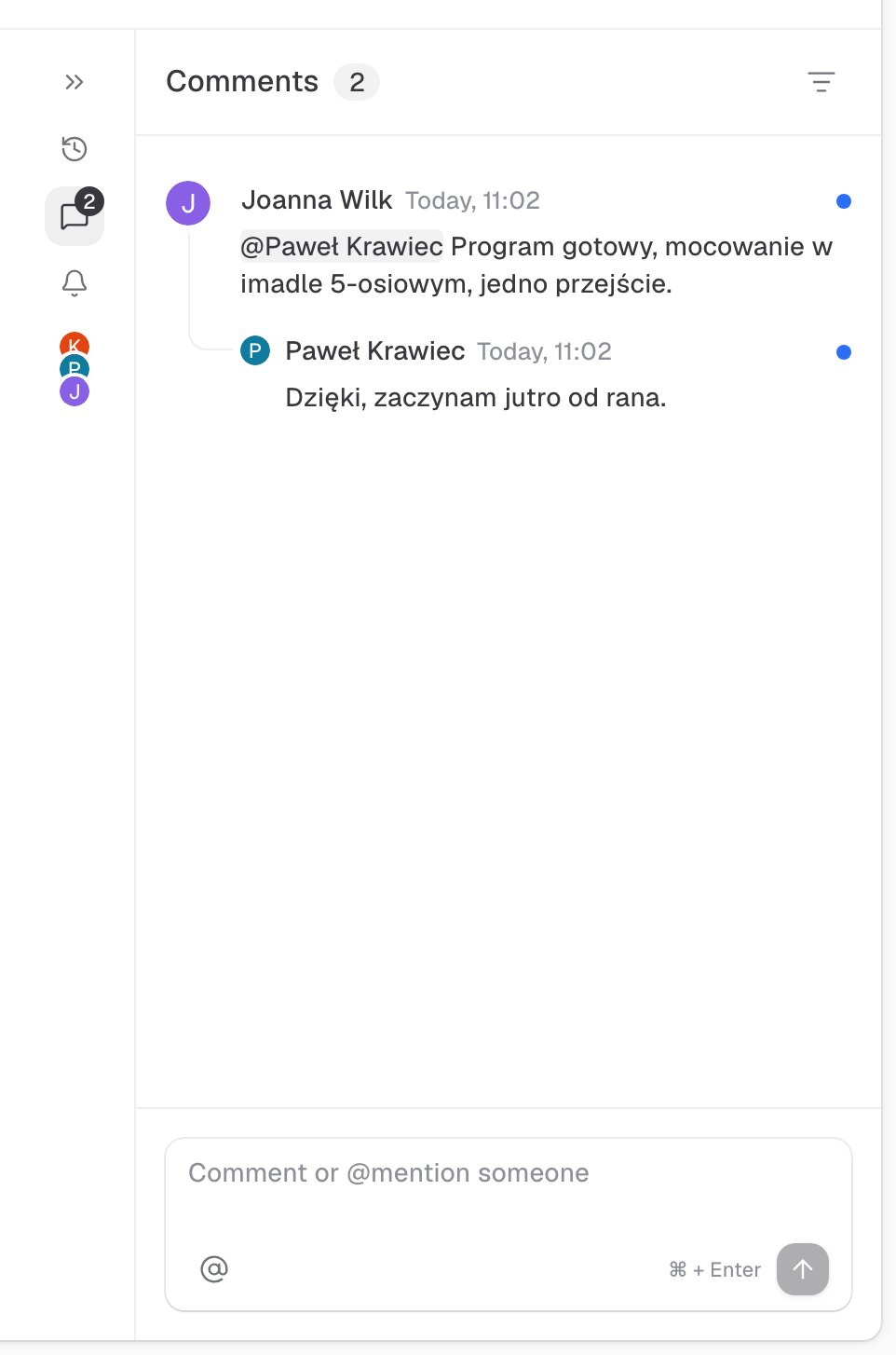
⌘ + Enter (Ctrl + Enter on Windows). To notify someone, type @ or click Mention someone and pick them from the list. A mentioned person always gets a notification with a link straight to the comment.
Hover over a comment to Reply. You can also edit and delete your own comments from the three-dot menu. Deleting doesn’t ask for confirmation.
Anyone who can see the order can comment, including someone with a view-only role.
Change history
The Activities view in the same panel shows who changed the status, deadline, a file or a task, and when. The Filter activity icon narrows the history to the kinds of changes you pick.Who gets notified about an order?
Every order has its own list of people who get all notifications about it, in the app and by e-mail. The order’s author, its lead and the people assigned to tasks are added automatically. Click the Order notifications bell in the panel on the right and tick or untick people. You’re always at the top of the list, so you can also mute the order for yourself.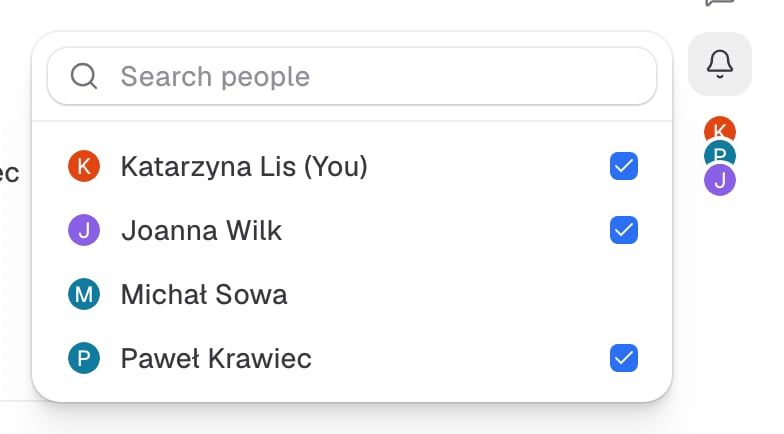
Adding other people to the list, like every change to the order, needs the Edit production data permission. You can switch yourself on or off with access to orders alone.
What’s next?
Orders
Set the status, deadline and priority, and find any order on the list.
Projects
Group several orders of one client in a project.
Notifications
Choose which orders you hear about and how.