

Check your plan
At the top of the page, under Current plan, you see the plan name, the billing cycle (Monthly or Annual) and the date the plan renews. Below that are the plan’s costs: the base fee, the charge for extra users and the total, all net per month.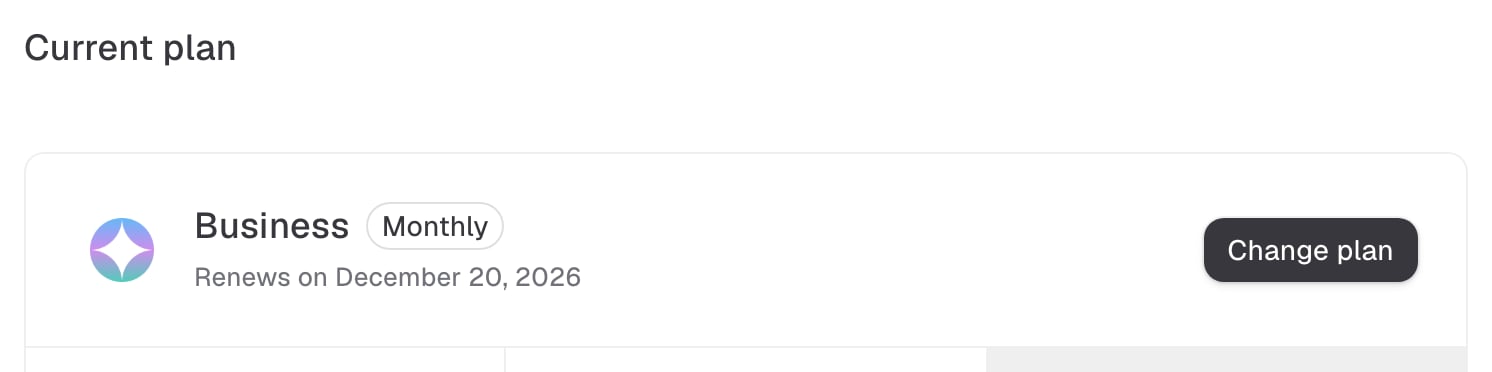
If your company’s plan is billed individually, such as Enterprise, you’ll see Contact us instead of the plan button. That plan is changed by contacting us, not in the app. If we’ve given you a trial, the card shows a badge with its end date and a buy button. After the trial the company goes back to its previous plan: your data stays, but you can’t add new entries beyond that plan’s limits.
See how much of the plan is left
Plan usage shows how much of the plan’s limits you’ve used. When the plan has no limit, you see no limit instead of a number.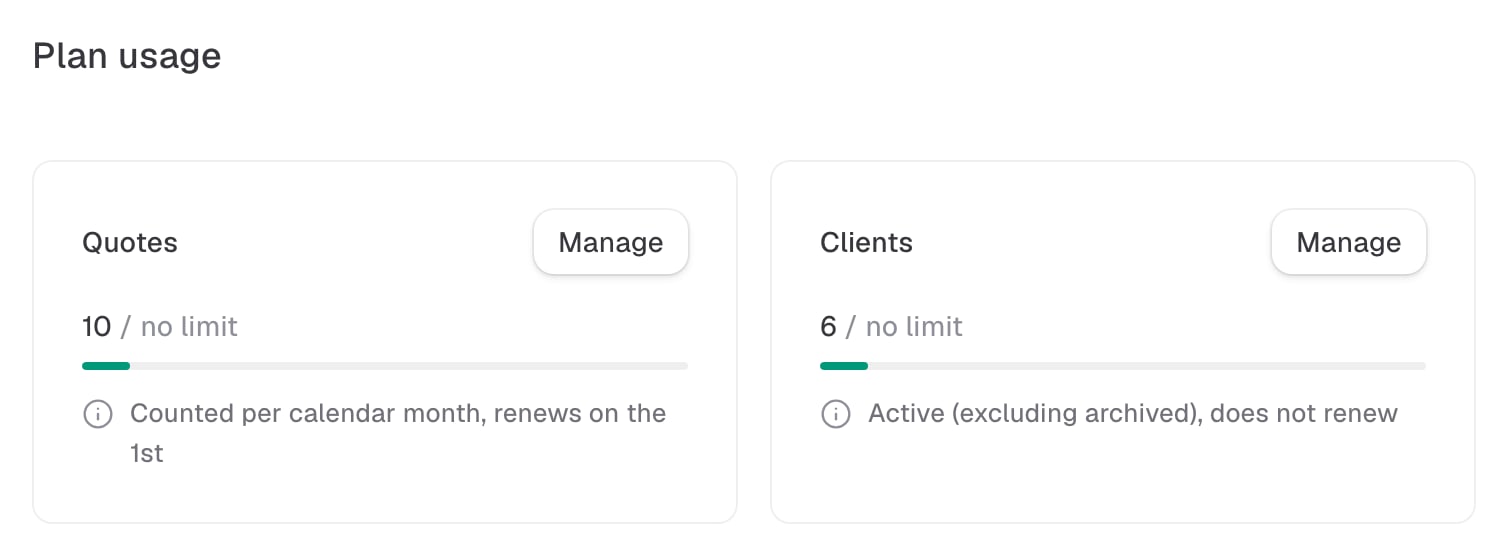
- Quotes are counted per calendar month, and the counter resets on the 1st. If you hit the limit on the 28th, your next quote waits for the start of the next month or a plan change.
- Clients are all the company’s active clients. This counter doesn’t reset, but archived clients don’t count, so archiving companies you no longer work with frees up room.
- Users compares the people on your team with the seats included in the plan. More on seats below.
What does another person on the team cost?
On Pro and Business you can invite more people than the plan includes. Each accepted person over the plan is added to the bill every month and shows on the plan card in the Extra users row. The Users card tells you how many free seats are left, or that the next person you invite adds to the bill. A pending invitation costs nothing, but it takes a seat when the app works out whether the next invitation is paid. On Starter the number of seats is a hard limit, and to invite someone else you need to change the plan. Team explains how to invite people.How do the plans differ?
Starter, Pro and Business differ mainly in their limits:- how many quotes you can prepare a month,
- how many active clients you can keep,
- how many users are included and whether you can buy extra seats,
- the monthly pool of OperatorAI assistant turns.
Change your plan
You change the plan on the Choose the plan that fits your workshop page. Open it with the button on the plan card or with Upgrade plan / Change plan in the settings window.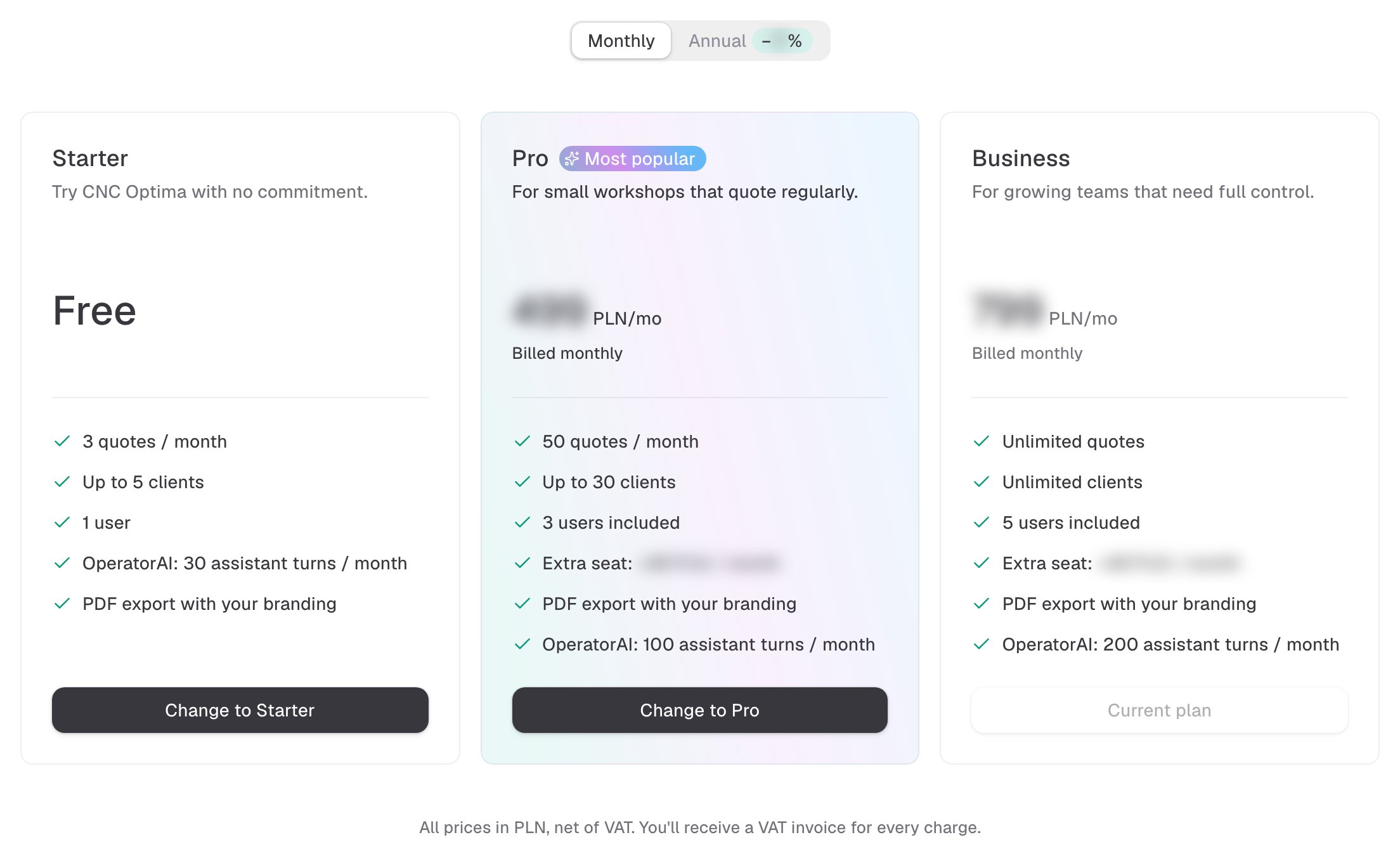
1
Pick the billing cycle
The switch above the cards starts on your current cycle. Click Annual to see prices when paying for a year, or Monthly to go back to paying every month.
2
Click the button on a plan card
A higher plan says Upgrade to Business, a lower one Change to Pro or Change to Starter. Your own plan has a disabled Current plan button, and the same plan in the other cycle offers Switch to annual billing or Switch to monthly billing.
3
Check what changes and confirm
The app shows a window with the details of the change, described below. Nothing changes until you confirm it.
- From the free Starter plan to a paid plan. The button takes you straight to the card payment page. After paying you’re back in Billing & usage, where “Payment received, activating your plan…” shows for a moment, then the new plan. If you cancel the payment, you’re back on the plan page with a note that you weren’t charged.
- To a higher plan, or from monthly to annual billing. The window shows the price of the new plan for a full period, the credit for the unused part of your current plan and the amount due today. After you click Pay and change plan the change applies at once and the new billing period starts today. If your bank asks for an extra payment confirmation, the payment page opens and the change applies once you finish it.
- To a lower plan, or from annual to monthly billing. You stay on your current plan until the end of the paid period, and the new one starts on the renewal date. The window warns you if you have more quotes, clients or people than the new plan allows. Click Schedule change.
End your paid plan
You end a paid plan by moving to the free Starter plan. On the plan page click Change to Starter, check in the window how long your current plan runs, and click Switch to Starter. Everything works as before until the end of the paid period, and then the company moves to Starter. The current period isn’t refunded.Undo a scheduled change
A scheduled change waits for the renewal date, so you can back out until then. Above the plan card, in Billing & usage and on the plan page, you’ll see a banner with the date of the change:- for a move to a lower plan, click Cancel change and the plan renews as before,
- for a move to Starter, click Resume and the subscription renews as it did.
Buy OperatorAI turns
Every plan has a monthly pool of OperatorAI assistant turns: a regular message is one turn, and heavier work, such as importing a long PDF, uses more. You see the pool in the OperatorAI turns section, on the Plan pool card. When the pool runs out before the end of the month, buy a turn pack.1
Pick a pack
On the Turn packs card, click the button with the pack size you want. The card payment page opens.
2
Pay and come back
After paying you’re back in Billing & usage with a note that the pack will appear in a moment. Bought packs go into the table under the cards, with the turns used and the expiry date.
Change your card or billing details
Billing and payment details shows the company your billing is issued to and the card you pay with.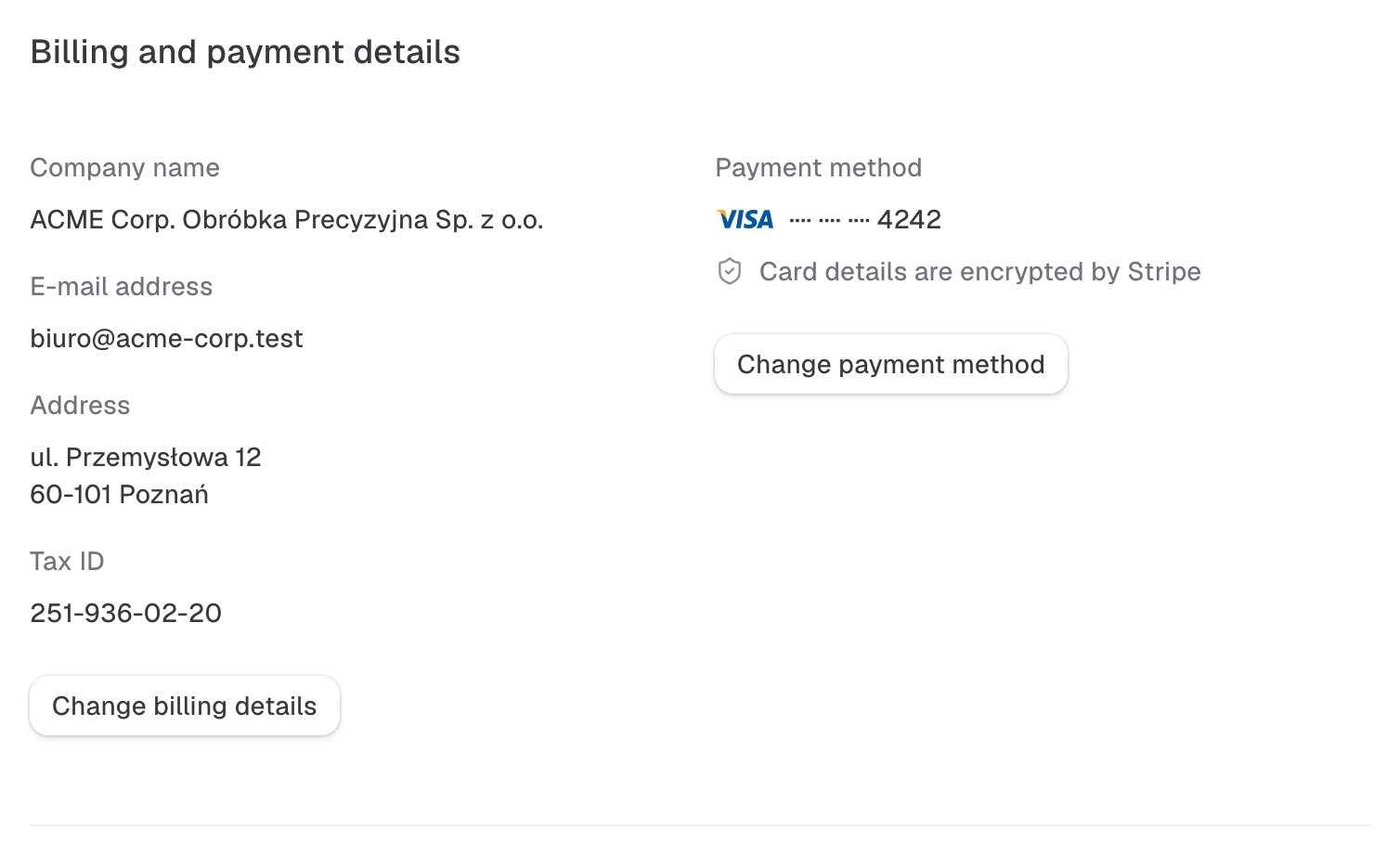
- Company details (full name, email, address and tax ID) come from your company settings. To correct them, click Change billing details: it opens the page described in Company details.
- Payment method shows the last four digits of the card. Click Change payment method and the payment provider’s page opens, where you enter a new card. Back in the app, you’ll see the new card’s last digits.
Download an invoice
You receive an invoice for every charge, and Invoice history keeps them in one place: number, status, date and amount. The first one appears after the first payment.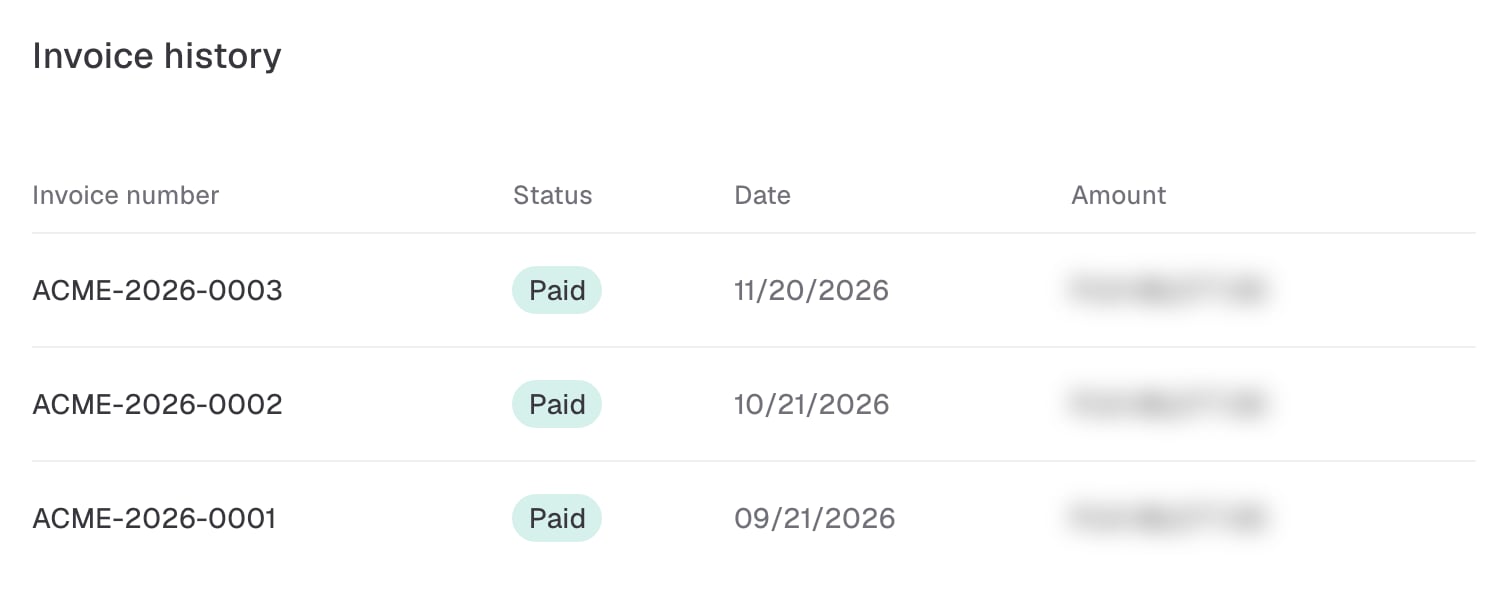
Who can change the plan and payments?
The plan, card, turn packs and invoices are handled by people with the Billing permission: by default, the owner and admins. Everyone else sees the plan and its usage, but:- the plan buttons on the plan page are disabled for them,
- instead of the pack buttons they see “Packs are bought by whoever manages billing for your company.”,
- instead of invoices they see “Invoice history is visible to people with billing permission.”, and they don’t see the payment card at all.
What’s next?
Company details
Correct the name, address and tax ID shown in your billing details.
Team
Invite coworkers and check how many seats are free.
Working with OperatorAI
See what uses up your assistant turns.