

Open your company details
Click Settings in the sidebar. The settings window opens on General in the Organisation settings group.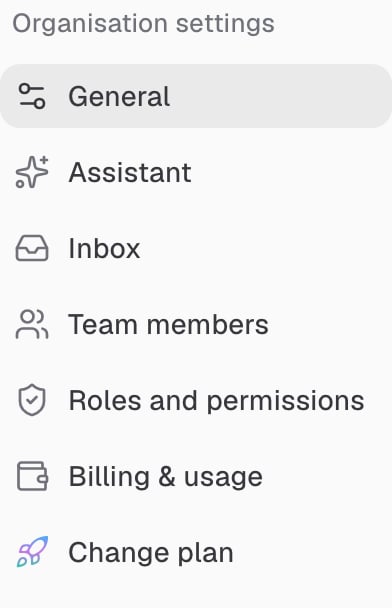
There’s no save button on this page. Each field saves itself when you leave it (press Tab or click elsewhere), and the app confirms it with a Saved message. If a value has the wrong format, an error shows under the field and nothing is saved until you fix it.
What does your client see?
The header of the PDF offer is built from this page: your logo, full company name, address, tax ID (NIP), email, phone and website. Empty fields aren’t printed, so an offer without a website has no blank gap. The full name, email, address and tax ID also show in Billing & usage, under Billing and payment details. The Change billing details button leads back here, because these details are corrected in one place only. More in Plan and billing.Set the name and logo
Organisation name is the short name you and your team see in the menu and the company switcher, such as “ACME Corp.”. It can be 2 to 30 characters long. It’s printed on the offer only when the Company name field below is empty. Add a logo with Add logo or by clicking the square next to it. The app accepts PNG, JPG and WebP files up to 2 MB, and the logo saves right away. Until you add one, the square shows the first letter of the organisation name. To replace the logo, click it and pick a new file; to remove it, click Delete.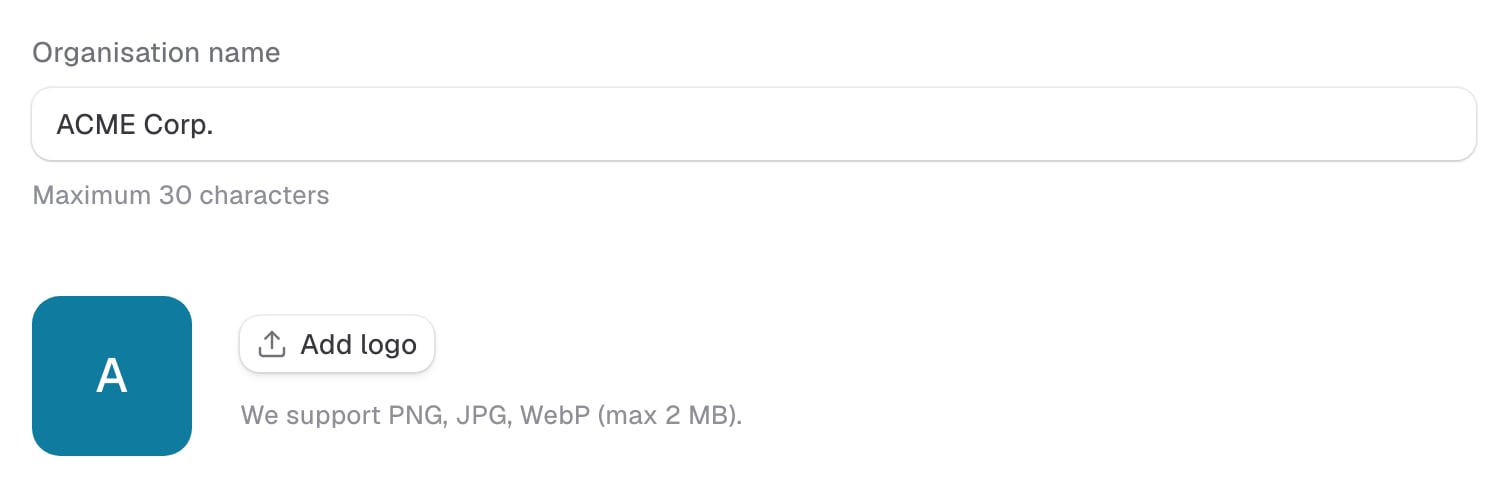
Fill in the company details
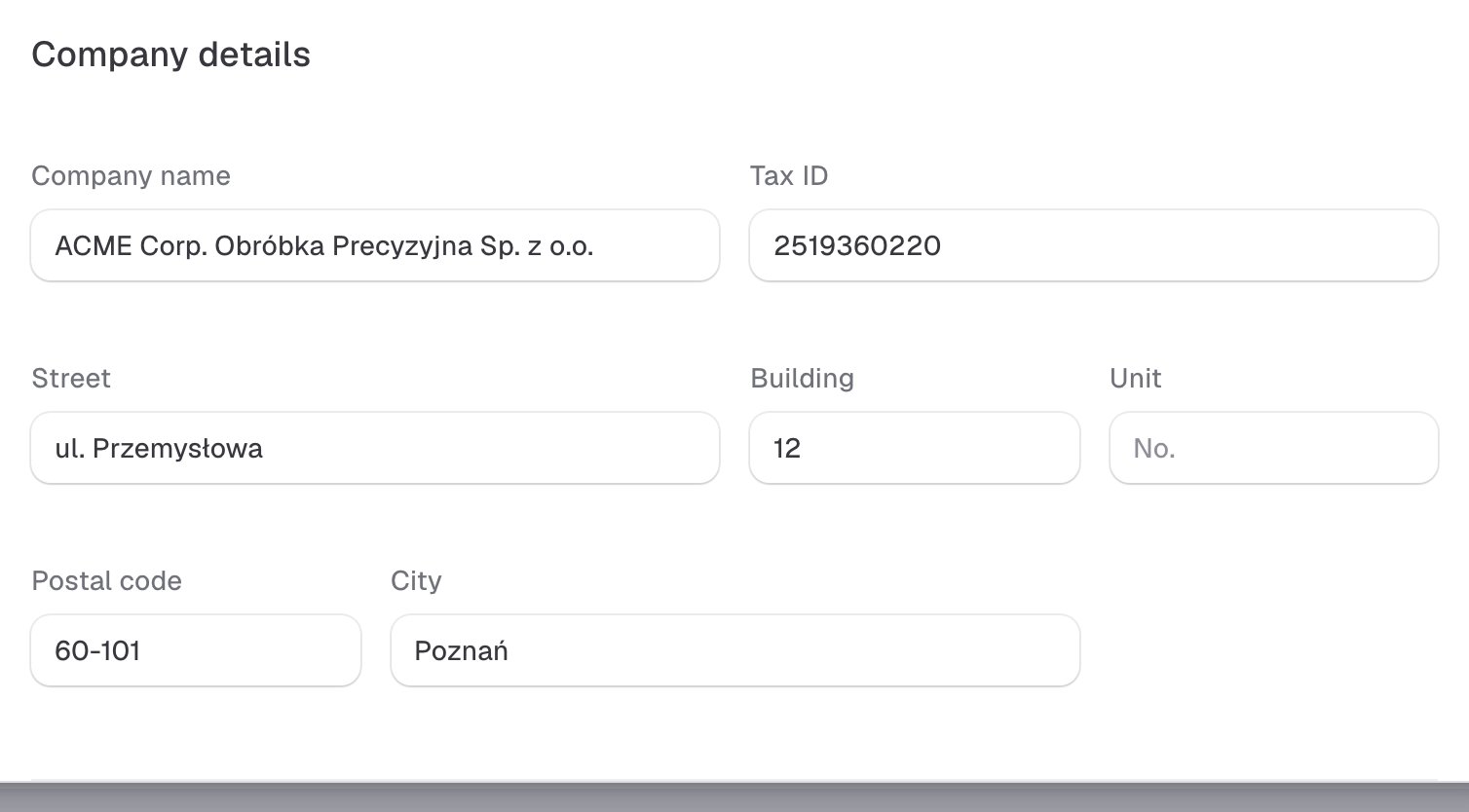
These go on every offer, so enter them exactly as they appear in the company register.- Company name: the full legal name including the legal form, such as “ACME Corp. Obróbka Precyzyjna Sp. z o.o.”. This is the name on the offer.
- Tax ID: your tax ID (NIP), 10 digits. You can paste it with dashes or spaces; the app saves the digits only. It also checks the check digit, so a typo ends with “Invalid Tax ID. Check the digits for a typo”.
- Street, Building, Unit, Postal code and City: your registered address. The postal code goes in as
60-101; leave Unit empty if there isn’t one.
Fill in the contact details
Your client sees these on the offer next to your address, so use the ones where they’ll reach you fastest.- Phone, for example
+48 61 000 12 00. - Email: a full address, for example
office@company.com. - Website: the full address including
https://, for examplehttps://www.company.com. Withouthttps://the app shows “Invalid URL” and doesn’t save the field.
Decide when rejected quotes are archived
After a while, rejected quotes are no longer needed day to day, so the app files them away for you. In the Quotes section, next to Archive rejected quotes, choose after how many days that happens: After 30 days, After 60 days or After 90 days. The choice saves at once and applies to every quote in the company.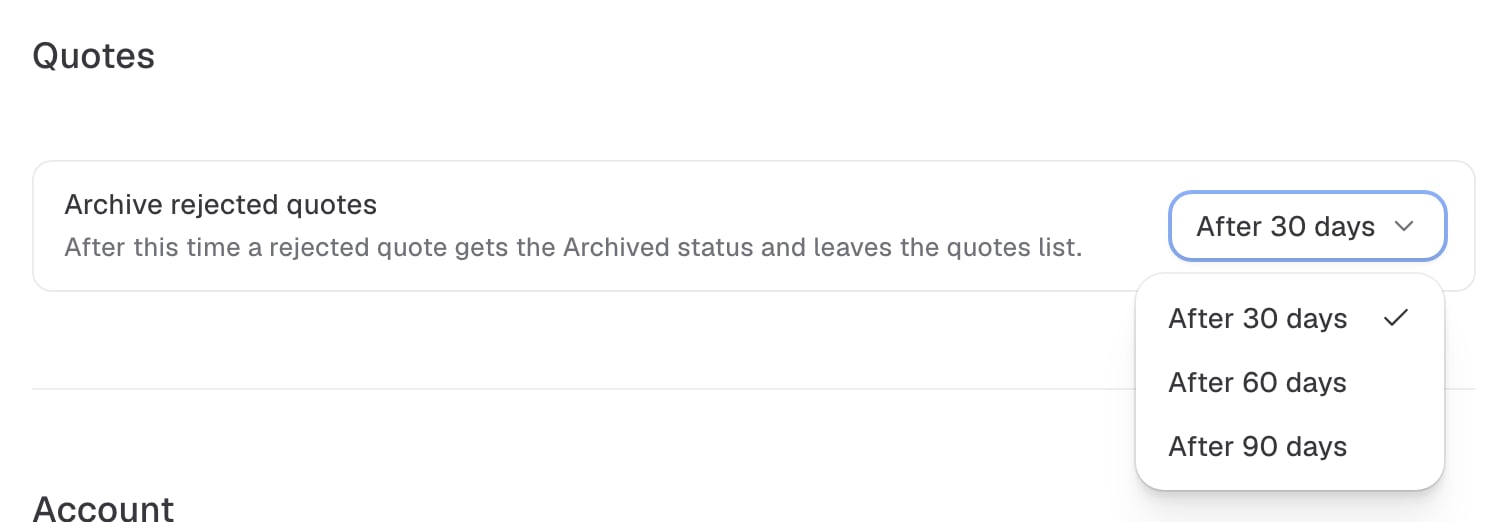
Who can change the company details?
Anyone with the Organisation settings permission can change them: by default, the owner and admins. Everyone else sees this page with a View only badge and the fields are disabled. If something needs fixing, ask your company owner. Roles and permissions explains what each role can do.Delete the company
Deleting the company closes it for the whole team, so only do it when you’re sure you’re done with it. The Delete company button is in the Account section at the bottom of the page.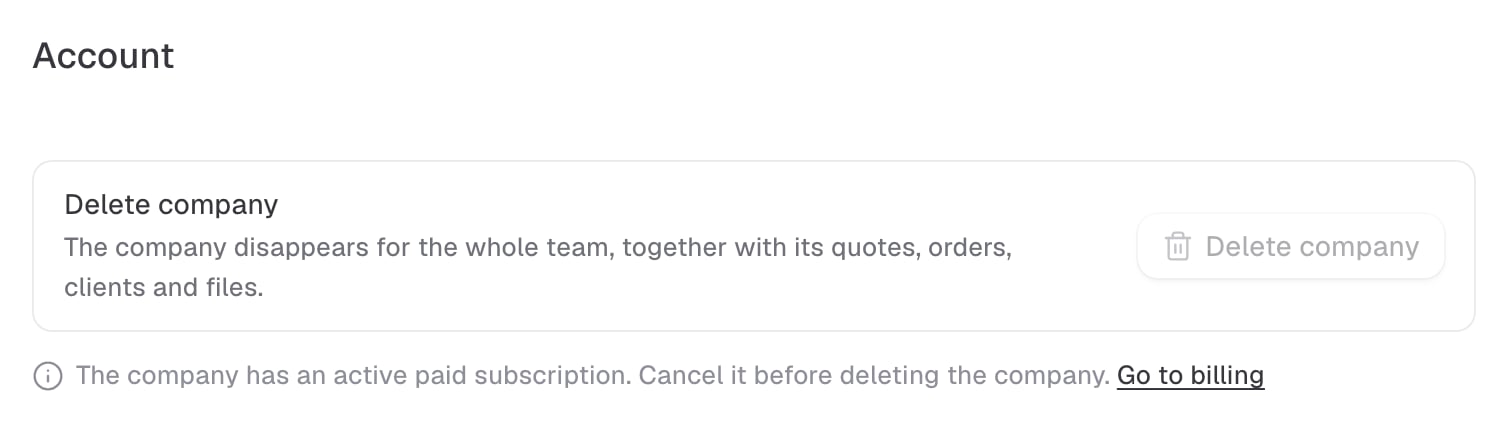
1
Open the confirmation
Click Delete company. The confirmation window lists what happens once the company is deleted.
2
Type the company name
Type the organisation name exactly as the window shows it, capital letters included. If it doesn’t match, the field tells you what to fix.
3
Confirm
Click Delete this company. The settings window closes and you land in another company of yours, or on the company picker if you have no other.
What’s next?
Statuses and the PDF offer
See how your details and logo look on an offer.
Plan and billing
Check your plan, invoices and billing details.
Team
Invite coworkers to the company.