

What arrives in the inbox?
Click Inbox in the menu on the left. The menu item shows how many messages are unread across the company.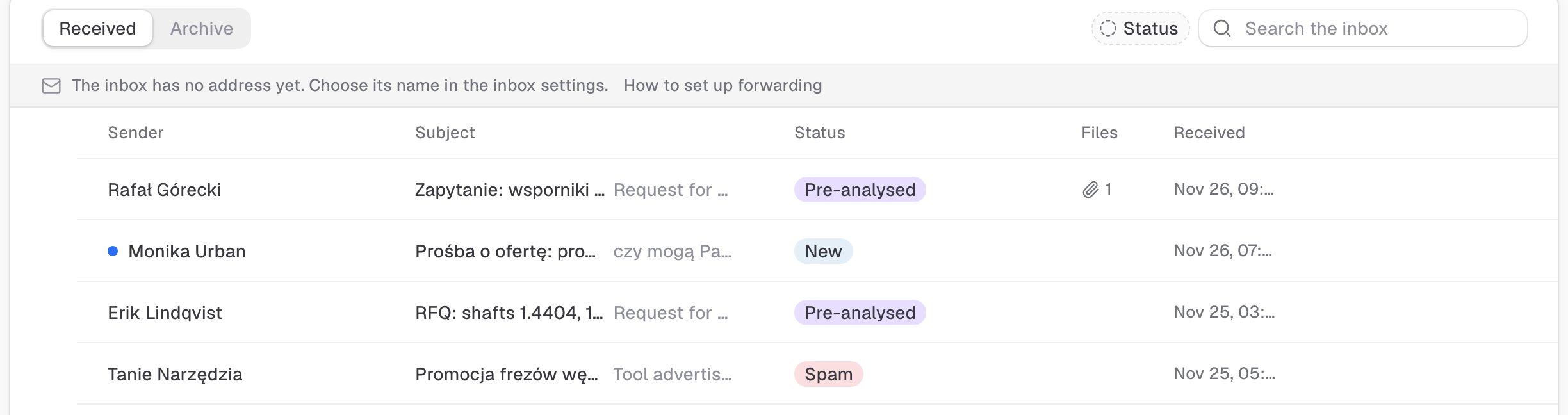
- Fetching: the content and attachments are still downloading,
- Needs review: the sender failed SPF, DKIM and DMARC verification. You can read the message, but OperatorAI doesn’t analyse it,
- Fetch failed: the content couldn’t be fetched, so ask the sender to send it again.
Find a message
- Received and Archive switch between current and archived messages.
- Status narrows the list to the statuses you pick, and you can pick several.
- Search the inbox looks through the subject, the sender, the text preview and the pre-analysis summary.
Open and assess a request
Click the subject of a message. It opens in a window over the list and is marked as read for the whole company.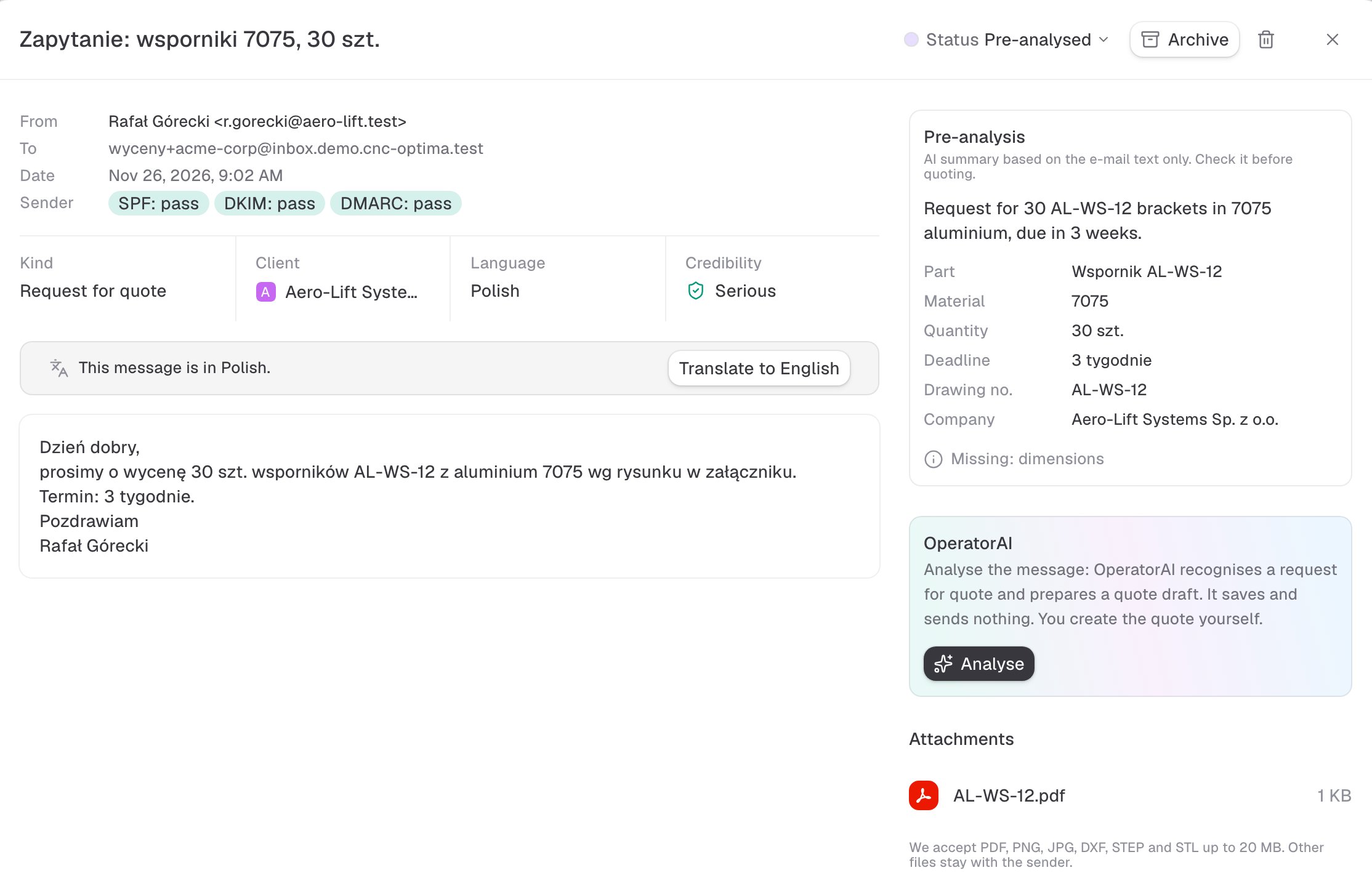
- Kind: whether it’s a request for quote, spam or something else,
- Client: which of your clients wrote, recognised by the tax ID (NIP) in the e-mail, the e-mail address or the company domain. When the sender isn’t one of your clients, you’ll see New client,
- Language: what language the e-mail is in,
- Credibility: Serious, To check or Suspicious. Hover the value to see the reasons, such as “The NIP in the e-mail has a valid check digit.”
Translate a request
Did the request come in German or Polish? A bar above the text names the message’s language and offers a translation, for example Translate to English.
Turn a request into a quote
OperatorAI reads the request and prepares a quote draft for each part asked for. It saves and sends nothing, so you decide what goes into the quote.1
Analyse the message
In the message window, on the OperatorAI card, click Analyse. It takes up to a few dozen seconds and uses an OperatorAI turn, more than one for a long e-mail.
2
Look through the result
The card shows the assistant’s answer and quote draft cards, one per part. The message status changes to Analysed, unless someone set it by hand earlier.
3
Create the quote
On a draft card, click Create quote. The window hides and the new quote form opens filled in with details from the e-mail. Check the fields and save the quote like any other. The steps are in Create a quote.
The analysis reads the e-mail text and the attachment names, not the files’ contents. Type dimensions from a PDF drawing into the form by hand, or attach the drawing in a conversation with OperatorAI.
Analyse several messages at once
Hover the rows and tick their checkboxes, or tick them all with the checkbox in the header. A bar with the number of selected messages appears at the bottom.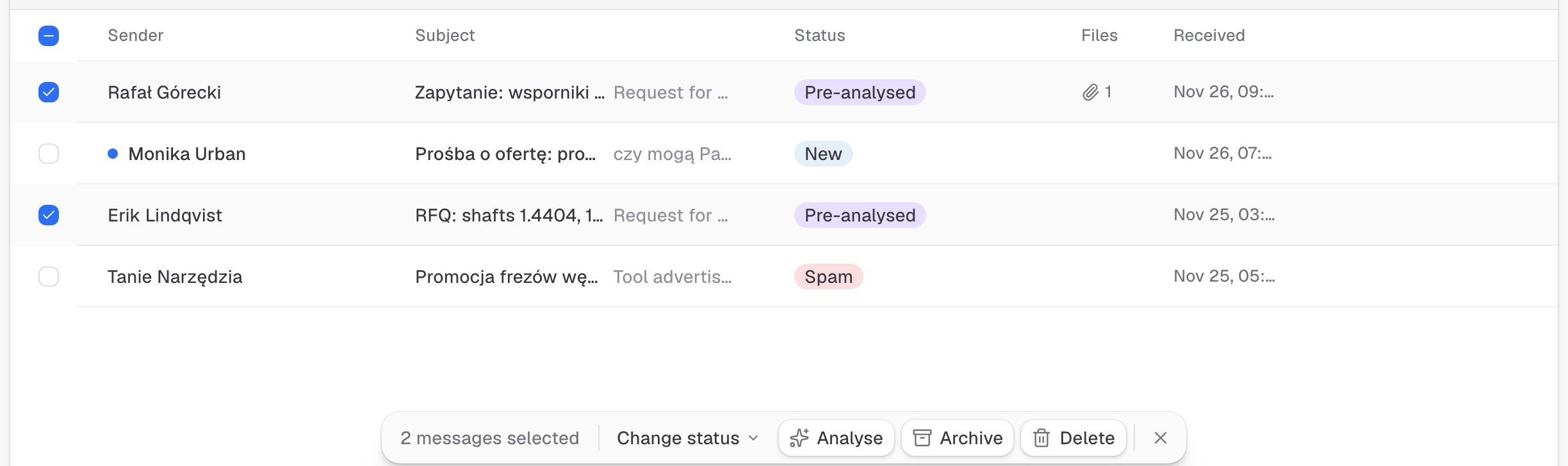
Set a status, archive or delete
Statuses help your team see what’s already handled. Next to the system statuses (New, Pre-analysed, Analysed, Duplicate, Spam, Other, Rejected) you can have your own, added in the inbox settings. You can change the status in three places: the Status field in the message window, the Message actions menu on a row (the three-dot icon when you hover), or Change status on the selection bar. A status set by hand isn’t overwritten by a later analysis.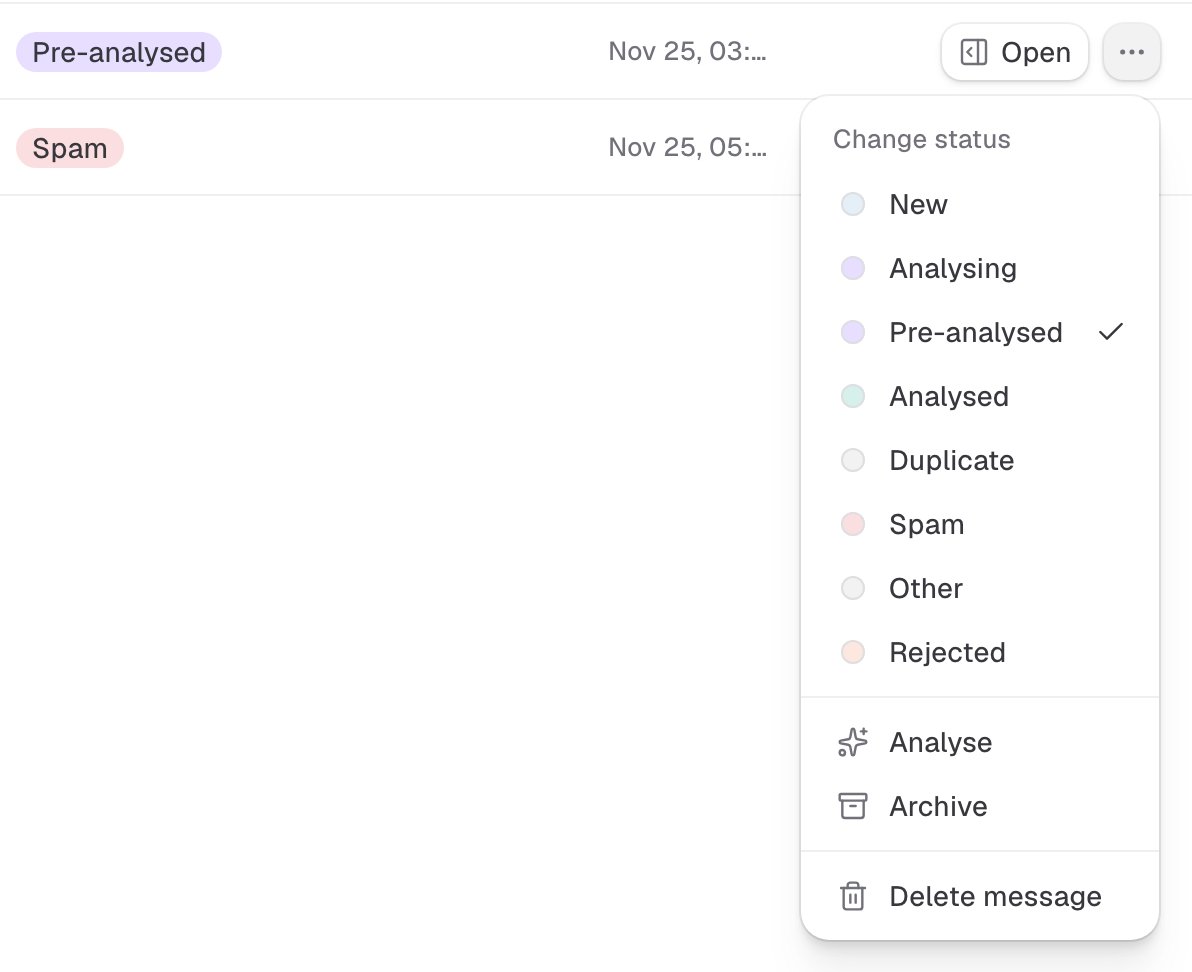
- Archive moves the message to Archive. There, Restore brings it back to received messages.
- Delete message, once confirmed, deletes the message, its attachments and its quote draft.
Who has access to the inbox?
E-mails from clients contain personal data, so by default the inbox is visible to the Owner, Administrator and Employee roles. The Viewer role doesn’t see it by default, and a custom role only does once you tick the inbox in the role editor. Anyone who sees the inbox can also analyse, change status, archive and delete messages. Details are in Roles and permissions.What’s next?
Inbox settings
Pick the inbox address, set up forwarding and add your own statuses.
Working with OperatorAI
Ask the assistant about a request and see how many turns are left.
Create a quote
Check and save a quote opened from a draft.