


Where do I start after signing in?
After you sign in, the app always opens the Quotes list, whatever your role. The same happens when you type the app’s address. The exception is a link to a specific page, such as an order from an email: after signing in you land straight on it.Go to a module from the sidebar
The sidebar on the left takes you to every part of the app. By default it shows icons only. To see the names, click the panel icon next to the page title (Expand navigation); the same button (Collapse navigation) takes you back to the narrow sidebar.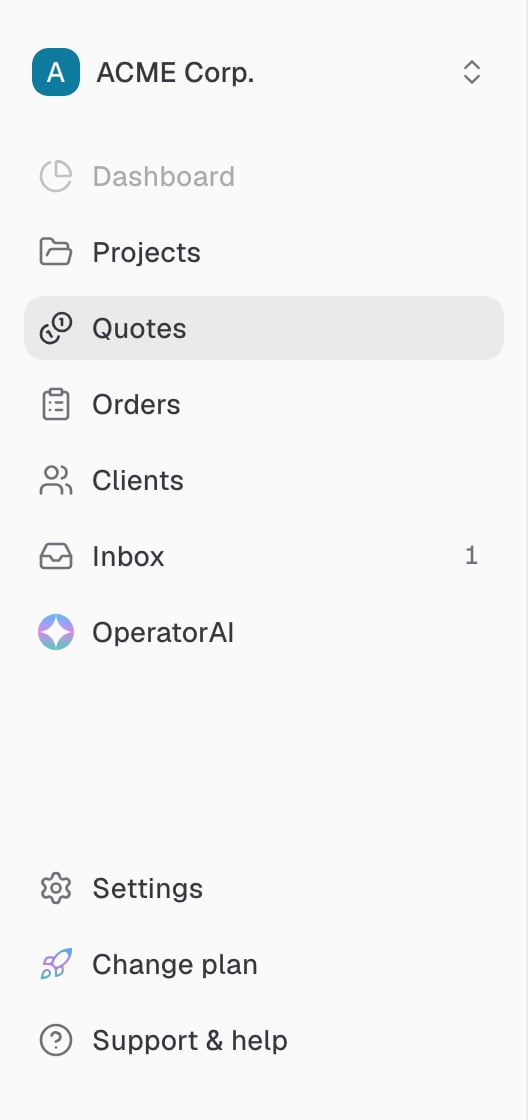
- Projects: several orders of one client grouped together, see Projects.
- Quotes: all of your company’s quotes, see The quote list.
- Orders: the work from an accepted offer to finished parts, see Orders.
- Clients: the companies you work for, see Clients.
- Inbox: requests for quote that arrive at your company address. The number next to it is the unread messages, see The request inbox.
- OperatorAI: the full view of your conversations with the assistant.
A module your role can’t access doesn’t appear in the sidebar at all. If you’re missing an item, ask the company owner to change your role. What each role can do is in Roles and permissions.
Report a problem with the app
If something doesn’t work the way you expect, tell the CNC Optima team straight from the app. The report arrives with the address of the page you’re on, so you don’t have to copy it.1
Open the form
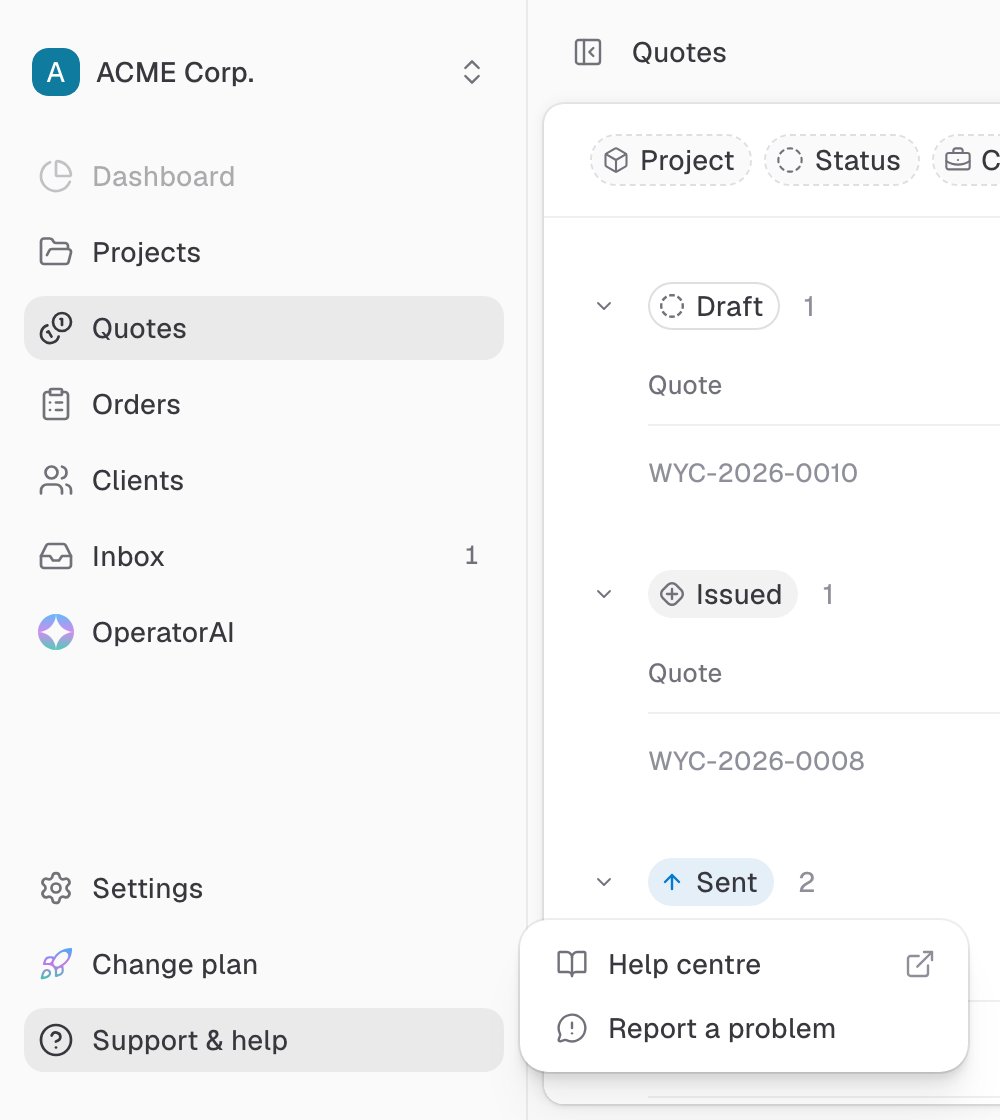
Click Support & help at the bottom of the sidebar and choose Report a problem. The same item is in the account menu under your avatar. The form opens in the bottom right corner and the page behind it stays as it was.
2
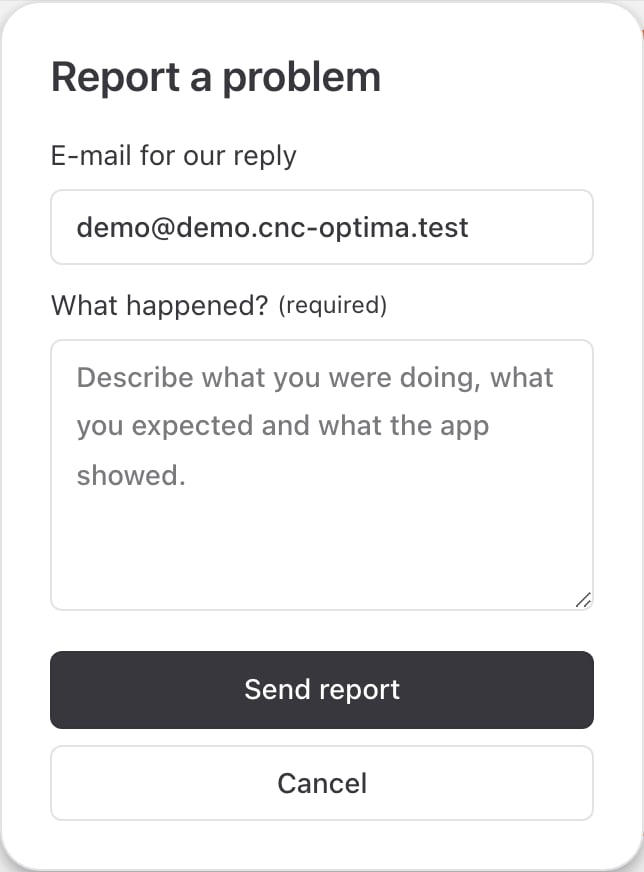
Describe what happened
In What happened?, write what you were doing, what you expected and what the app showed, for example: “I download the PDF of quote WYC-2026-0010 and the offer has no company logo, although the logo is in the company settings”. The form doesn’t attach a screenshot, because it would show prices and client details, so the description is what counts.
3
Check the reply address
E-mail for our reply already holds your address. If the answer should go somewhere else, change it.
4
Send the report
Click Send report. Once it arrives, you’ll see the confirmation “Thank you. Your report has reached the CNC Optima team.”
Find a quote, order or client
Search looks through the whole company at once, so you don’t need to remember whether the sleeve was in quotes or in orders.1
Open search
Click the What are you looking for? field in the top bar, or press
Cmd + K on a Mac or Ctrl + K on Windows. It works on every page.2
Type what you remember
Type at least 2 characters: part of a name, a quote or order number, a drawing number, a material, something from the notes or a client’s tax ID (NIP). Results appear as you type, grouped into quotes, orders, clients, projects, files and your OperatorAI conversations, a few in each group.
3
Open a result
Click a result, or pick it with the arrow keys and press
Enter. A quote, order or client opens straight away. A project shows its orders, and a conversation opens in the OperatorAI panel.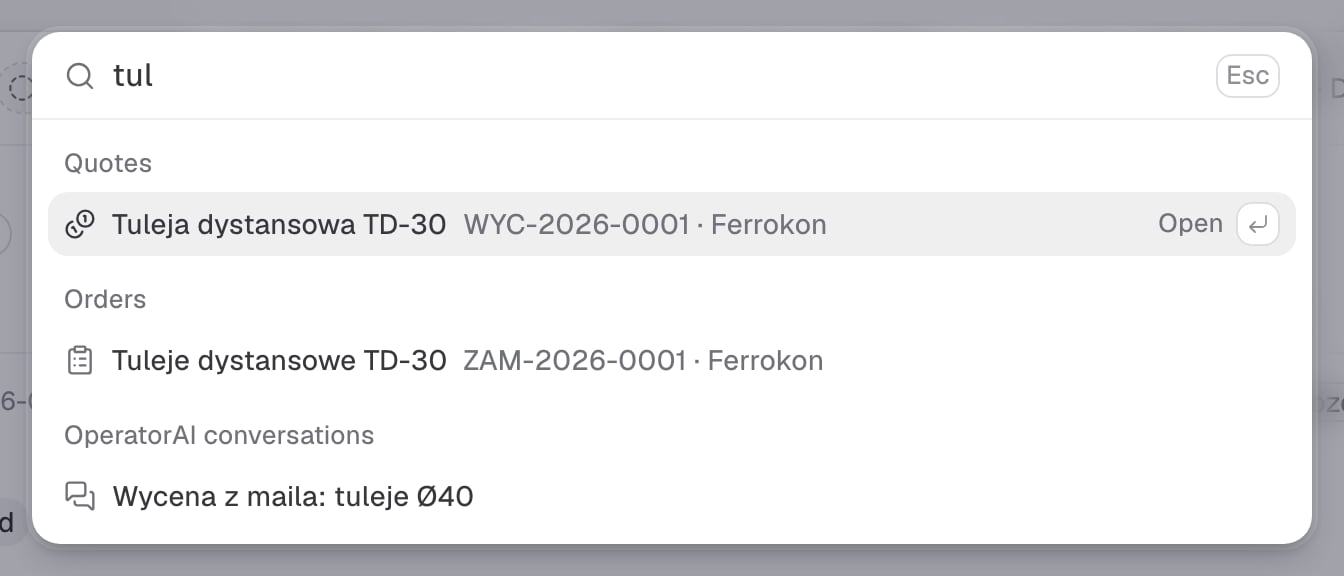
Check your notifications
Notifications tell you what changed in the company: who changed an order’s status, who mentioned you in a comment, who joined the team. The number on the bell is your unread notifications.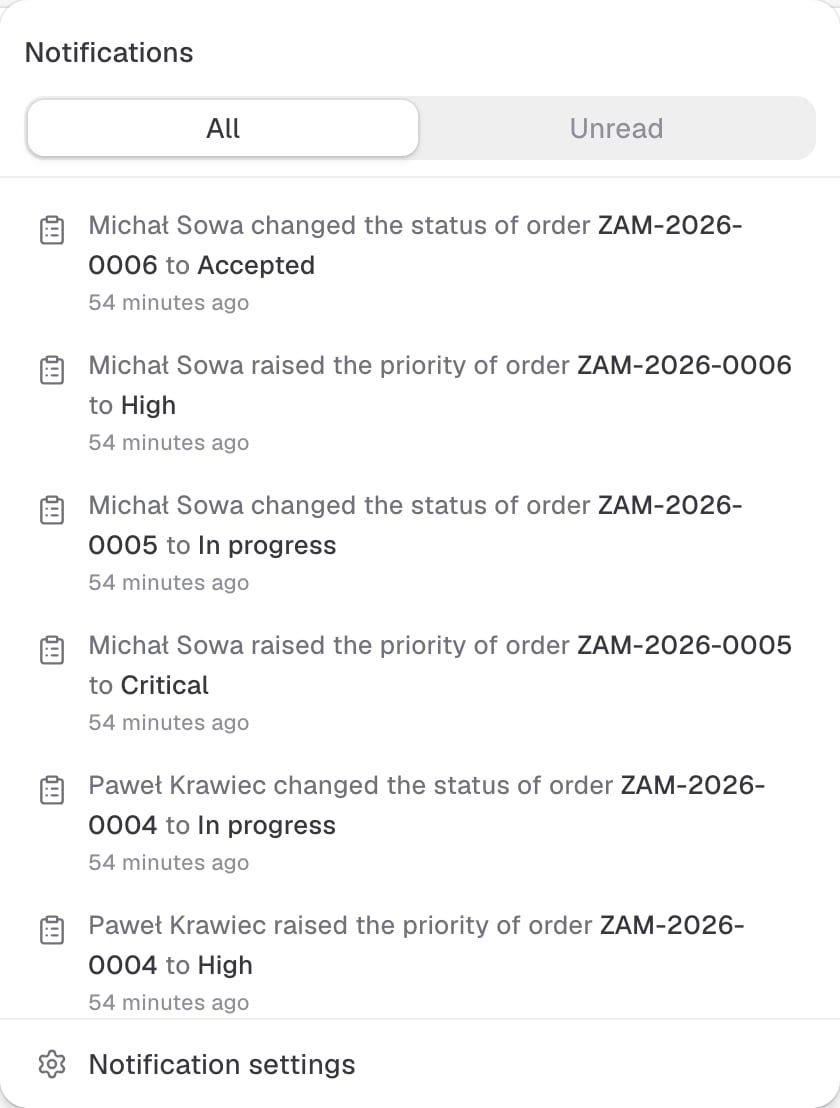
Switch the app language
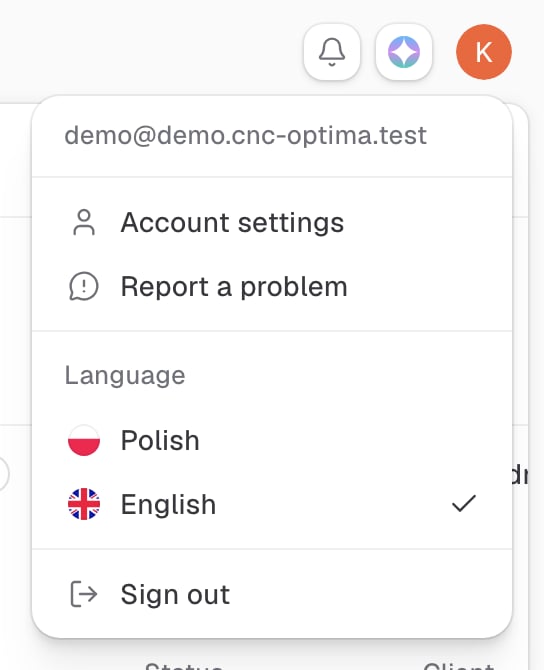
The app works in Polish and English. You choose the language for yourself, so the rest of the team keeps theirs.1
Open your account menu
Click your avatar in the top right corner.
2
Choose a language
Under Language, click Polish or English. The page reloads in the chosen language.
Work through the Getting started list
In a new company, a Getting started card with a counter, such as “3 of 8 done”, appears at the bottom of the sidebar. It lists what’s worth doing at the start, so your first offer goes out with your logo and complete details. The owner and people who manage the company settings see the full list: Complete your profile, Create your company, Choose a plan, Invite your team (not on the Starter plan), Add your company logo, Add a client, Create your first order and Create your first quote. Other team members see a shorter list: their profile, plus their first client, order and quote if their role lets them create them.- Click an item and the app takes you to the right screen.
- Items tick themselves once the data exists, even if you did it somewhere else.
- Next to the client, order and quote, the Do it with OperatorAI icon opens the assistant panel with a ready request, for example for help adding a client by tax ID. It appears when your company has access to OperatorAI.
- Deliberately skipping something, such as working without a logo? Click the Mark as done icon next to the item.
- Card in the way? Click the Collapse arrow and it shrinks to one row with the counter. With the narrow sidebar, the card is a small icon that shows the list when clicked.
Use the app on your phone
On a phone or in a narrow browser window, the sidebar hides so the list can use the whole screen.- Open the menu with the icon in the top left corner (Open navigation). It slides in from the left with full item names, and you close it with the cross (Close navigation).
- Instead of the search field, the top bar has a magnifier icon (Search). The bell and your avatar stay in place.
- There’s no OperatorAI button on a phone. To talk to the assistant, choose OperatorAI in the menu.
What’s next?
Several companies, one account
Switch between companies and create another one.
Working with OperatorAI
Ask about your data and turn inquiries into quote drafts.
Notifications
Choose what you hear about and where.