

Open your profile
Click your photo or initial in the top right corner and choose Account settings. The settings window opens on User profile. The same menu is where you report a problem with the app, switch its language and sign out.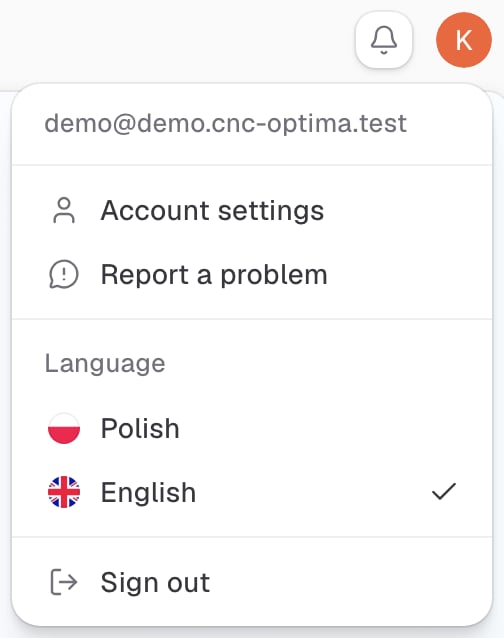
Fill in your name and phone
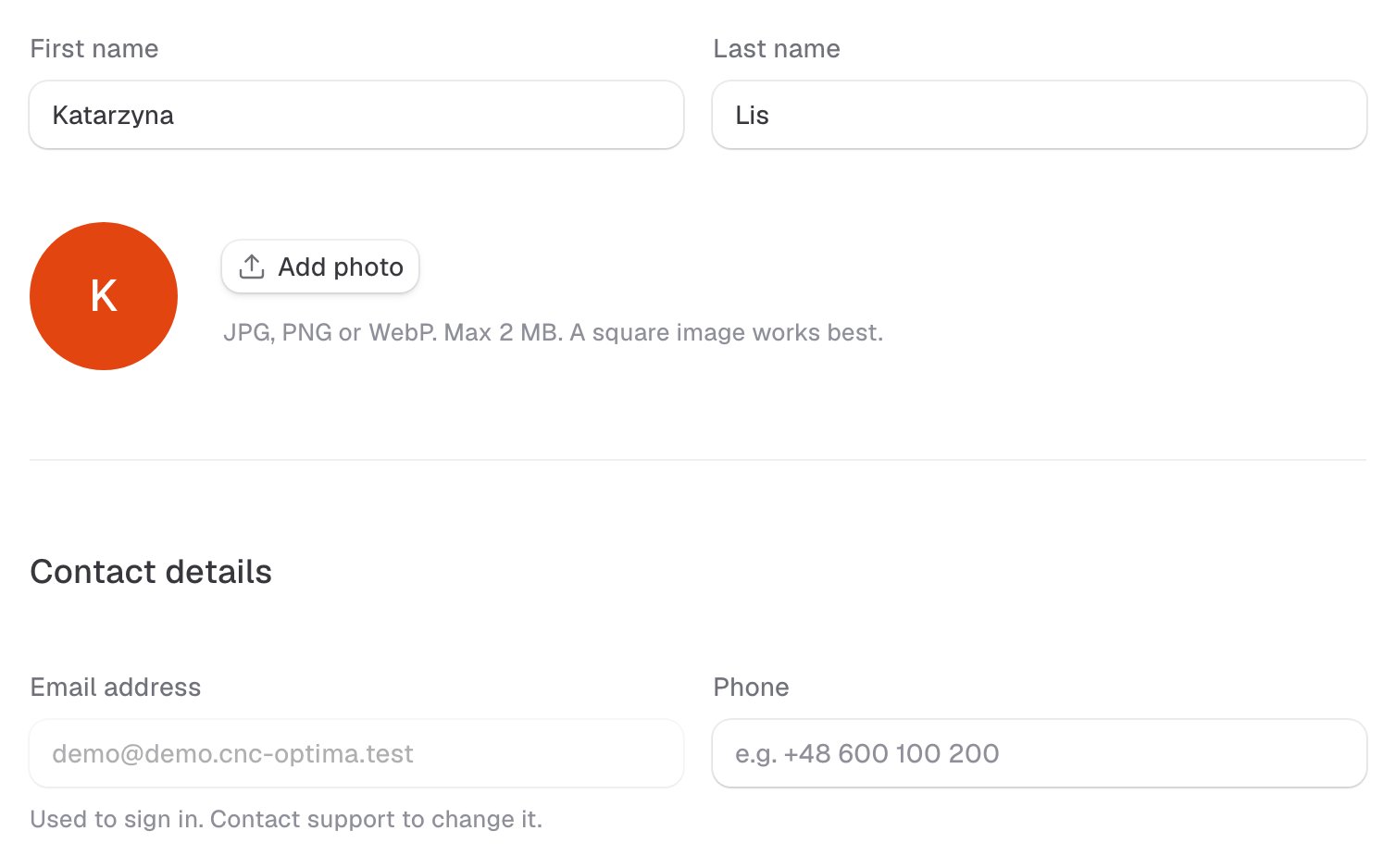
Your name is how the team knows who prepared a quote or wrote a comment. The phone number is optional, but worth adding: when you send a client the offer from your quote, the number appears on the PDF next to your name and e-mail, so they know who to call about the Ø30 sleeves or the delivery date of a batch of 200. There’s more about the offer in Statuses and the PDF offer. Type your First name, Last name and Phone, for example+48 600 100 200. There’s no Save button on this page: each field saves when you leave it, and a short “Saved” message appears. Names can be up to 50 characters, the phone up to 30.
Add a photo
Your photo replaces the initial across the app, so coworkers spot your quotes, orders and comments faster.1
Pick a file
Click Add photo or the round initial next to it and pick a JPG, PNG or WebP file up to 2 MB. A square photo works best, because the app crops it to a circle.
2
Wait for it to save
The photo saves straight away, with no separate button, and a short “Profile photo updated” message appears.
Change your password
Change your password when you suspect someone knows it, or when you want a stronger one. This part of the page works differently from the rest: the change only happens when you click the button.1
Type your current password
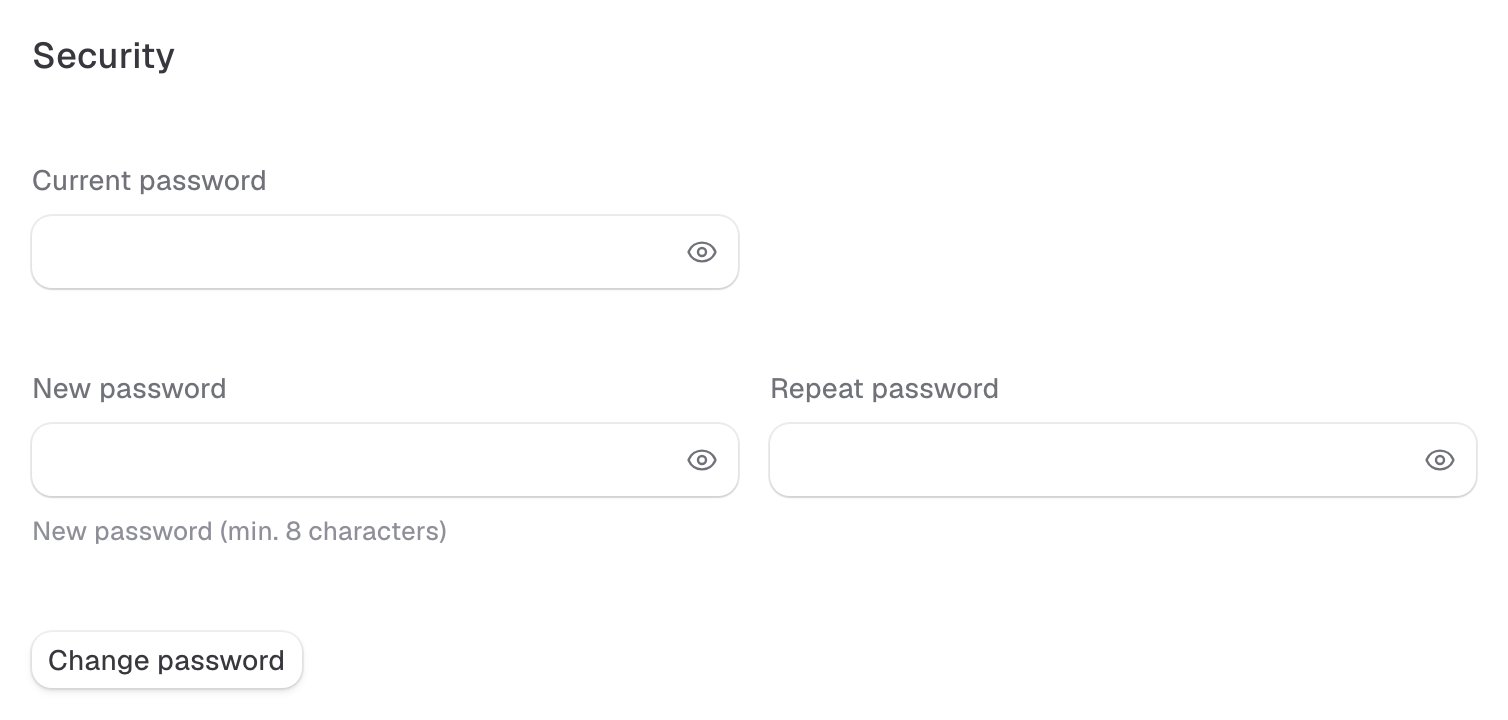
In the Security section, type your Current password. The eye icon in the field shows what you typed, in case you want to check for a typo.
2
Type the new password twice
In New password, type at least 8 characters. As you type, a strength rating appears under the field (from “weak” to “strong”) with a hint on what to improve. Aim for 12 characters or more. Then type the same in Repeat password.
3
Confirm
Click Change password. A “Password changed” message appears and the fields clear. From your next sign-in you use the new password.
- “Current password is incorrect”: check that Caps Lock is off and type it again.
- “This password has appeared in a data breach. Choose a different one.”: the password is known from leaks of other services, so pick a new one.
- “New password must differ from the current one” or “Passwords do not match”: fix the new password or its repetition.
If you sign in with Google, the Security section has no current password field. You’ll see a note that you sign in with Google and two fields for a new password. Fill them in and click Set password. After the “Password set” message you can sign in either with Google or with your e-mail and password.
Change the app language
The app works in Polish and English. The language is your own choice, so coworkers keep theirs. In the Preferences section, open App language and pick Polish or English. The page reloads in the new language. You can do the same from the menu under your photo, in its Language part.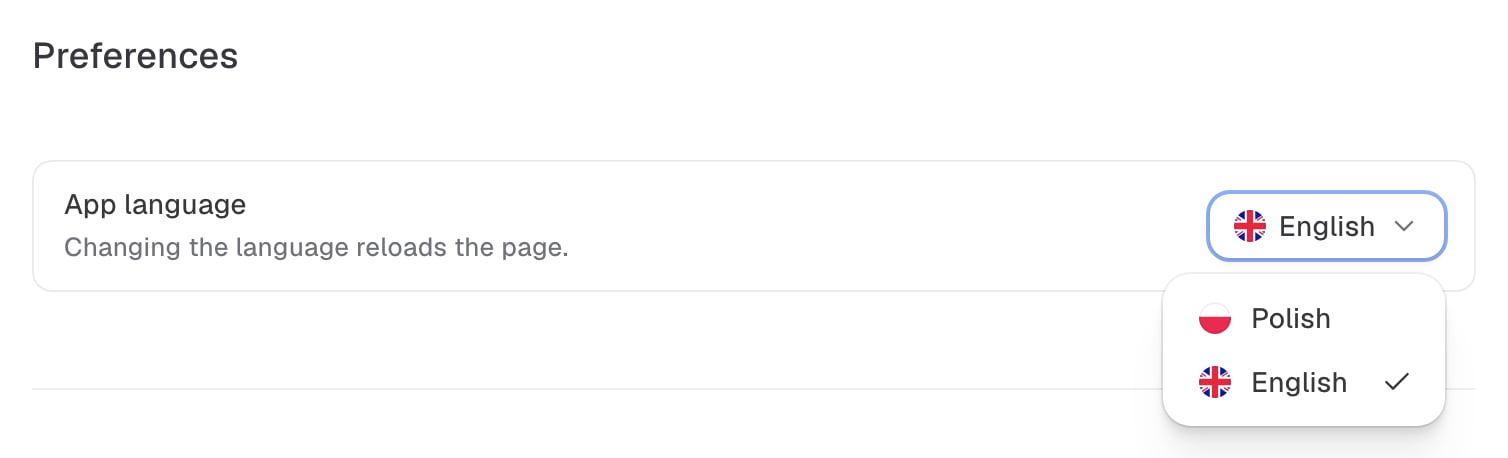
Delete your account
If you’re done with CNC Optima, you can delete your account together with your personal data. The Account section is at the very bottom of your profile.1
Open the confirmation
Click Delete account. A window opens listing what happens once the account is gone.
2
Type your e-mail address
Type the address you sign in with. Letter case doesn’t matter. If the address doesn’t match, you’ll see “The address does not match…” under the field and nothing is deleted.
3
Confirm
Click Delete account permanently. A “Your account has been deleted” message appears and the app takes you to the sign-in page.
If you’re an owner of any company, the Delete account button is inactive and the names of those companies show under it. Deleting your account would wipe out the company for the whole team, so first transfer ownership to someone else in Team members (see Team) or delete the company in General (see Company details).
What’s next?
Signing in and passwords
Sign in with e-mail or Google and recover a forgotten password.
Notifications
Choose what reaches you on the bell and by e-mail.
Team
Invite coworkers and hand over ownership of the company.