

Start a conversation
1
Open OperatorAI
Click OperatorAI in the menu on the left. You’ll see a greeting, the message field and a few cards under Suggested actions, picked from what’s going on in your company: unread inbox e-mails, sent quotes waiting for an answer, orders due this week.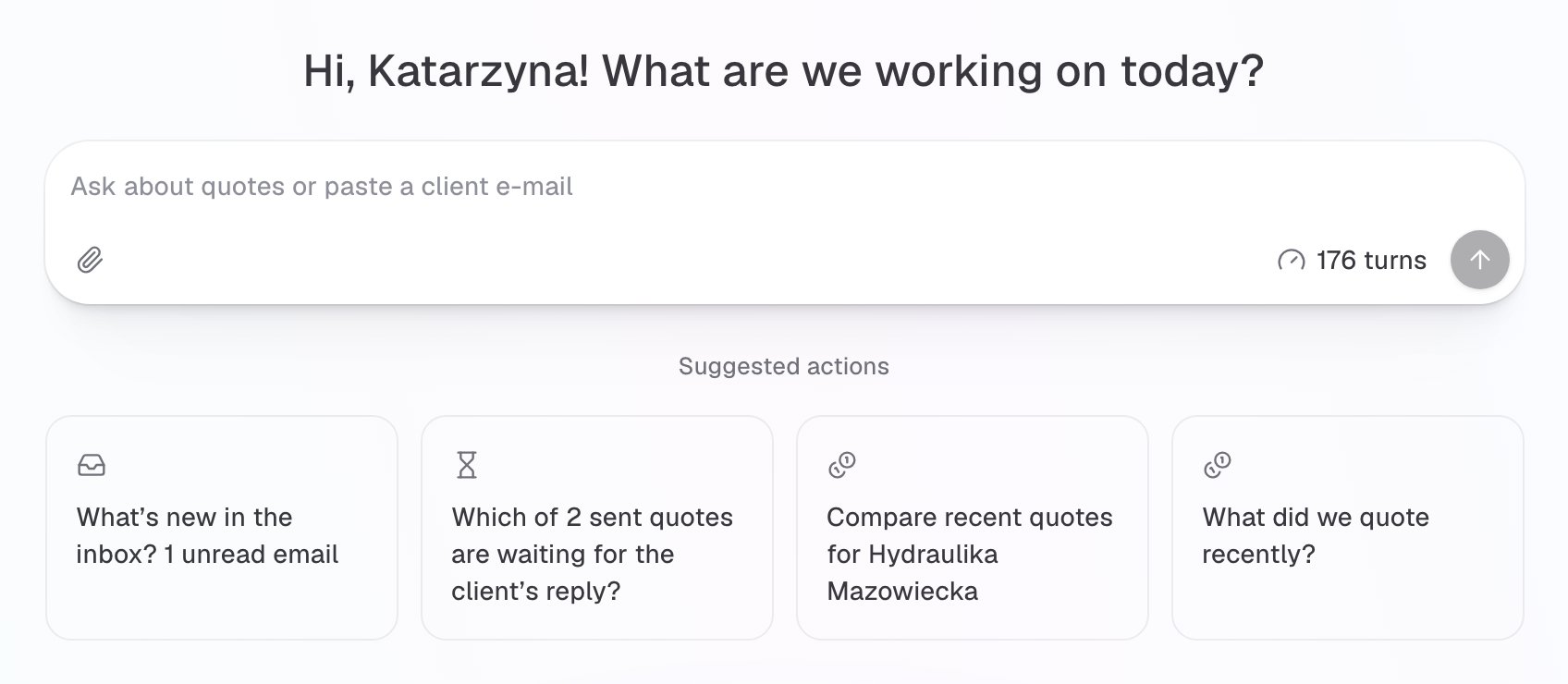
2
Ask a question
Write the way you’d ask a colleague in the office, in English or Polish, for example: “Which sent quotes are still waiting for the client’s answer?”, “What’s our hourly rate on the milling machine?” or “What clearance does a Ø25 H7/g6 fit give?”. You can also click one of the cards to send its question.
3
Send
Click Send or press Enter (Shift+Enter starts a new line). The answer appears as it’s written, with a short line above it saying what the assistant is doing, such as “Searching company data…”. The conversation gets its own address and goes into your history.
OperatorAI helps with the workshop’s work: quotes, orders, clients, projects and files in the app, machining know-how (materials, tolerances, cutting parameters) and the business around requests, such as an e-mail to a client or a translation of their message. For a question outside that scope it answers briefly with what it can do, and that reply still counts as a turn. When one message mixes work with another topic, it does the work part.
Prepare a quote from a client e-mail
OperatorAI saves the most time on requests for quote. You paste the e-mail, the assistant picks out the part, quantity, material, dimensions and drawing number, and prepares a quote draft. The draft saves nothing: you create the quote yourself, in the usual form.1
Paste the e-mail
Paste the request into the message field and send it, for example “Ferrokon asks for 60 Ø40×70 sleeves in C45 steel, drawing FK-T40.”
2
Answer its questions if it needs any
When the e-mail is missing something, such as the cycle time or the material price, OperatorAI shows a card with questions. Pick an answer, click Other to type your own, or Skip if you don’t know it. Then click Send answers.
3
Open the draft
A draft card appears under the answer with the quantity, material, dimensions and drawing number, labelled “Quote draft · not saved yet”. Click Open in the form.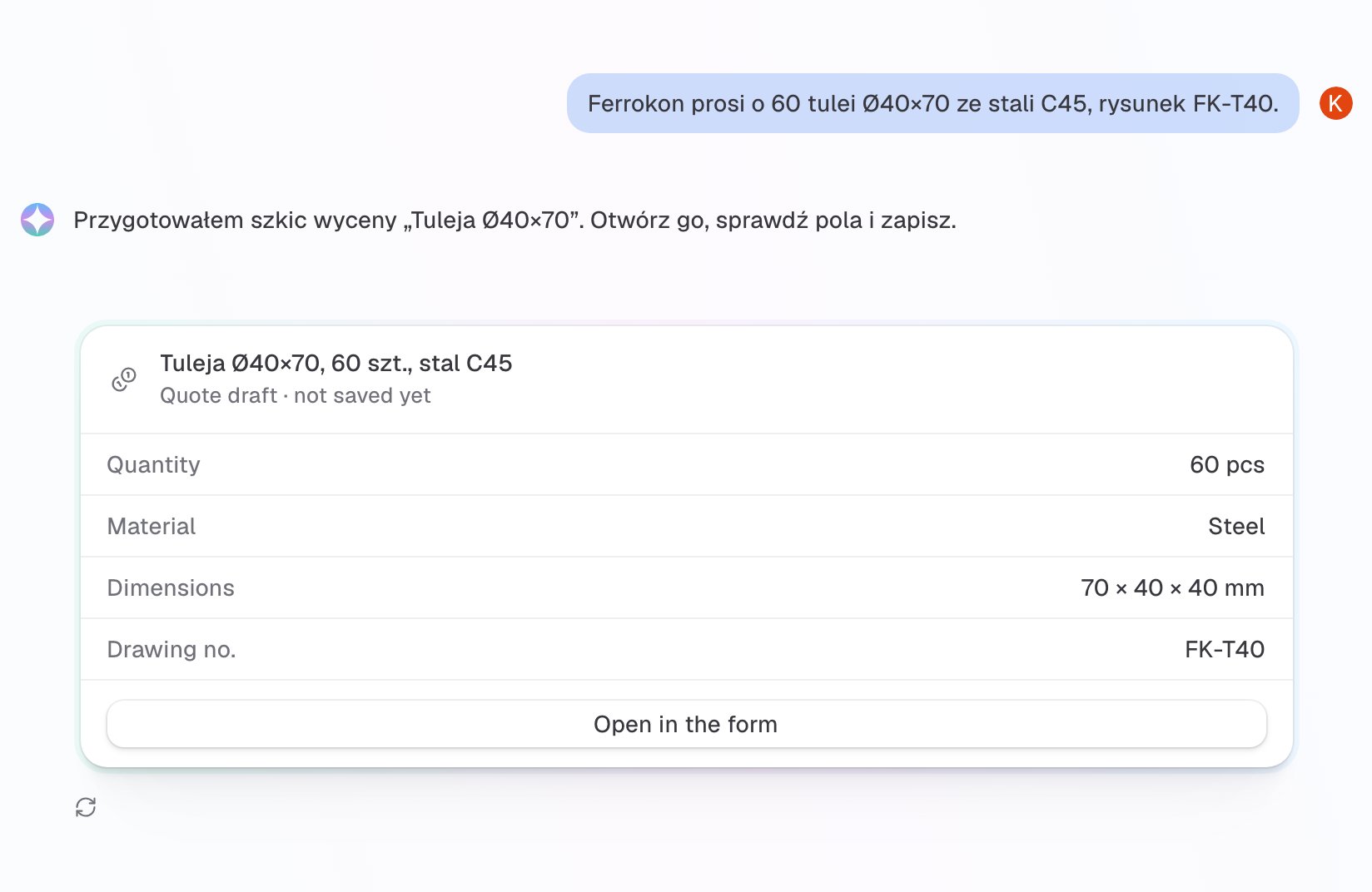
4
Check and save the quote
The new quote form opens filled in, with a “Draft from OperatorAI” strip reminding you to check every field. Complete the rest and save the quote like any other. The steps are in Create a quote.
Attach a PDF request or a photo
Did the client send the request as a PDF, or do you have a photo of a material label? Click the Attach a PDF or an image paperclip, drag files onto the message field or paste an image from the clipboard. The message goes out once the files finish uploading. Each file shows up in the conversation on its own, and clicking its name opens a preview.- Files: PDF, or JPG, PNG, GIF and WebP images.
- Up to 5 files per message and 20 per conversation.
- PDF up to 10 MB and 100 pages, image up to 5 MB and 8000 px.
OperatorAI reads PDFs and images as text and pictures. It doesn’t open DXF or STEP files and doesn’t work out machining time from a drawing, so give it the cycle time or ask for a suggestion based on similar quotes. A file in a message uses more turns than text alone.
Ask for changes to your data
OperatorAI doesn’t only search. It can add a client (also by tax ID (NIP), with details from GUS), create an order or a project, change an order’s status, recalculate a quote with a new margin or remember a rule for later. Write what should happen, for example “Add the client with tax ID …” or “Order ZAM-2026-0004 is in progress”. Changes that are hard to undo are only proposed. You’ll see a card with a question, a Changes list (old value and new value) and the line “Nothing changes until you confirm.” This applies, among others, to:- deleting a quote, a project, or an order together with its quotes,
- archiving a client and changing its tax ID or e-mail,
- cancelling or archiving an order, or changing its client,
- moving a quote back from sent, accepted or rejected, because its prices become editable again,
- changing the company details printed on every quote PDF,
- saving something to the assistant’s memory.
OperatorAI only does what your role allows. Changing quotes, orders, projects and clients needs the Edit production data permission, and changing company details or the company memory needs Organisation settings. Without them the assistant tells you that you don’t have permission for the change. See Roles and permissions.
What won’t OperatorAI do?
- It doesn’t change passwords or your account, doesn’t invite or remove team members, doesn’t change roles, doesn’t delete the company and doesn’t handle your plan or payments.
- It doesn’t follow instructions written inside a pasted e-mail or document. If the text tries to tell it what to do, it tells you.
- It doesn’t change the company instructions or documents in the assistant settings. You do that in the assistant settings.
Ask from any screen
You don’t have to leave a quote to ask about a detail. Click the OperatorAI button in the top bar, next to the notification bell. The panel opens at the side of the page, on your last conversation.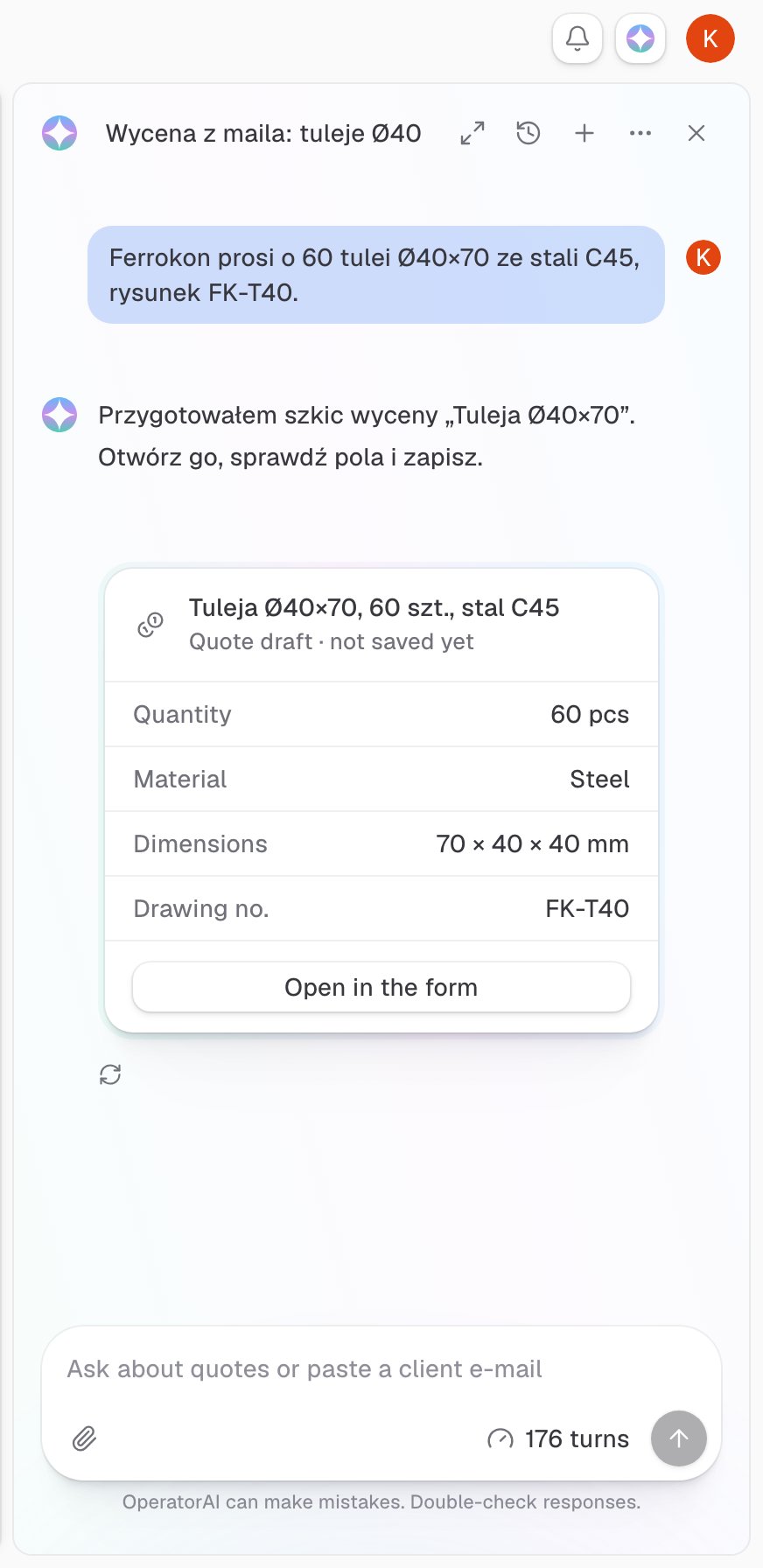
- Expand to full view takes over the page area, and Collapse to side panel goes back to the column,
- More actions holds Open in OperatorAI view, which moves the conversation to the full page, and Share,
- Close hides the panel.
Go back to an earlier conversation
Every conversation stays in your history, so you can return to it and carry on. Click the Previous conversations icon in the chat header. Conversations are grouped by day, Search conversations looks through titles and message text, and Show older loads more.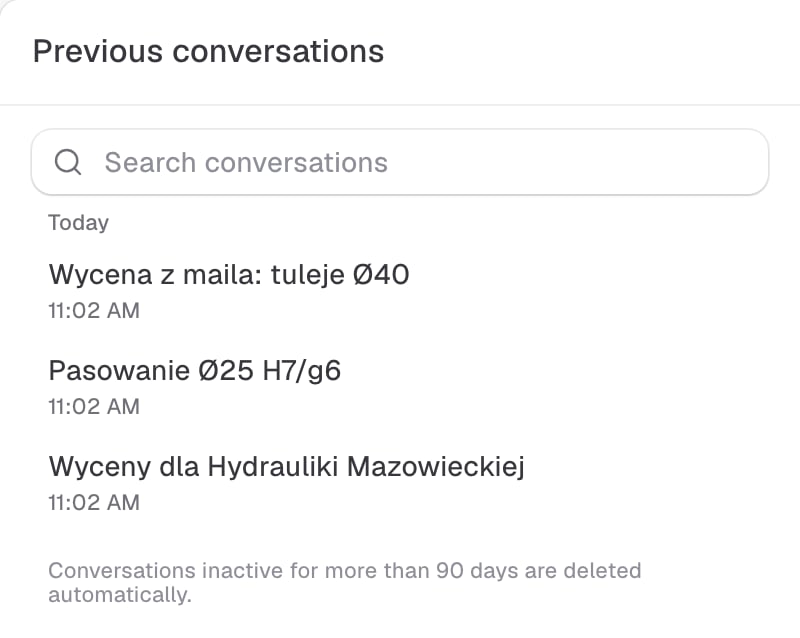
- Rename: click the conversation title in the header, type a new name (up to 80 characters) and press Enter.
- Delete: hover the conversation in the history, click the bin icon and confirm with Delete conversation. The messages go, but quotes, orders and clients created in that conversation stay.
- New topic: click New conversation (the plus icon). An answer still being written in the previous conversation finishes in the background, and the history marks it “Responding…”, “New reply” or “Waiting for you”.
Share a conversation with your team
Want to show a colleague how the assistant built a draft? Share the conversation with them to read. Only the author of a conversation can share it.1
Open the share window
Click the Share icon in the conversation header. In the side panel it’s in the More actions menu.
2
Turn sharing on
Switch on Share with your company. It’s saved straight away, there’s no separate save button.
3
Send the link
Click Copy link and send it to your colleague.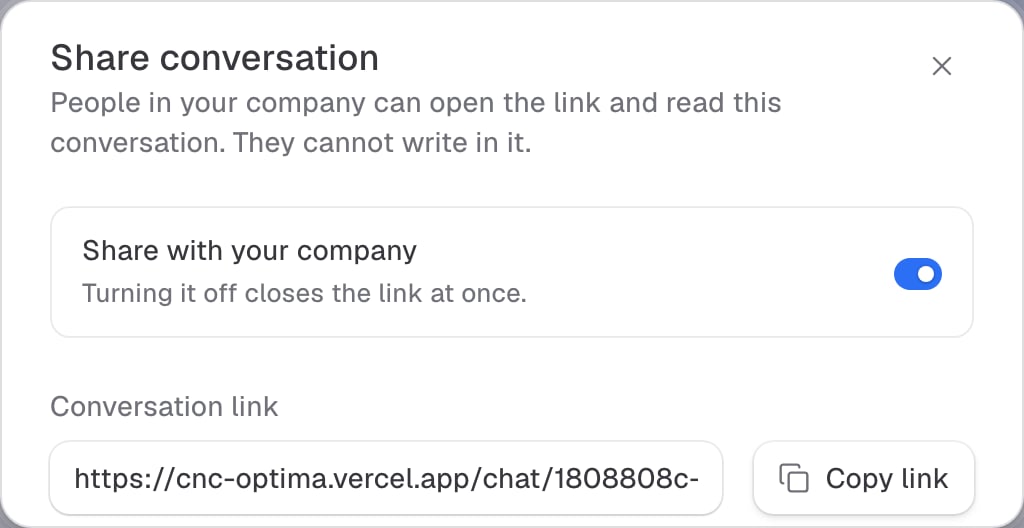
How many turns are left?
Conversations with OperatorAI are counted in turns. A regular message is one turn, while a question that makes the assistant look in several places, or a long PDF, costs more. Turns are shared by the whole company: the plan’s pool renews on the 1st of each month, and once it runs out, turns come from a purchased pack. The turn counter sits next to Send. Click it to open OperatorAI turns: how many turns are left, how many come From plan and when the pool renews, and, if your company has a pack, how long it’s valid.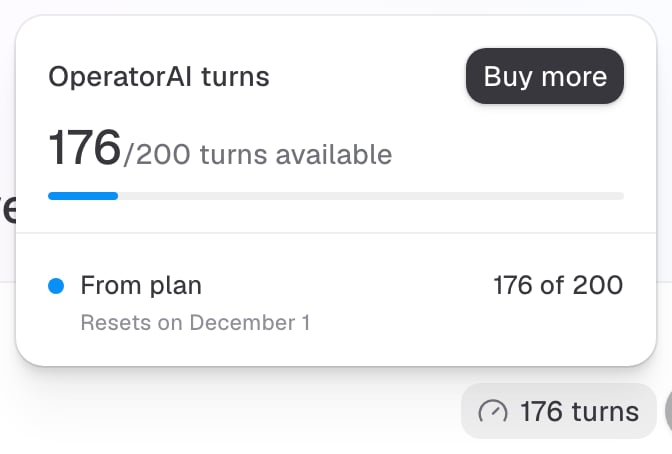
- someone with the Billing permission can buy a pack right there, and it works from the moment it’s bought,
- everyone else clicks Ask the owner (or Ask for turns on the strip). The people who manage billing get a notification and the button changes to Request sent.
How many turns your plan includes and which packs are available is in Plan and billing.
What’s next?
The assistant's knowledge
Teach OperatorAI your shop’s rules and add price lists and facts to remember.
The request inbox
Receive requests from clients and turn them into quote drafts.
Create a quote
Check and save a quote opened from a draft.