

Sign in with email and password
The sign-in form has two steps: first your address, then your password.1
Enter your email address
Open the app. In Email address, enter the address your account was created with and click Continue.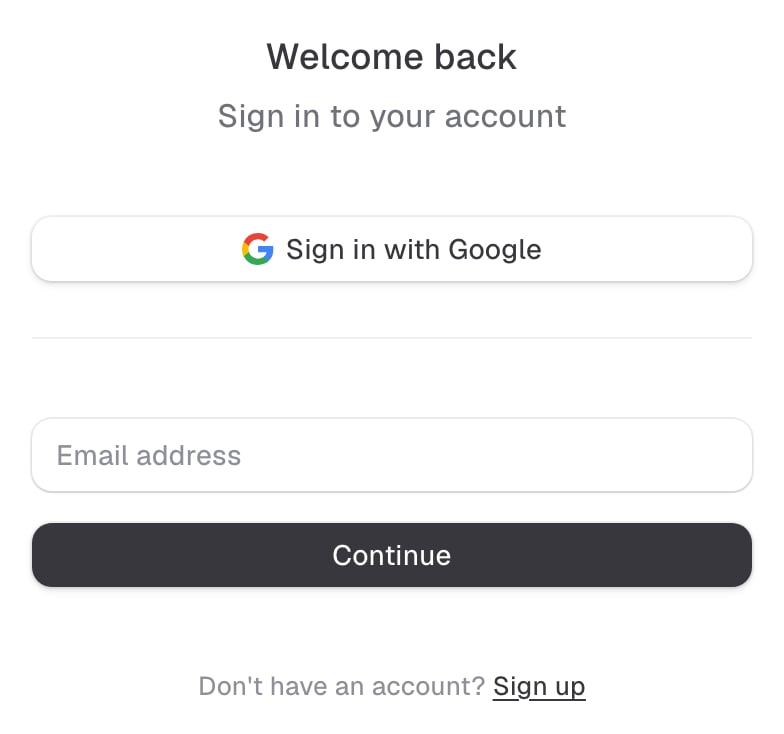
2
Enter your password
Your address appears above the password field. If there’s a typo in it, click Change and fix it. Enter your Password (the eye icon shows what you type) and click Sign in.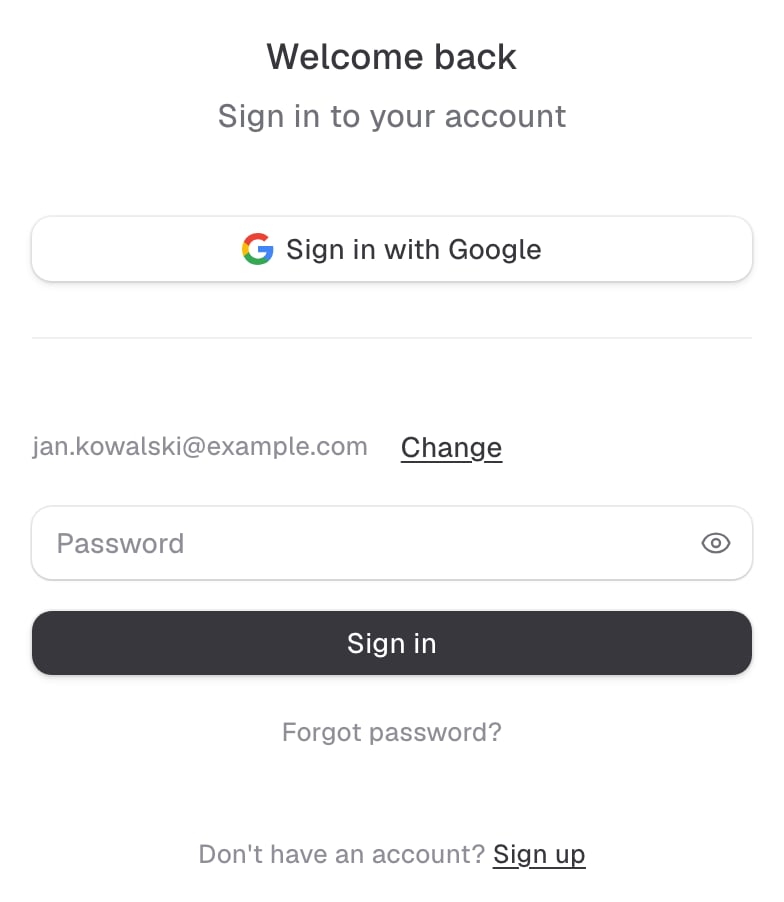
3
Get to work
The app opens the Quotes list in the language saved in your profile. If you’re signing in after clicking a link to a specific page, such as an order someone sent you, you land straight on that page.
Sign in with Google
Click Sign in with Google above the address field. Your browser goes to Google and, once you pick your account, comes back to CNC Optima signed in. The same button is on the sign-up form, so you can also create your account with Google.Set a new password when you’ve forgotten it
You set a new password from a link sent by email, without needing the company owner.1
Request a link
On the second sign-in step, click Forgot password?. The address already entered carries over to the next screen. Check it and click Send reset link.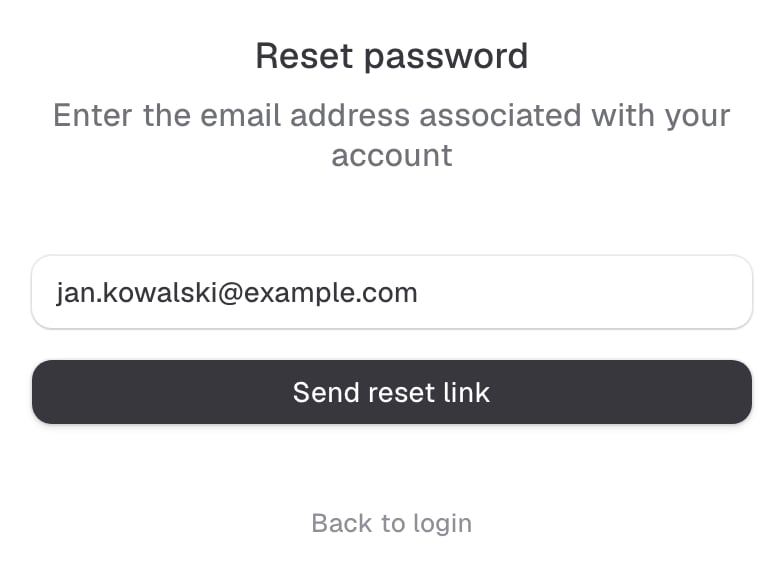
2
Open the message
You’ll see the Check your inbox screen. Open the message and click the link in the same browser you requested it from. The link works for one hour and only once.
3
Enter a new password
Enter it in New password (min. 8 characters), repeat it in Repeat password and click Save new password. You’ll see “Your password has been changed” and the app opens.
A new password signs your account out on every other device, such as the computer on the shop floor. The browser you set it in stays signed in.
What if the link has expired?
A password reset link works for one hour, only once, and only in the browser you requested it from. If you requested it on your computer and open it on your phone, or click it a second time, you’ll see the This link has expired screen.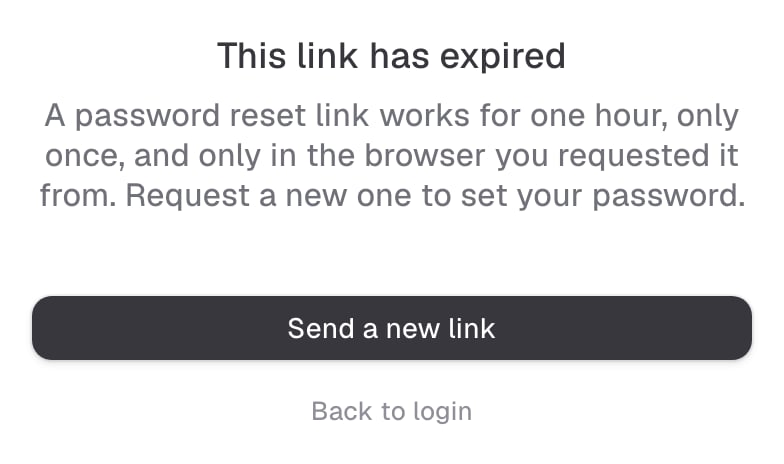
What if the email doesn’t arrive?
Password links and confirmation codes usually arrive straight away. If you can’t see one:- Check your spam folder. The app reminds you of this on the screen after sending the link.
- Ask for a new one. The Resend button unlocks a minute after each send. A new code cancels the previous one, so use the one from the latest message.
- Check the address. The screen after sending a link looks the same even when no account has that address, so a typo won’t show itself. On the code screen, fix the address with Use a different e-mail.
Join a company from an invitation
When someone on your team invites you to their company, you get an email with a link. The link opens a page with the company name, the role you’re invited as and the address the invitation went to. Only an account with that exact address can accept it.1
Sign in or create an account
If you already have a CNC Optima account, click Sign in. If not, click Create an account: the sign-up form opens with the invited address filled in, and it can’t be changed. After signing in or confirming the code, you’re back on the invitation.
2
Join
Click Join the company. You become a team member with the role from the invitation and land on that company’s quote list, even if you already have your own company. If your profile isn’t complete yet, you first enter your name on one short screen.
- Wrong account: the account you’re working in has a different address from the invitation. Click Sign in with another account, and the app signs out the current account and opens sign-in with the right address.
- Invitation expired, Invitation cancelled or Invitation not found: the link no longer works. Ask the person who invited you for a new invitation.
- Already accepted: you already belong to this company. Click Go to the app.
- “This company has no free seats on its plan”: the company needs to free up a seat or change its plan. The link keeps working until it expires, so try again when they let you know.
- “Confirm your email address first”: finish confirming your address with the code from the message.
Sign out
Click your avatar in the top right corner and choose Sign out. You’re back on the sign-in screen. If you work on a shared computer on the shop floor or in the office, sign out when you finish so nobody works in the app under your account.What’s next?
Your profile
Change your password, name, photo and app language.
Quickstart
Create an account, set up your company and save your first quote.
Several companies, one account
Switch between companies and accept invitations in the app.