

What’s shared and what’s separate?
Each company is a separate company account. Data never moves from one company to another:- Separate in each company: quotes, orders, projects, clients, the request inbox, OperatorAI conversations, the team and your role, the company details, and the plan and billing. You can be the owner in one company and an employee in another.
- Shared across all companies: your account, meaning your e-mail address, password and profile with your name and photo.
Switch companies
1
Open the company menu
Click the company logo at the top of the sidebar. The Workspaces menu opens with the companies you belong to and your role in each. The current company is ticked.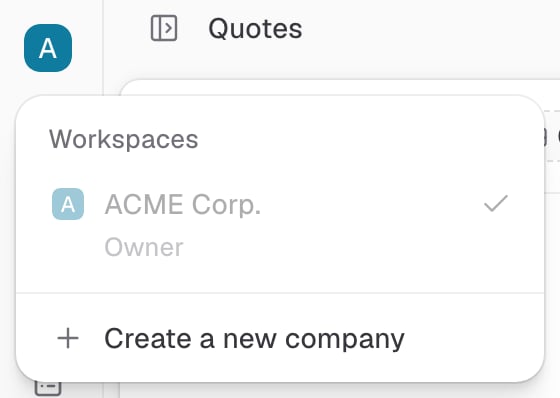
2
Pick another company
Click the company you want to go to. A loading screen shows for a moment, then that company’s quote list opens.
Join another company
When another company invites your e-mail address, you don’t need a new account. You can accept the invitation in three ways:- From the e-mail: click the link in the message and then Join the company. The app opens the new company right away.
- From the company menu: the invitation waits under Invitations, with the company’s name and the role you’re invited as. Click it and the app confirms with You joined. You stay in the company you’re working in, and the new one appears in the list, ready to switch to.
- From the Choose a company screen: click Join next to the invitation and the app takes you straight into that company. You’ll see this screen after signing in when you don’t belong to any company yet, and when you click the notification about an invitation.
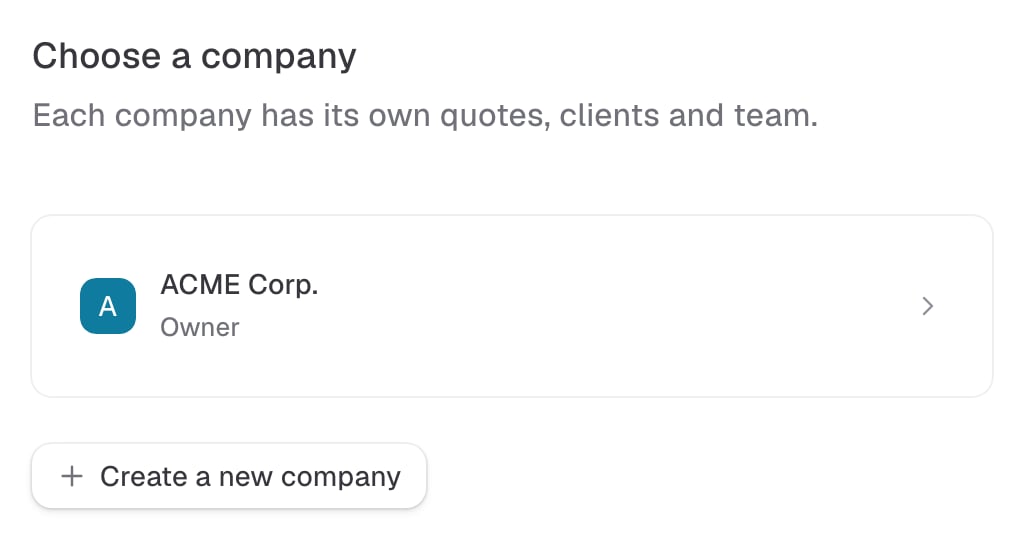
The invitation only works for the address it was sent to. If you have several addresses, sign in with the one from the invitation. If the company has no free seats on its plan, the app asks you to contact the person who invited you, and the link keeps working until it expires.
Create a new company
Create a new company when you run a separate business, for example a second firm with its own tax ID (NIP). You become its owner, and the company starts empty: no quotes, clients or team.1
Open the form
In the company menu, click Create a new company. The same button sits under the list on the Choose a company screen.
2
Fetch the details from GUS
Enter the Tax ID and click Fetch from GUS. The app fills in the full name, a short name and the address from the Polish business registry, and all that’s left for you is to check them. This step is optional: you can also type every field by hand.
3
Check the company details
Company name is the full legal name printed on documents. Organisation name is the short name you’ll see in the sidebar and the company menu (2 to 30 characters). In the address, Street and Unit are optional, so a village address like “Wólka 12” goes in without a street. Enter the Postal code as 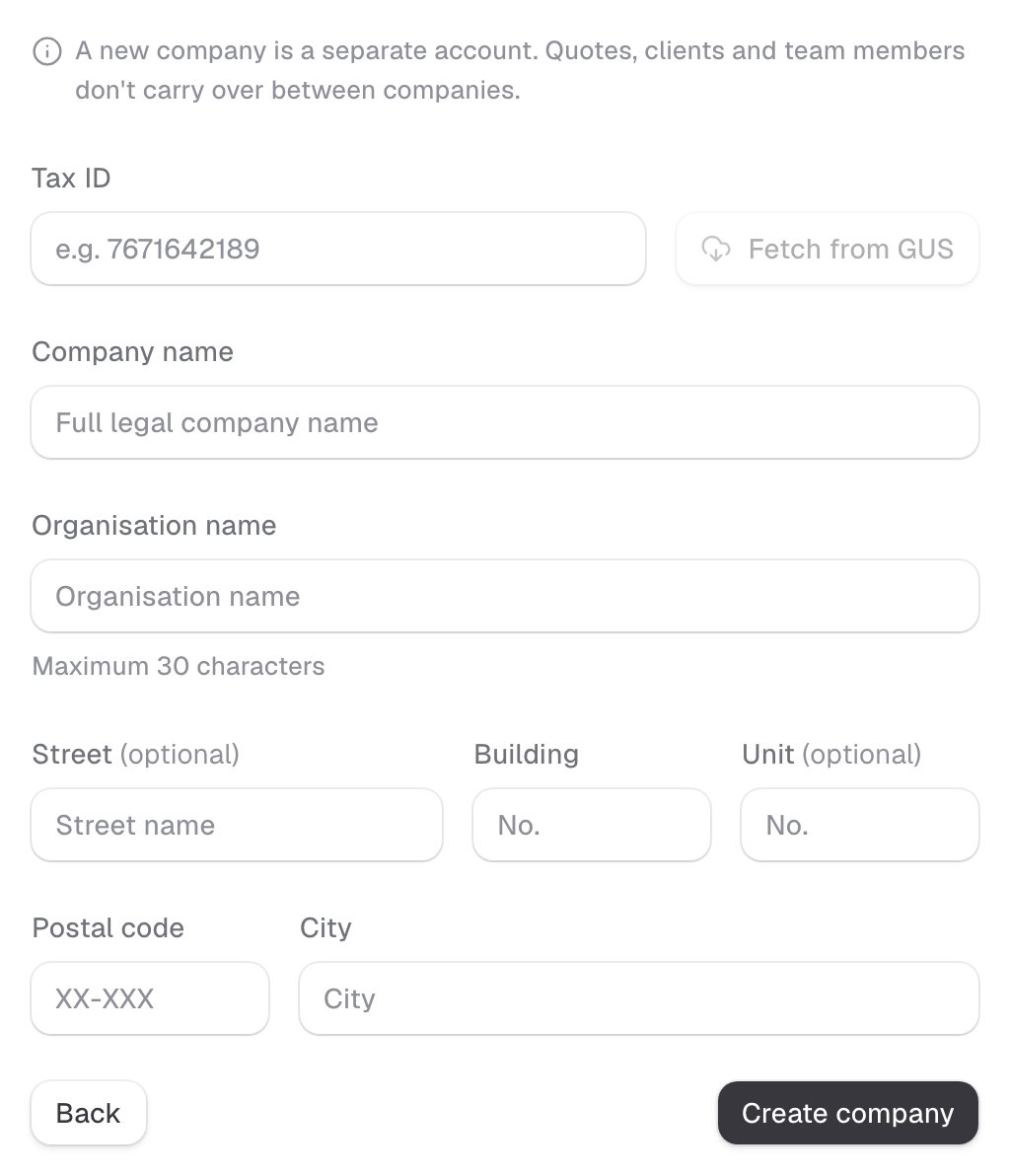
00-000.4
Create the company
Click Create company. The app confirms it and opens the company’s empty quote list. If you change your mind, Back closes the form without creating anything.
Delete a company
Only the owner can delete a company they no longer need, under Settings → General, with Delete company. A paid plan has to be cancelled first, and you confirm by typing the company’s name. Company details has the full steps.What’s next?
Team
Invite coworkers to the new company, or leave a company you no longer work in.
Company details
Add the logo and details that go on the new company’s offers.
Plan and billing
Choose a plan for the new company.