

Where do notifications arrive?
Each event can reach you in two ways:- In app: on the bell in the top bar. The number on the bell counts unread notifications, and clicking a notification opens the quote or order it’s about. There’s more about the top bar in Finding your way around.
- E-mail: a summary message to your address. Roughly every 10 minutes the app sends one e-mail per company with the events you haven’t already read on the bell. It lists up to 10 of the newest and sums up the rest in one line. It arrives in the language set in your profile.
Open your notification settings
Click the bell in the top bar, then Notification settings at the bottom of the list. You can also click your photo in the top right corner, choose Account settings and, in the left column under User settings, click Notifications.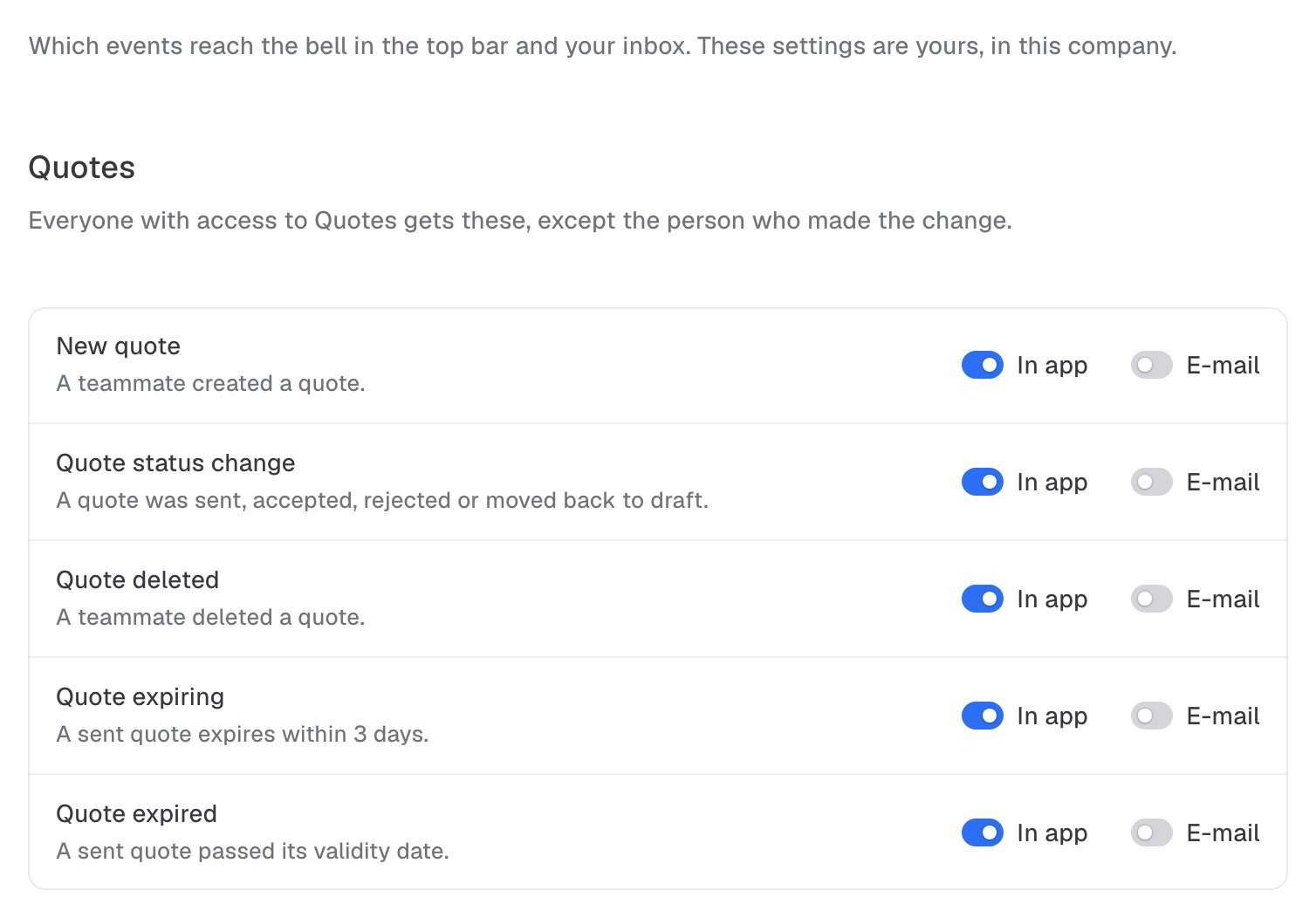
Turn a notification on or off
Find the event and flip In app or E-mail. There’s no Save button: the switch saves straight away. If saving fails, the switch flips back and you’ll see an error message. An example: you want to call the client before an offer runs out, but you don’t open the app every day. Turn on E-mail for Quote expiring, and you’ll get a message once a sent quote has 3 days or less of validity left. In the Quotes, Projects and Clients groups, everyone with access to the module gets the notification except the person who made the change, so you don’t read about your own changes.You only see the groups for modules your role gives you access to. Team is for people who manage team members and Billing and plan for people who manage the subscription: the owner, the admin and roles with those permissions. The Company group is for everyone. What each role can do is in Roles and permissions.
Choose which orders you hear about
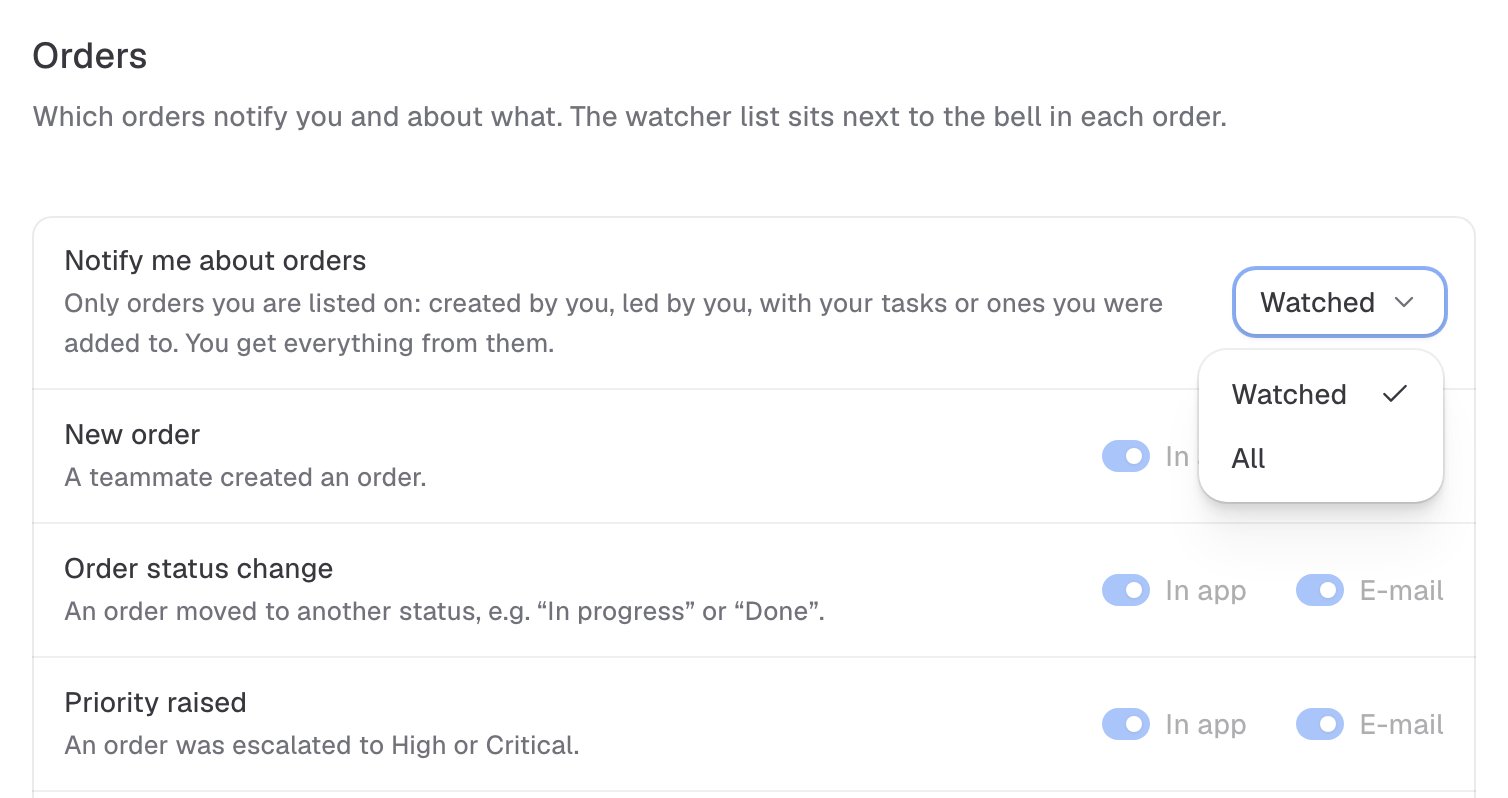
In a shop with dozens of open orders, a notification about every one of them quickly turns into noise. That’s why the Orders group starts with Notify me about orders:- Watched (the default): only orders you’re listed on, meaning ones you created, lead, have tasks in, or were added to. You get everything from these orders, on the bell and by e-mail, which is why the switches below are on and greyed out.
- All: every order you can see. The switches below decide what you get from orders you’re not listed on, and watched orders still send everything.
Turn off e-mails from one company
If notification e-mails aren’t useful to you right now, you don’t have to flip every switch one by one. The footer of each notification e-mail has a Turn off e-mail notifications for this company link. It opens a page with a Turn off e-mails button, and once you click it, the app turns e-mail off for every event in that company. The bell keeps working as before, and the settings page shows the E-mail switches turned off. You can turn any of them back on whenever you like.Working in several companies?
Notification settings are separate for each company. When you switch to another company, you’ll see its settings and set them up there too, and each company sends you its own e-mail. How to switch between companies is in Several companies, one account. Invitations to other companies have no switch on this page: the app always tells you about an invitation.What’s next?
Working on an order
Decide who hears about an order and tag people in comments.
Finding your way around
The bell, search and the rest of the top bar.
Your profile
Set the language your notification e-mails arrive in.