

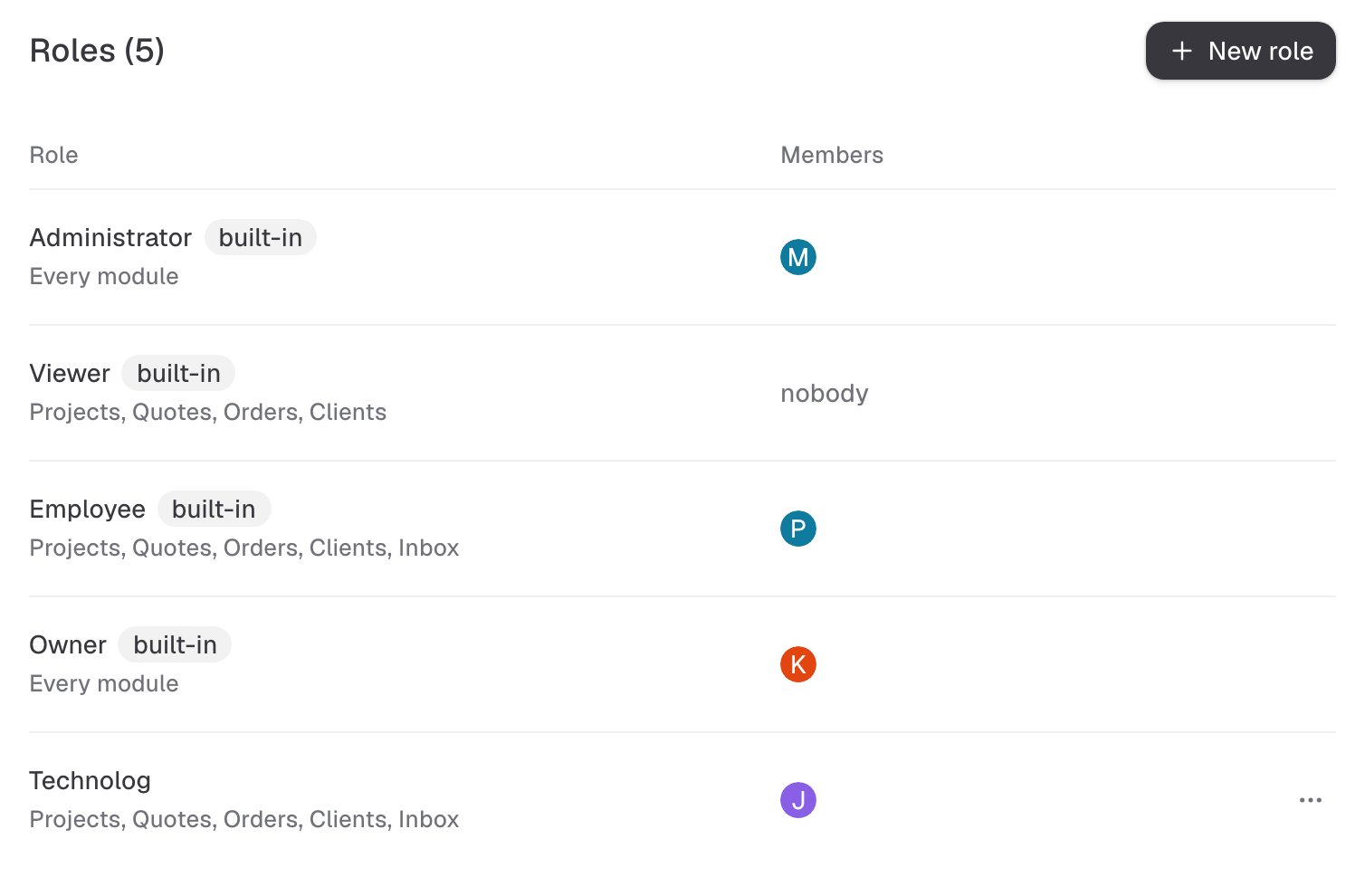
What can each built-in role do?
- Owner can do everything, and no role change can lock them out of their own company. They’re the only one who creates and edits roles, gives the Administrator role and transfers ownership. A company always has an owner, so the owner can’t leave or be removed.
- Administrator has the same permissions as the owner, but doesn’t create roles, doesn’t give the Administrator role or roles with Manage the team or Billing, and doesn’t change the role of, or remove, the owner or other administrators.
- Employee is the everyday role: prepares quotes, runs orders, projects and clients, and handles the request inbox. They don’t change company settings, the plan or the team. The app suggests this role for every invitation.
- Viewer sees projects, quotes, orders and clients but changes nothing and doesn’t see the request inbox.
What does each permission cover?
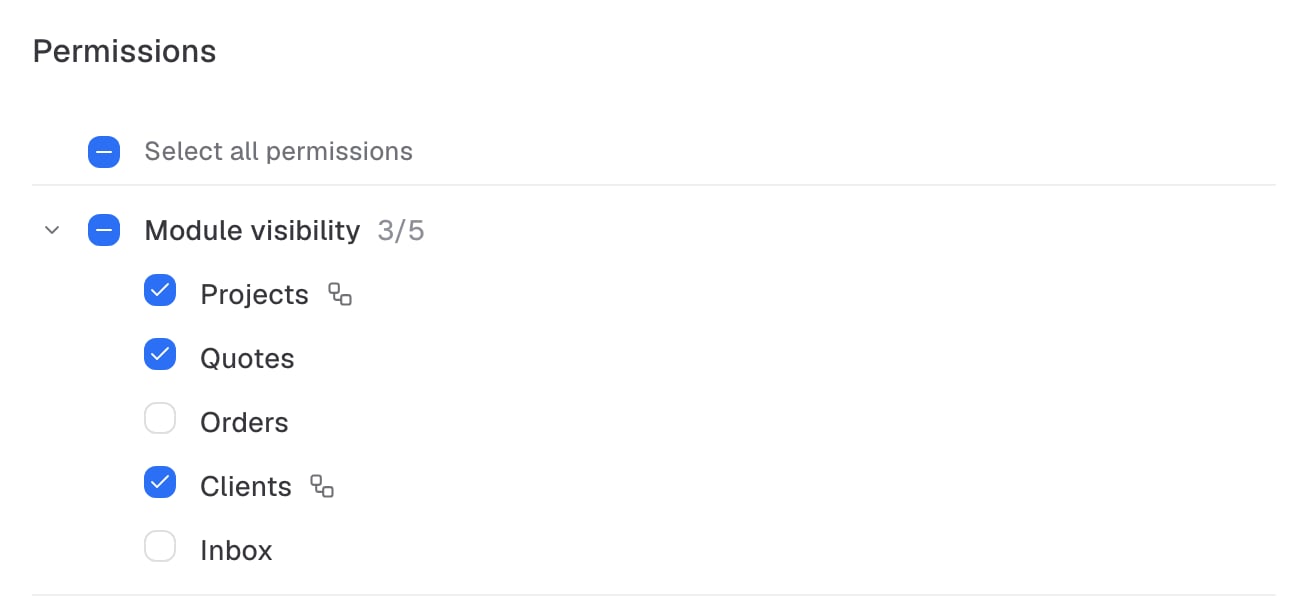
Permissions come in three groups. This is how you’ll see them in the role window:- Module visibility: which modules a person can open at all, namely Projects, Quotes, Orders, Clients and Inbox. A module that isn’t ticked disappears from that person’s menu, and its data isn’t available to them.
- Working with data:
- Edit production data lets them create and change quotes, orders, projects and clients. Without it they can only look at these modules and see a View only badge on the forms.
- Manage machines covers adding machines and setting their hourly rates.
- Administration:
- Organisation settings covers the company details, logo and default rates.
- Billing covers the plan, team seats and invoices.
- Manage the team covers inviting, removing and changing the roles of coworkers.
Why does ticking one module tick others?
Some modules rely on others, so the app makes sure a role always makes sense:- A quote always has a client and a project, so ticking Quotes also ticks Projects and Clients. Likewise, Orders ticks Projects.
- Unticking Projects or Clients unticks the modules that need them, and Edit production data.
- Edit production data ticks visibility of projects, quotes, orders and clients. Inbox stays a separate decision, because e-mails from customers are their personal data.
Create a custom role
A custom role helps when someone in the shop needs a different set of permissions than the built-in roles offer. Example: a process engineer who prepares quotes and sets up machines but doesn’t deal with the team or the plan.Custom roles are available on the Business plan and above, and only the company owner creates them. On a lower plan, instead of the New role button you’ll see Custom roles are a Business feature and an Upgrade plan button (on an individual contract: Contact us).
1
Add a role
Click New role above the list of roles.
2
Name it
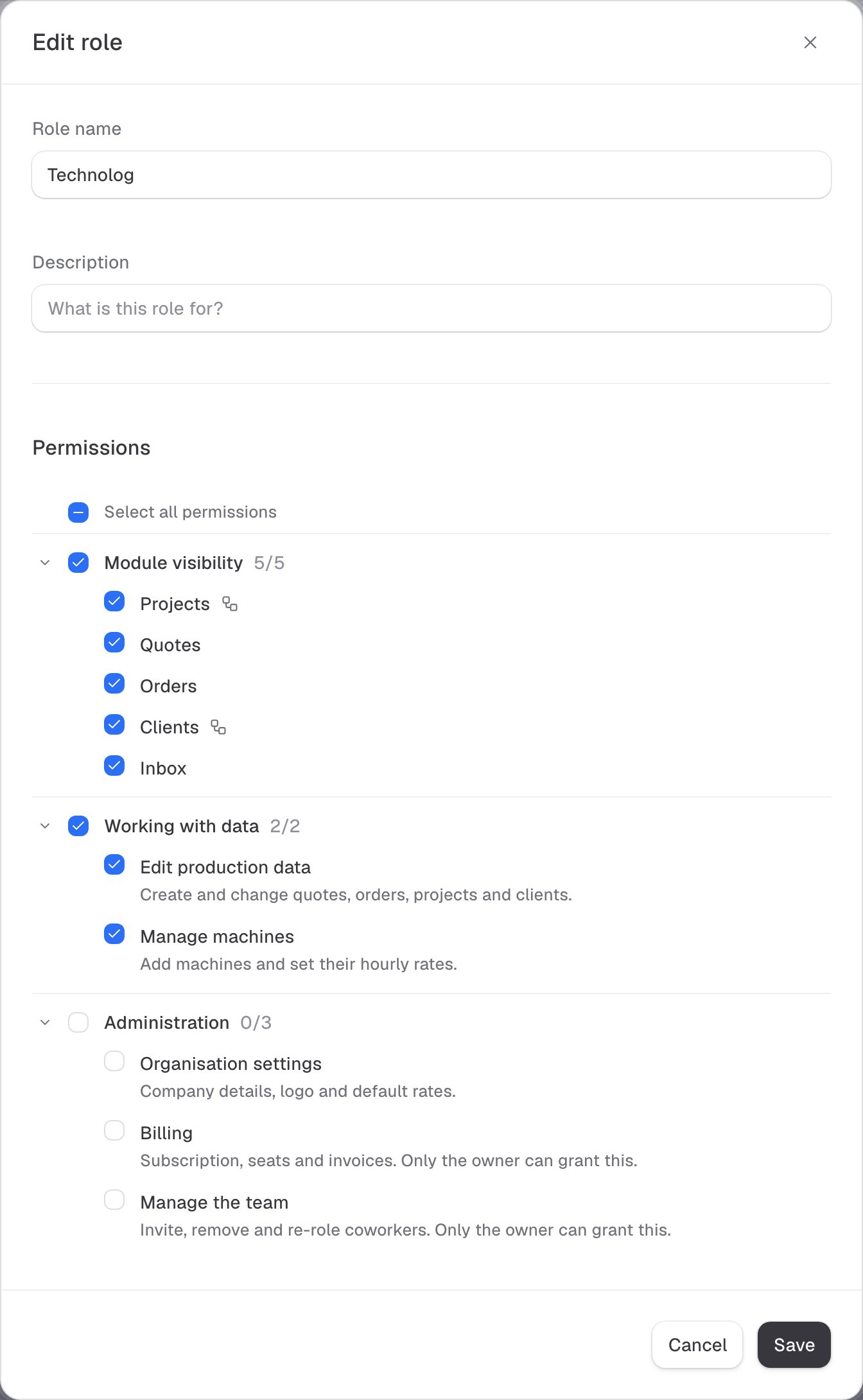
In Role name, enter the name the team will see in the people list and the role pickers, for example “Technolog” or “Production manager”. It can be up to 60 characters and the description up to 200 (longer text shows “A role name can have up to 60 characters and a description up to 200.”), must differ from the company’s other roles and can’t repeat the name of a built-in role.Description is optional: a note for you about what the role is for (up to 200 characters).
3
Pick the permissions
Under Permissions, expand a group with its arrow and tick what the role should see and change. The box next to a group’s name ticks the whole group, and Select all permissions ticks everything. The counter next to a group, for example
2/2, shows how many of its permissions are ticked.4
Save
Click Create. The role appears in the list without the built-in badge, and you can give it to someone in the team list or in an invitation right away.
Give someone a role
You give roles in the team list: under Settings → Team members, click the role next to a person and pick a new one, or choose the role in an invitation. Team walks you through it.Change or delete a custom role
Click the three-dot icon next to a custom role. Built-in roles don’t have this menu.- Edit role opens the Edit role window. When you click Save, everyone holding the role gets the new permissions at once. Renaming a role doesn’t change who holds it.
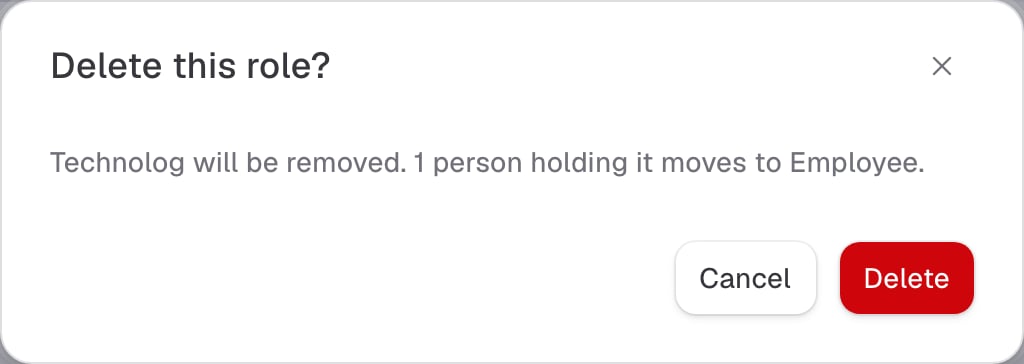
- Delete opens Delete this role?, which tells you how many people will move to Employee. Confirm with Delete.
What’s next?
Team
Invite coworkers and give them roles.
Plan and billing
Check your plan if you’d like to create custom roles.