

WYC-2026-0010.
The examples on this page price “Płyta montażowa PM-400”: an aluminium mounting plate, 400 × 300 × 20 mm, in a batch of 10 for Hydraulika Mazowiecka.
Create a quote
A name and an order are all you need to start. The form comes with sample values filled in (steel, 100 × 100 × 100 mm, 10 pieces, 20% margin), so a price shows up from the first second. Overwrite them with your part’s data.1
Open a new quote
In the menu choose Quotes and click New quote. An empty form opens with the status Draft, with the cost panel next to it.
2
Name the quote
In Quote name, type what the offer is for, ideally the part name, such as “Sleeve bearing Ø30”. This name becomes the quote’s title, shows in the list and appears as the item on the PDF offer.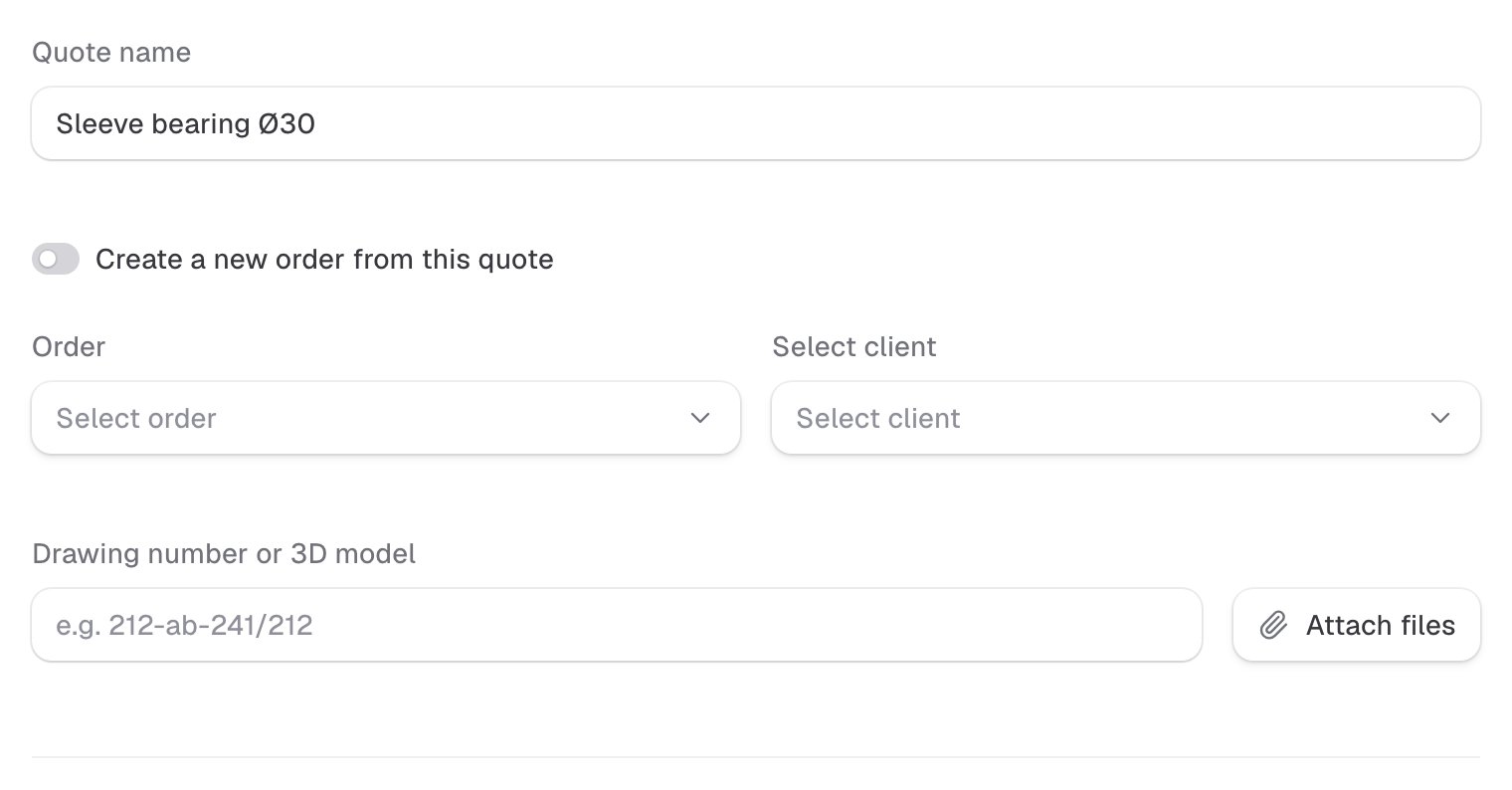
3
Pick the order
Click Order and pick an order from the list. Each one shows its number, title and client, and you can search by title at the top of the list. Once you pick it, the client field (Select client) fills in and turns grey: from now on you change the client in the order only.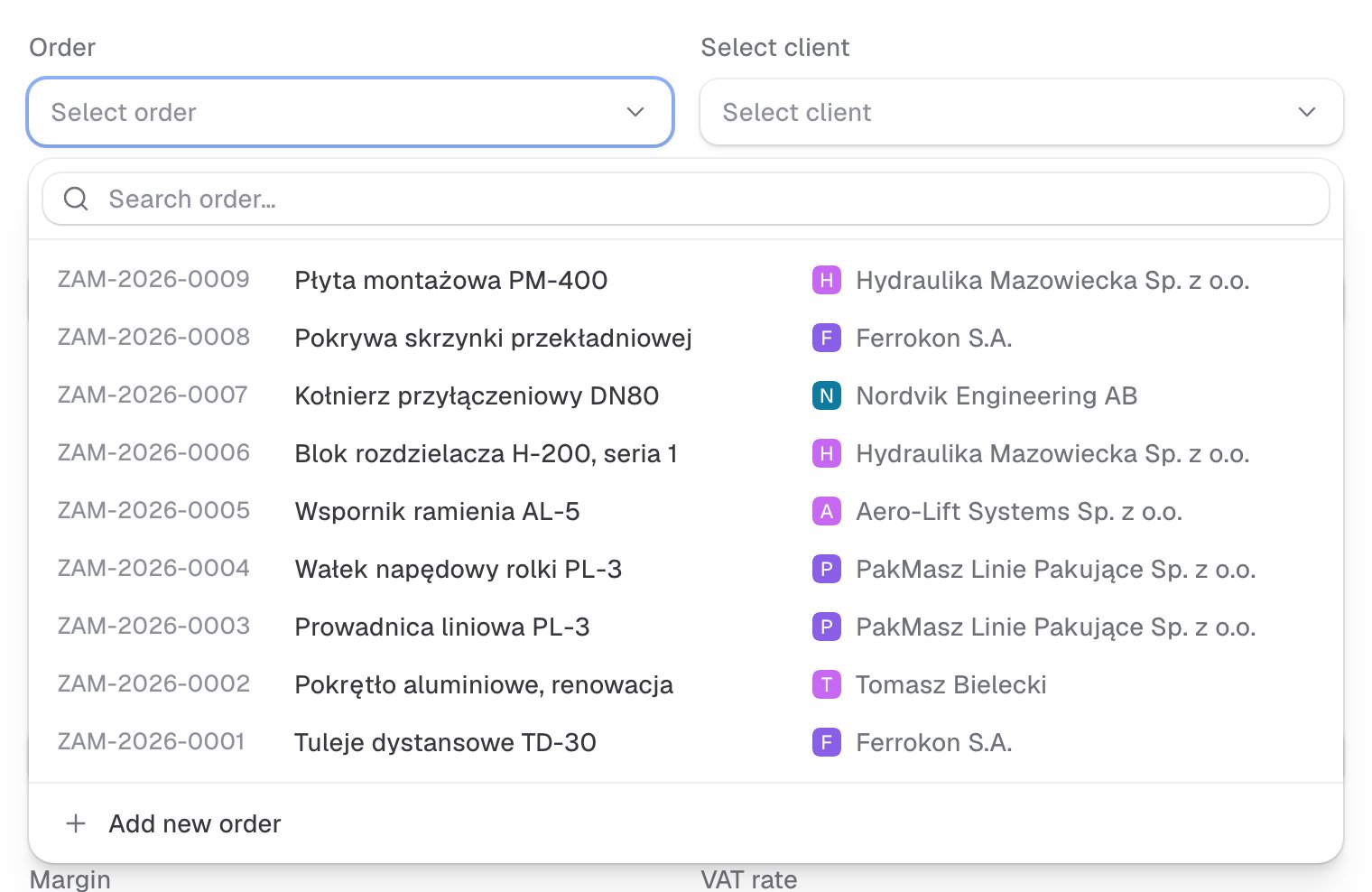
- Switch on Create a new order from this quote and choose the client yourself in Select client. The order is created together with the quote when you save it, with the quote’s name, client, dimensions and material. Files attached to the quote go into it too.
- At the bottom of the order list click Add new order, type the Order title and click Create order. The order is saved straight away, even if you then drop the quote.
4
Describe the part and costs
Work through the form’s sections from top to bottom. What goes in each field is explained below under “What to enter in the form”. The panel on the right recalculates with every change.
5
Save
Click Create quote. The quote gets the next number, for example
WYC-2026-0011, and you’re taken back to the quote list, where it sits in the Draft group.If the name or the order is missing, you’ll see “Quote name is required” or “Order is required” under the field and nothing is saved. Fill it in and click again.On some plans the number of quotes a company can create per month is limited, and deleted quotes count too. When the limit is used up, clicking New quote shows how many quotes were created and when the limit renews. See Plan and billing.
What to enter in the form
The form has five sections. Only the name, the order, dimensions greater than zero and the quantity are required. Leave costs that don’t apply at zero. You can change everything later, so you don’t need every number up front. To see how the panel turns these fields into a price, step by step on a real example, read How is the price calculated?.The app writes amounts the Polish way, with a decimal comma and a space between thousands, in the English interface too:
12 706,80 PLN means 12,706.80 PLN.Quote settings
This is where you decide the language and currency of the offer and how much you make on it.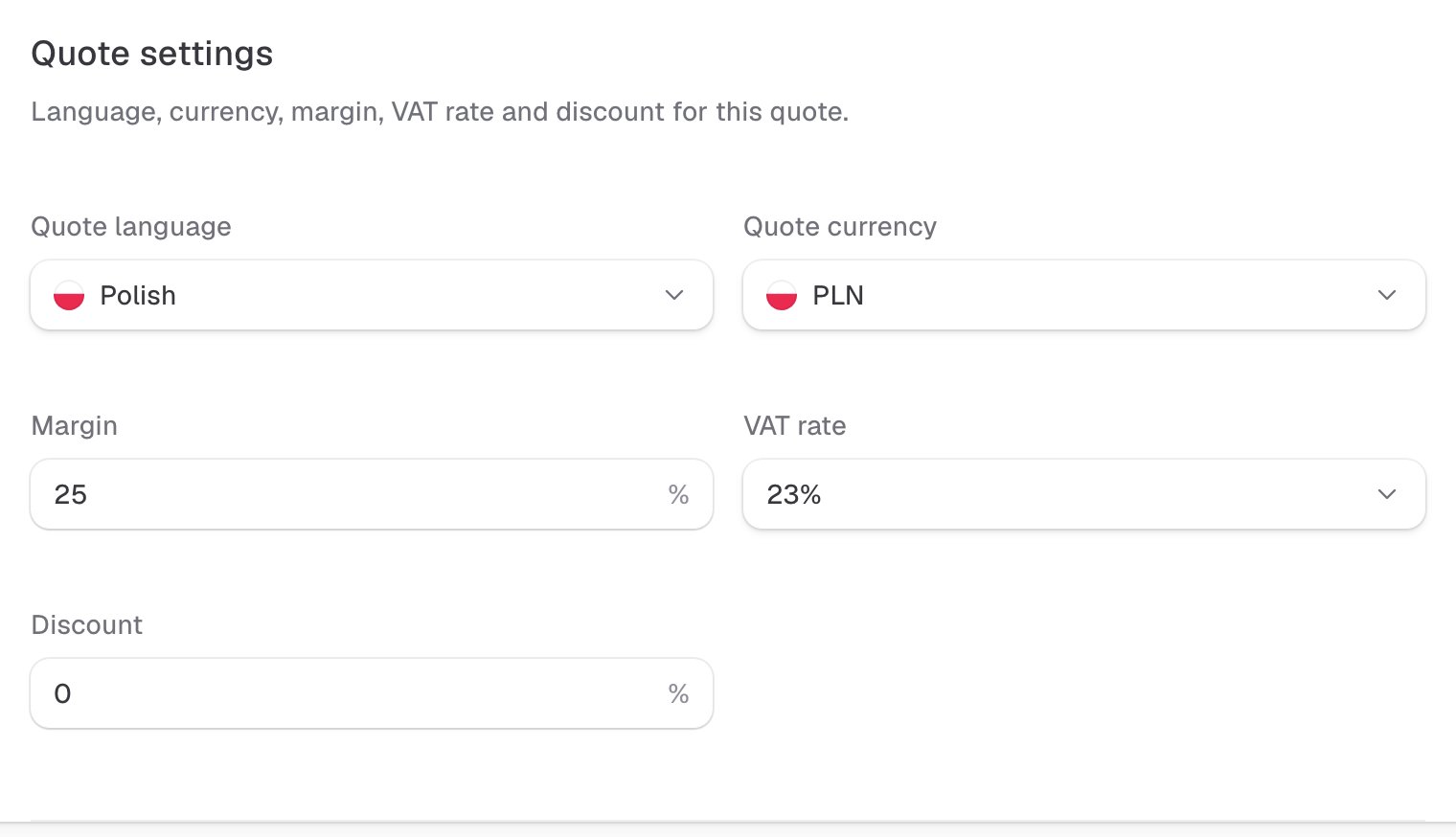
- Quote language: the language of the PDF offer, Polish, English or German. It doesn’t depend on the language you use the app in, so you can prepare an offer for a German client from a Polish interface.
- Quote currency: PLN, EUR or USD. You enter every price in the form in this currency, and the client sees the offer in it. Switching the currency doesn’t convert the amounts you’ve typed, so if you change it, update the rates and material prices too.
- Margin: your markup in percent on top of the production cost, for example 25.
- VAT rate: 23%, 8%, 5% or 0%, for example for exports.
- Discount: a percentage taken off the price after margin, for example 5% for a regular client. Enter a value from 0 to 100. The discount shows as its own line in the summary and on the offer.
Part & material
From the dimensions and material the app works out how much stock you need to buy and what it costs.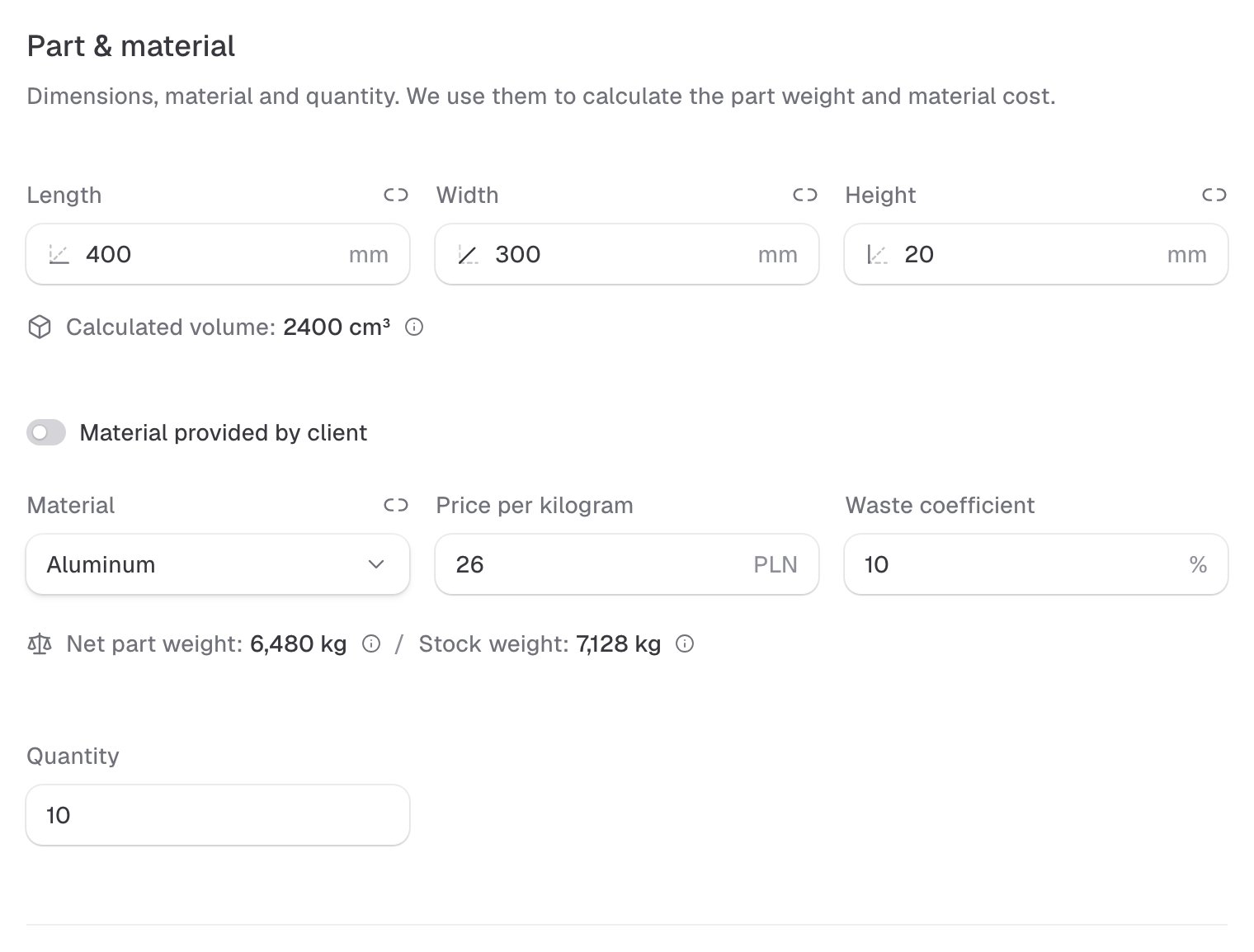
- Length, Width, Height: the overall size of the blank in millimetres. Each must be greater than zero, and the Calculated volume shows right under them.
- Material: steel, aluminium, brass, copper, stainless steel, titanium, POM or PA (Nylon). The app knows each one’s density and works out the weight itself.
- Price per kilogram: what you pay per kilogram of stock, in the quote currency.
- Waste coefficient: the allowance in percent for chips, facing and clamping, from 0 to 100. At 10% you buy a tenth more material than the finished part weighs.
- Quantity: the batch size, for example 200 sleeves. Enter a whole number, at least 1.
CNC machining
These fields turn machine time into money. The client never sees them: the PDF offer shows prices only, without costs, times or rates.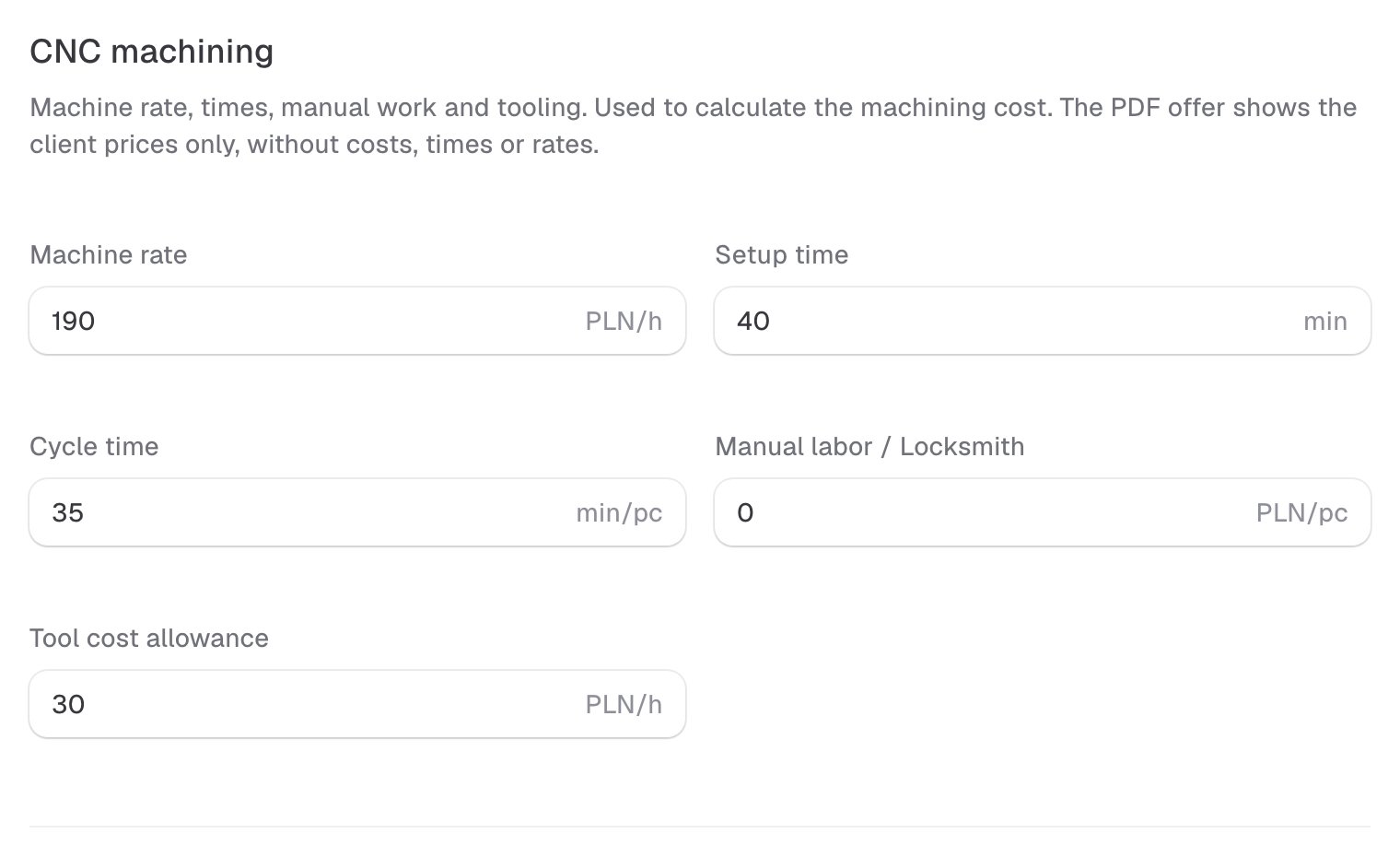
- Machine rate: what an hour of machine time costs.
- Setup time: how many minutes it takes to set the machine up for the whole batch. The app spreads this over all pieces, which is why the price per piece drops as the batch grows.
- Cycle time: how many minutes it takes to machine one piece.
- Manual labor / Locksmith: the cost of hand work per piece, such as deburring or fitting, as an amount.
- Tool cost allowance: tool wear per machine hour. The app charges it for the cycle time of each piece.
Additional costs
Transport, packaging, anodising at a subcontractor, inspection: anything that isn’t your machine’s work goes here.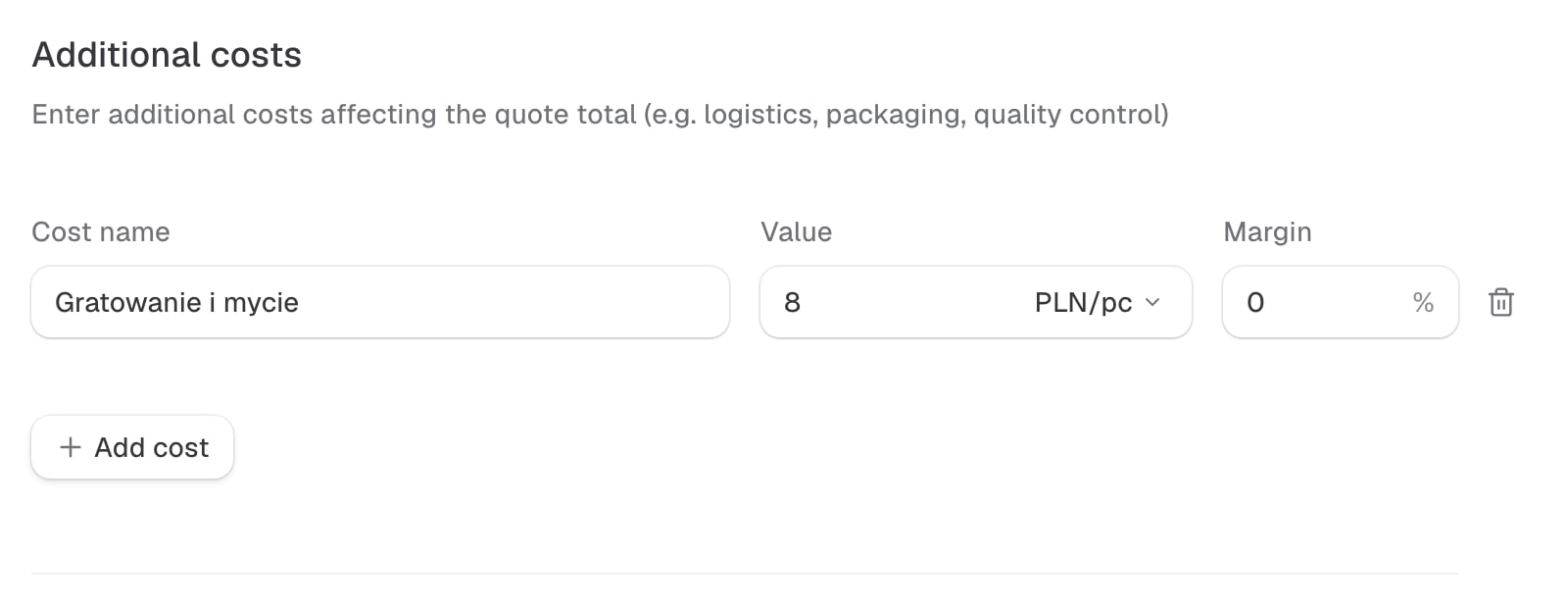
- Cost name: how the item appears on the PDF offer, for example “Anodising”.
- Value: the amount, with its unit next to it.
PLN/pcis multiplied by the quantity, andPLN/totalcounts once for the whole order, like 150 PLN of transport. - Margin: your markup on this cost, from 0 to 100%. You can pass transport on at cost and make money on subcontracted work.
Terms & technical details
Write what the client should read before accepting: payment terms, for example 30 days, lead time, tolerances. This text goes into the “Terms and notes” section of the PDF offer.The client’s drawing and files
In Drawing number or 3D model, enter the client’s drawing number so the team knows which part this is. The field is for you: it isn’t printed on the PDF offer. Attach files with Attach files: images (JPG, PNG, GIF, WebP, BMP), PDF and 3D models (STL, STEP, IGES), up to 20 MB each. Files are saved together with the quote and belong to the order, so every quote in that order can see them. If you attach a 3D model, you can take the dimensions from its bounding box: hover over a dimension’s name and click Fill in dimensions from the model file.Change a saved quote
Material prices went up, or the client wants a different batch? In the quote list click Open next to the quote, change the fields and click Save. You’ll see a confirmation and return to the list. If you haven’t changed anything, Save just closes the quote. Changed your mind halfway? Click Cancel or the back arrow next to the quote number. If you have unsaved changes, the app asks Discard changes?. Click Back to editing to keep them or Discard changes to drop them. An attached file counts as a change too.If a teammate saves the same quote before you finish, you’ll see “Someone saved this quote in the meantime”. Click Load current version to see the saved version (your changes are lost), or Overwrite with my changes to save yours.
Change the status of a quote
The status tells you and your team where the offer stands. You set it by hand: click the status badge next to the quote’s name and pick a new one. On a saved quote the change is saved at once. On a new quote the status you pick is saved with it when you click Create quote.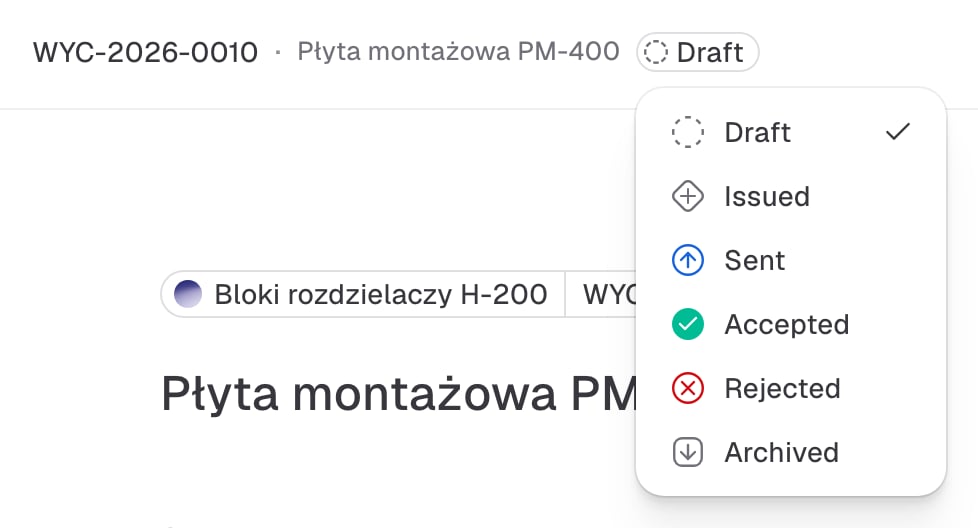
Quotes that are Sent, Accepted, Rejected or Archived still open and can be edited, but a warning shows at the top of the form. That way you won’t quietly change an offer the client already has.

Delete a quote
Delete quotes created by mistake, such as duplicates. If an offer is just out of date, set it to Rejected or Archived instead and it stays in your history.1
Open the quote's menu
In the quote list, hover over the row and click the three-dot icon on the right.
2
Delete and confirm
Choose Delete quote and confirm in the Delete quote? dialog. The quote disappears from the list.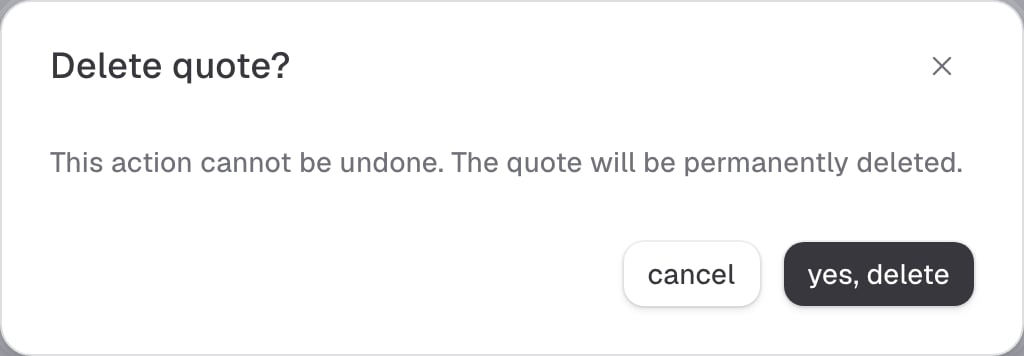
Who can create and edit quotes?
Creating, editing, changing the status of and deleting quotes need the Edit production data permission. The owner, admins and members have it by default. Without it you can still open a quote and download its PDF, but you’ll see a View only badge, and the fields and Save are disabled. Ask the company owner for access. What each role can do is in Roles and permissions.What’s next?
How is the price calculated?
Check step by step where every amount in the panel comes from.
Statuses and the PDF offer
Send the client the offer and track what happens to it.
The quote list
Find quotes, filter, sort and change several at once.